
The Steam Frame is a great way to game in virtual reality. I’ve been testing it for three weeks and I’ve played more VR games in that time than I have in many months. That’s because, above all else, it’s convenient. What used to slow me down with other headsets is mostly a thing of the past. I place the Steam Frame on my head and pick a game to play; VR has never been easier.
But I haven’t always been sold on the Steam Frame. I spent the week prior to its arrival playing on the Pimax Dream Air, which includes the most spectacular Micro-OLED displays. That is a tough act to follow for any VR headset, let alone one with optics not dissimilar from the three-year-old Quest 3. As a long-term VR user and someone that’s been privileged to play most of the best VR headsets in recent years, the Steam Frame felt too familiar an experience out of the box.
Over many weeks of testing, I’ve noticed more how the Steam Frame has eased a few of my fundamental gripes with virtual reality; things that cause me to leave my other headsets to gather dust on the shelf. Like how often I need to set up my playspace, set the floor height, peer out from my headset at my computer, adjust the strap, or untangle myself from a cable.
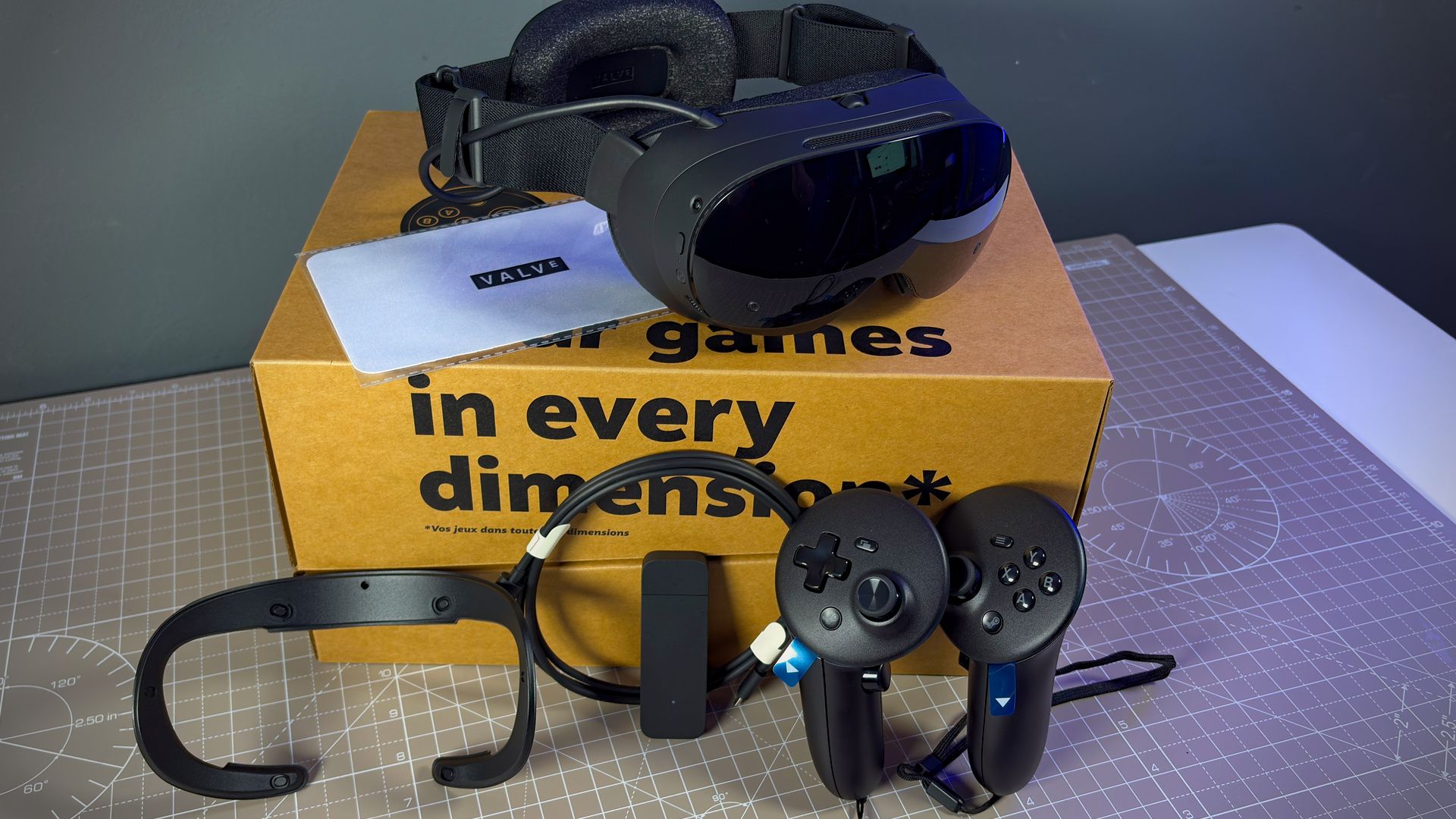
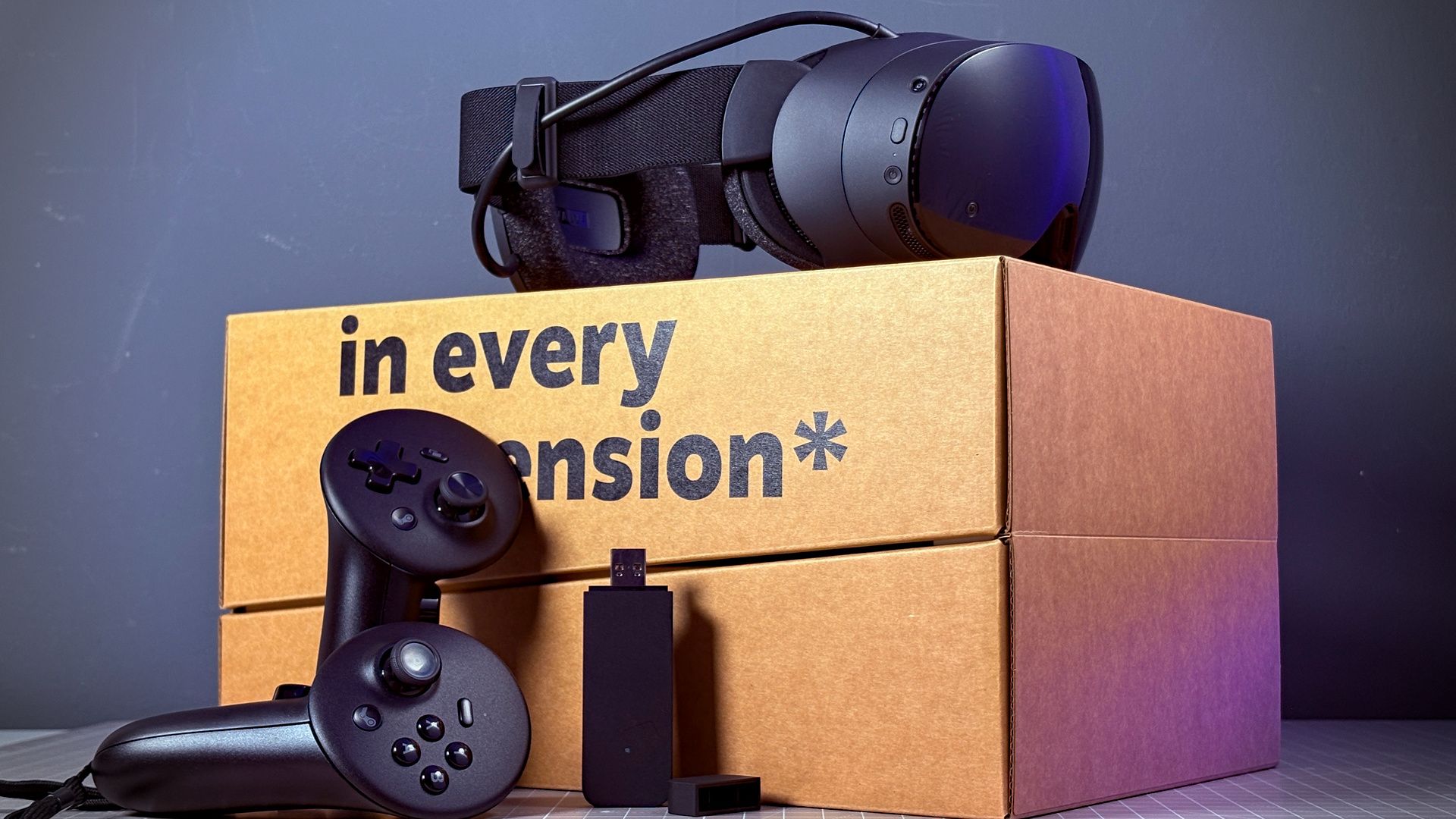
A wireless dongle included with the Frame takes care of the cable, delivering a seamless and reliable connection between it and a gaming PC. The fully-featured SteamOS means the first step upon donning the headset is choosing a game, and the second step playing it. The included controllers work with every game, VR or non-VR, and are tracked with pinpoint accuracy. And with such a lightweight design, this is one headset I’m not in a rush to take off.
I want to use the Steam Frame more than any other headset I own right now. That includes some that are double the price. Ack, I’ve mentioned money. Now I have to do the hard thing and bring this spiralling back down to Earth: The Steam Frame starts out a $1,059 for the 256 GB model. I haven’t spoken to anyone, even Valve employees, who has much positive to say about the price. The memory crisis has done a number on the Steam Frame, as it did the Steam Machine.
The Steam Frame isn’t a cheap way into virtual reality for the masses. It has to be viewed as an enthusiast offering; or, at the very least, you have to care a bit about VR to purchase one. Those of us wanting to try VR for the first time are still better off with a Quest 3 or Quest 3S for value for money; and those of us that already own a Quest 3—that’s a lot of us—it’s a tough upgrade, lacking any major visual overhaul. There are undoubtedly better options for enthusiasts looking for that, like the Bigscreen Beyond 2. Yet it is far more convenient than high-end headsets that still rely on Base Stations or heavy tethers.
Ultimately, I believe VR to be a holistic experience. Focus all your efforts on one aspect of a headset and the user experience is likely to suffer moreover for something else; the weakest link. Take it from me, even high-end optics fall flat after the umpteenth time resetting your playspace due to poor tracking. The Steam Frame does, then, have its virtues: It’s by far the best all-round VR headset for user experience, with no major faults besides the price; it’s just that price matters more than most.
Buy if…
✅ You want it quick and easy: Set-up is easy on the Steam Frame, thanks to excellent inside-out tracking. Once it’s done, you won’t have to keep redoing the same thing every time you want to play.
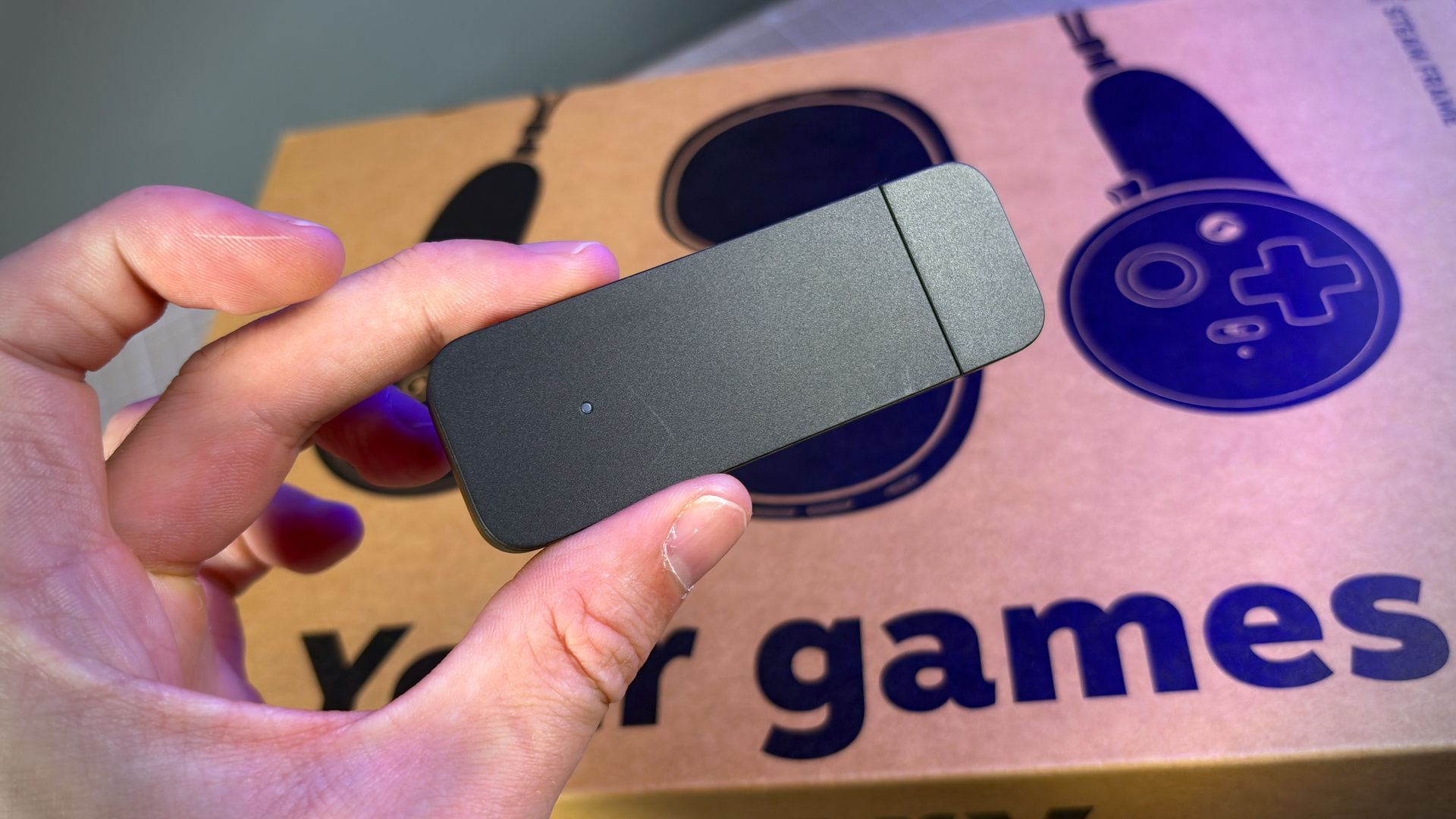
✅ You want to cut the cord: There’s no smoother way to ditch a cable than with Valve’s Wireless Adapter and Foveated Streaming.
Do not buy if…
❌ You want a big visual upgrade over a Meta Quest 3: The Steam Frame has a lot of benefits over a Quest 3, but it’s pretty closely matched for image quality.
Steam Frame – Gallery
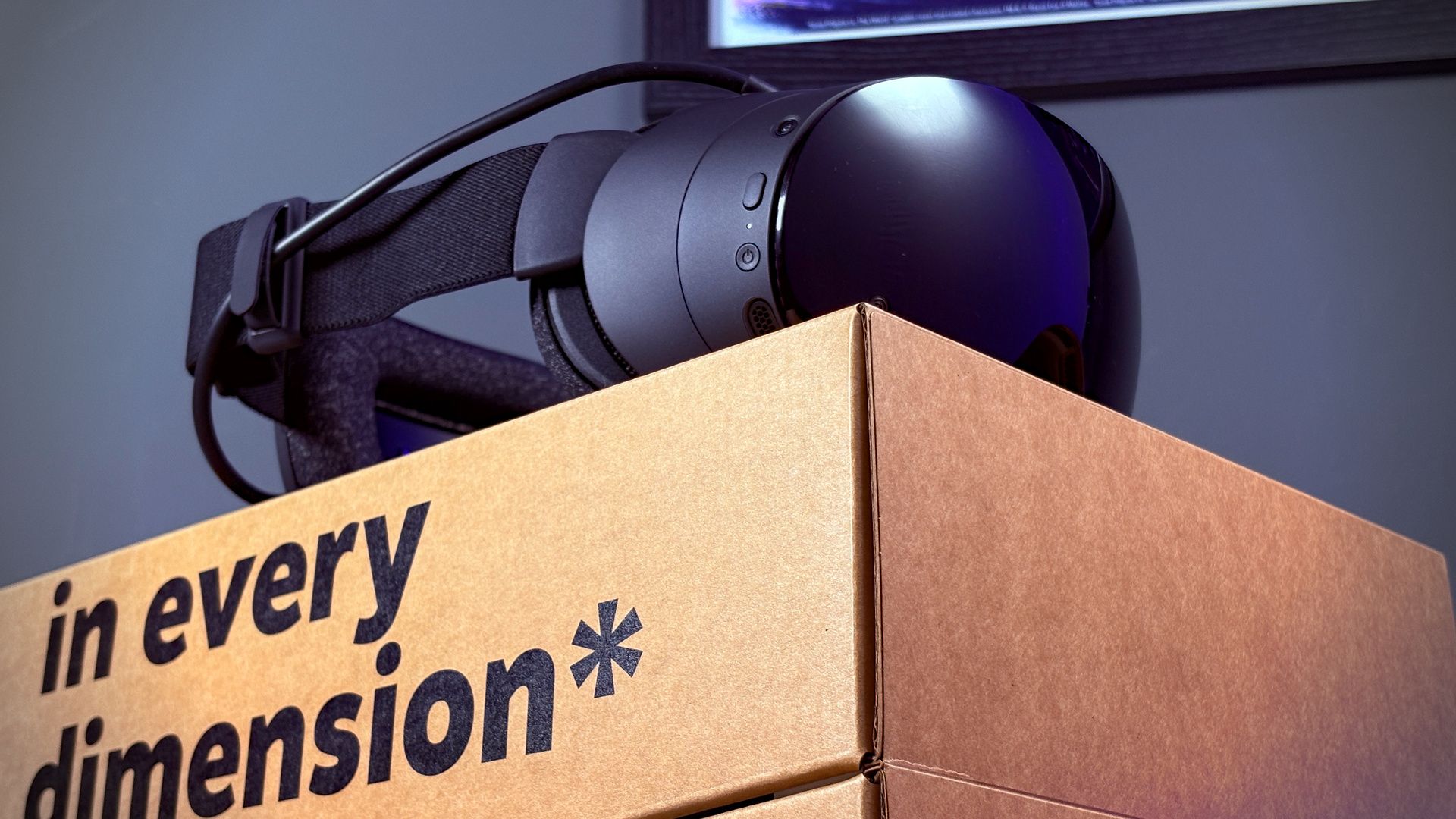
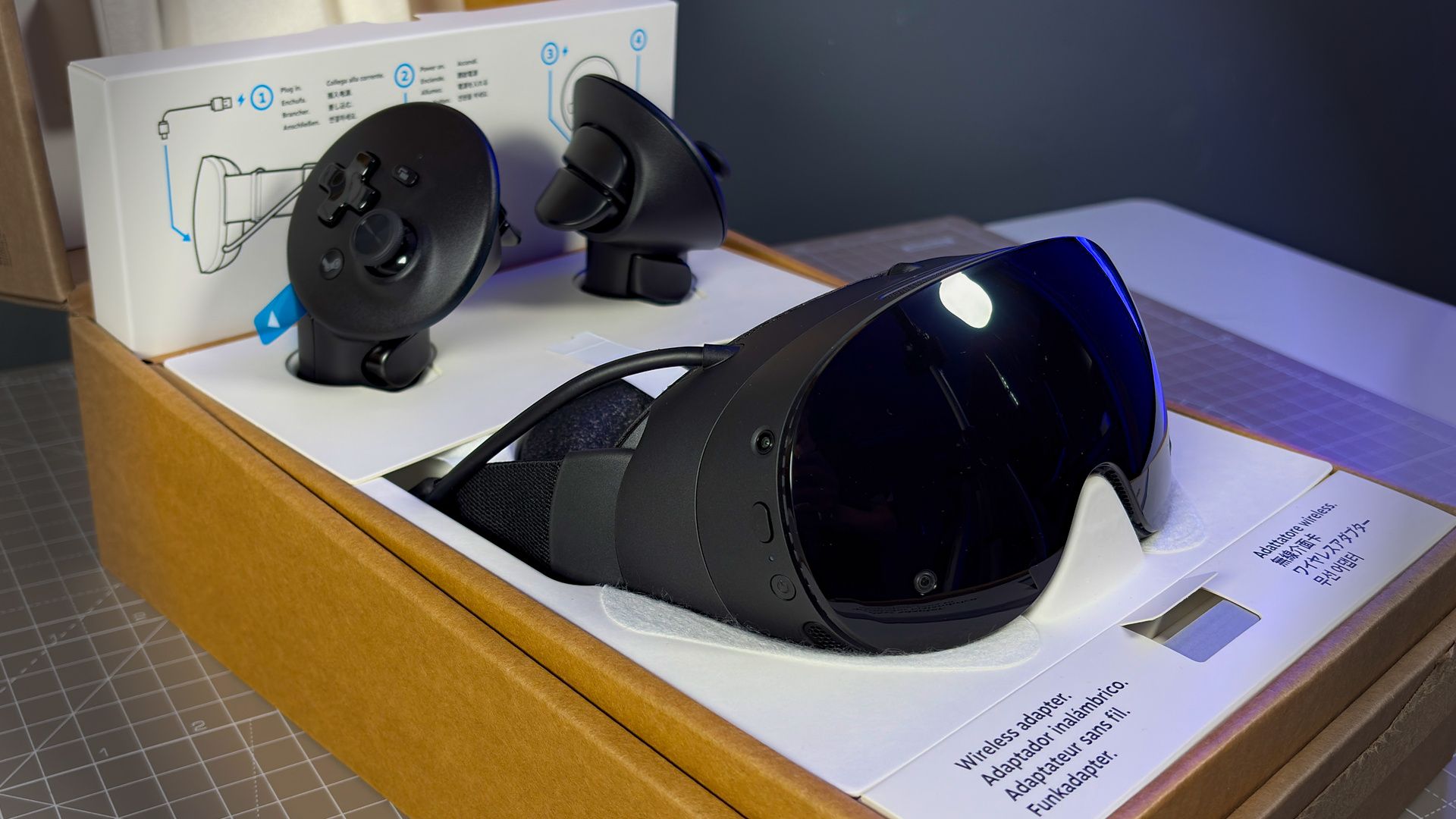
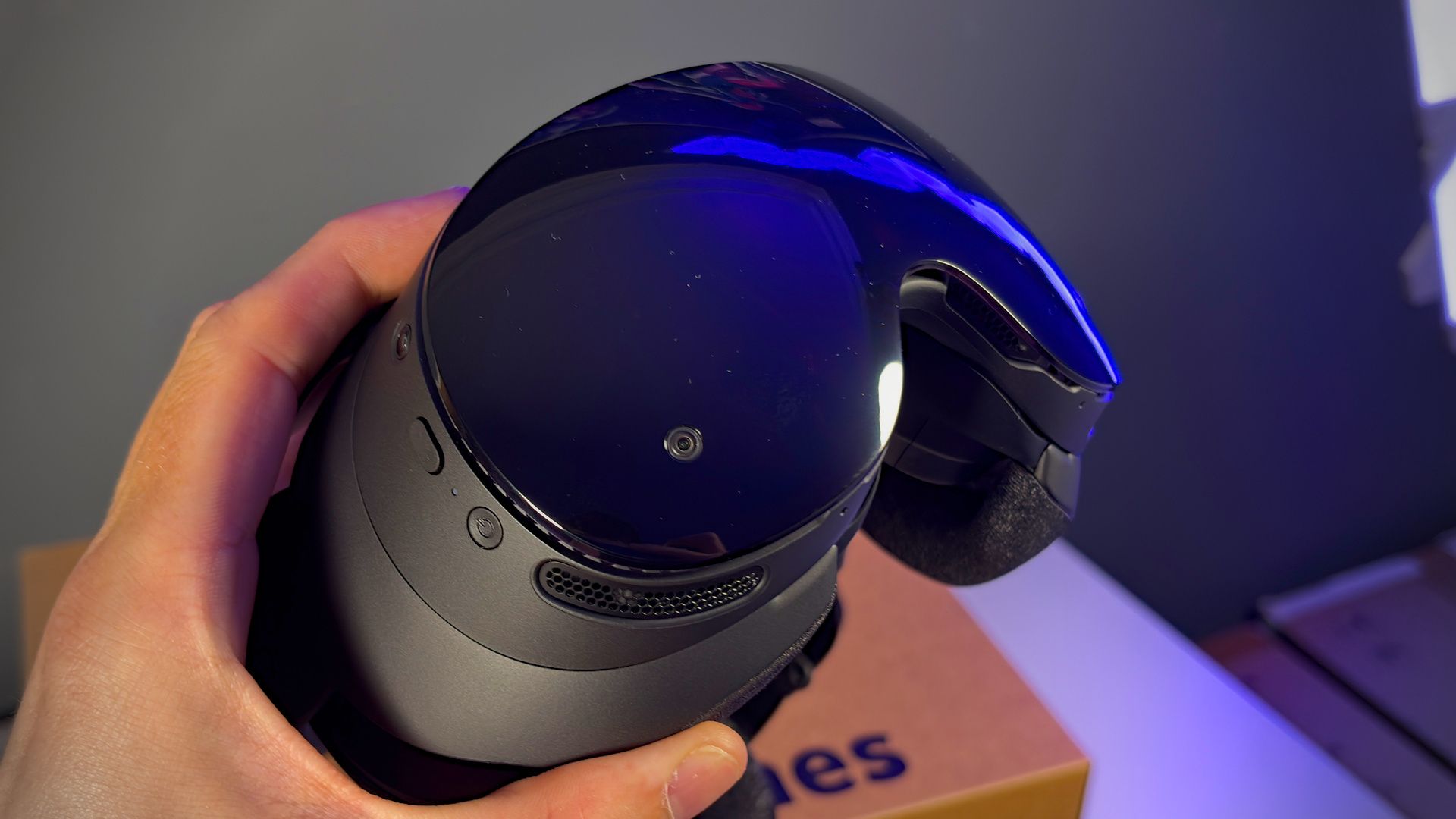
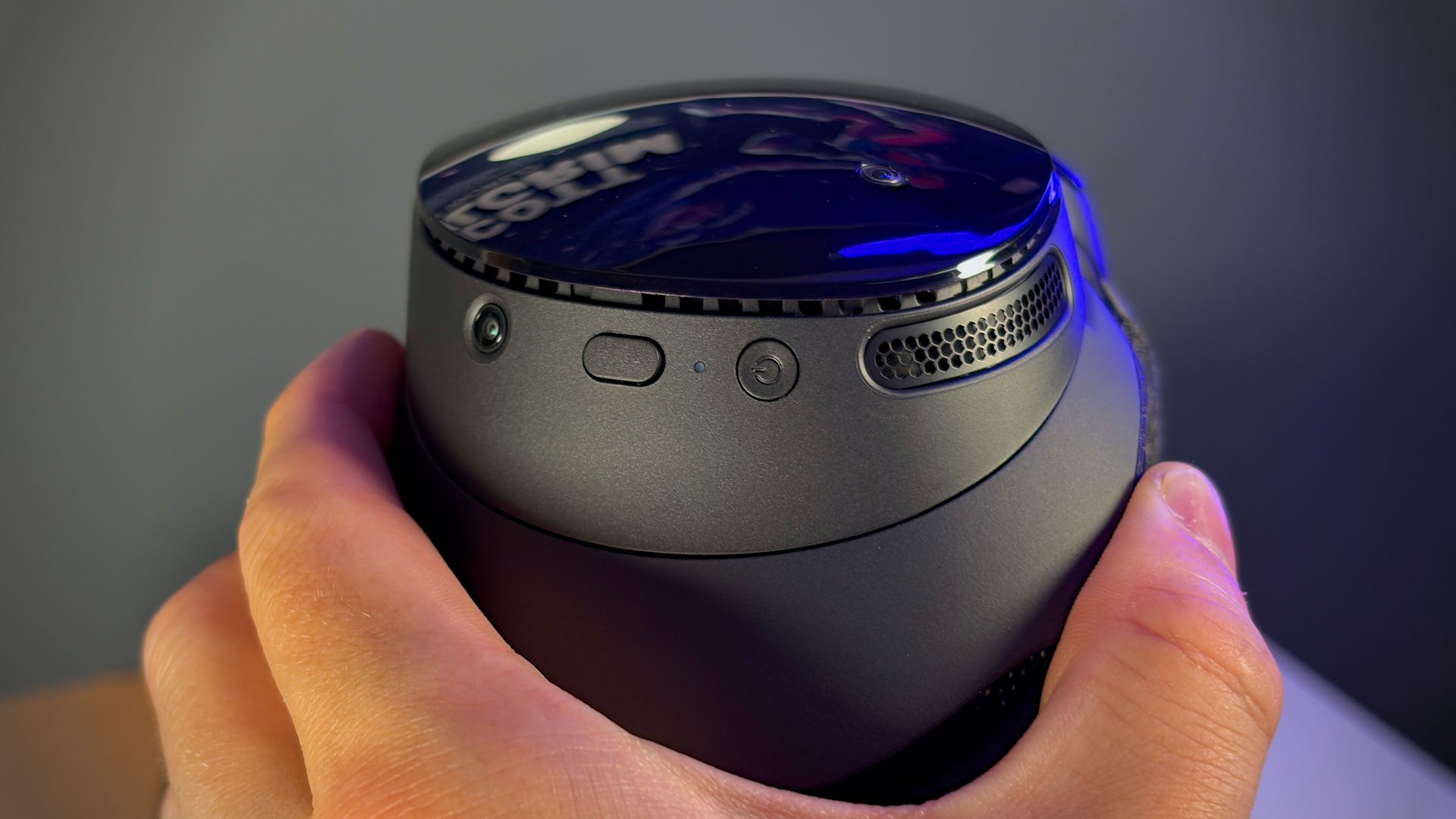
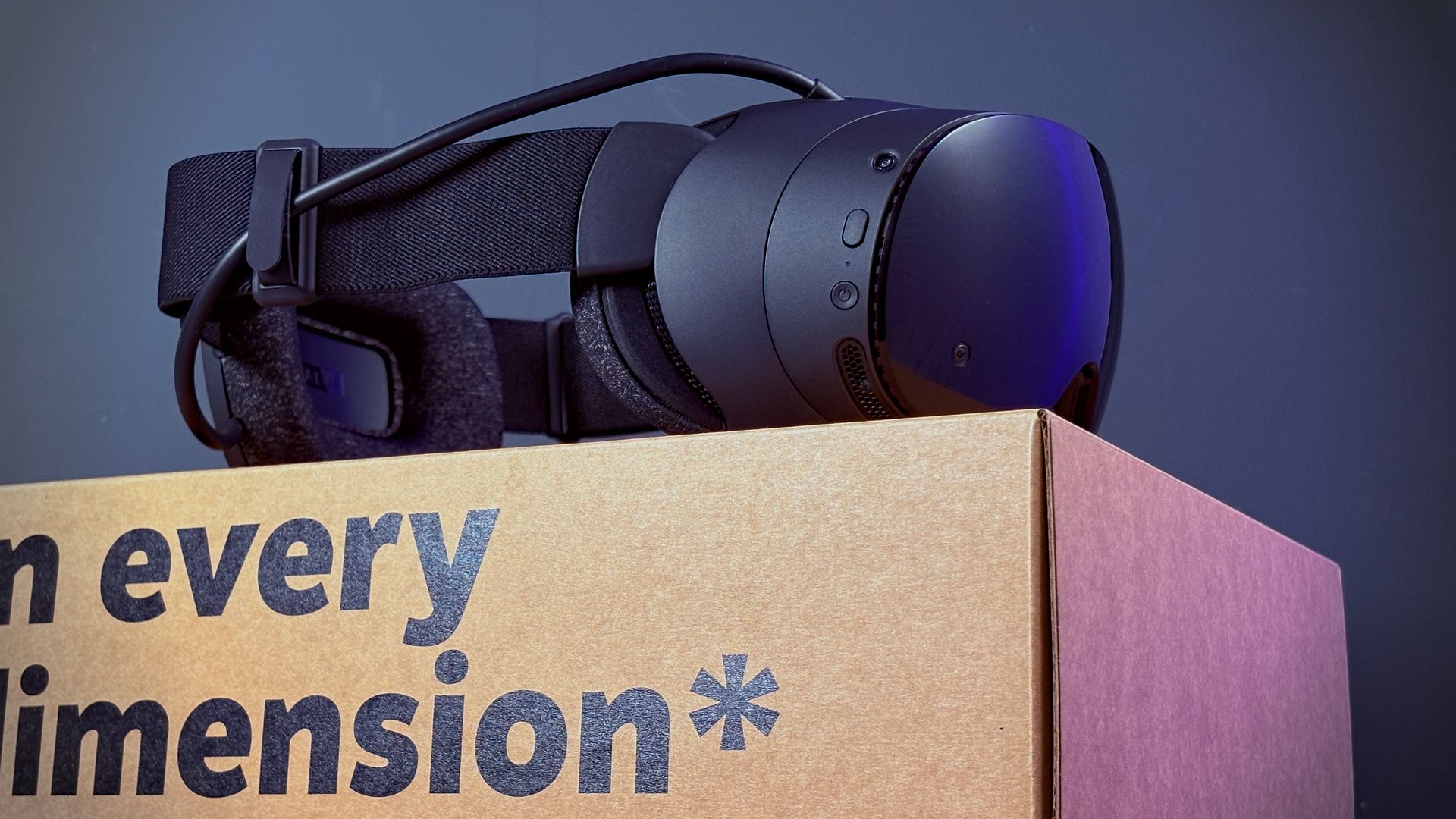
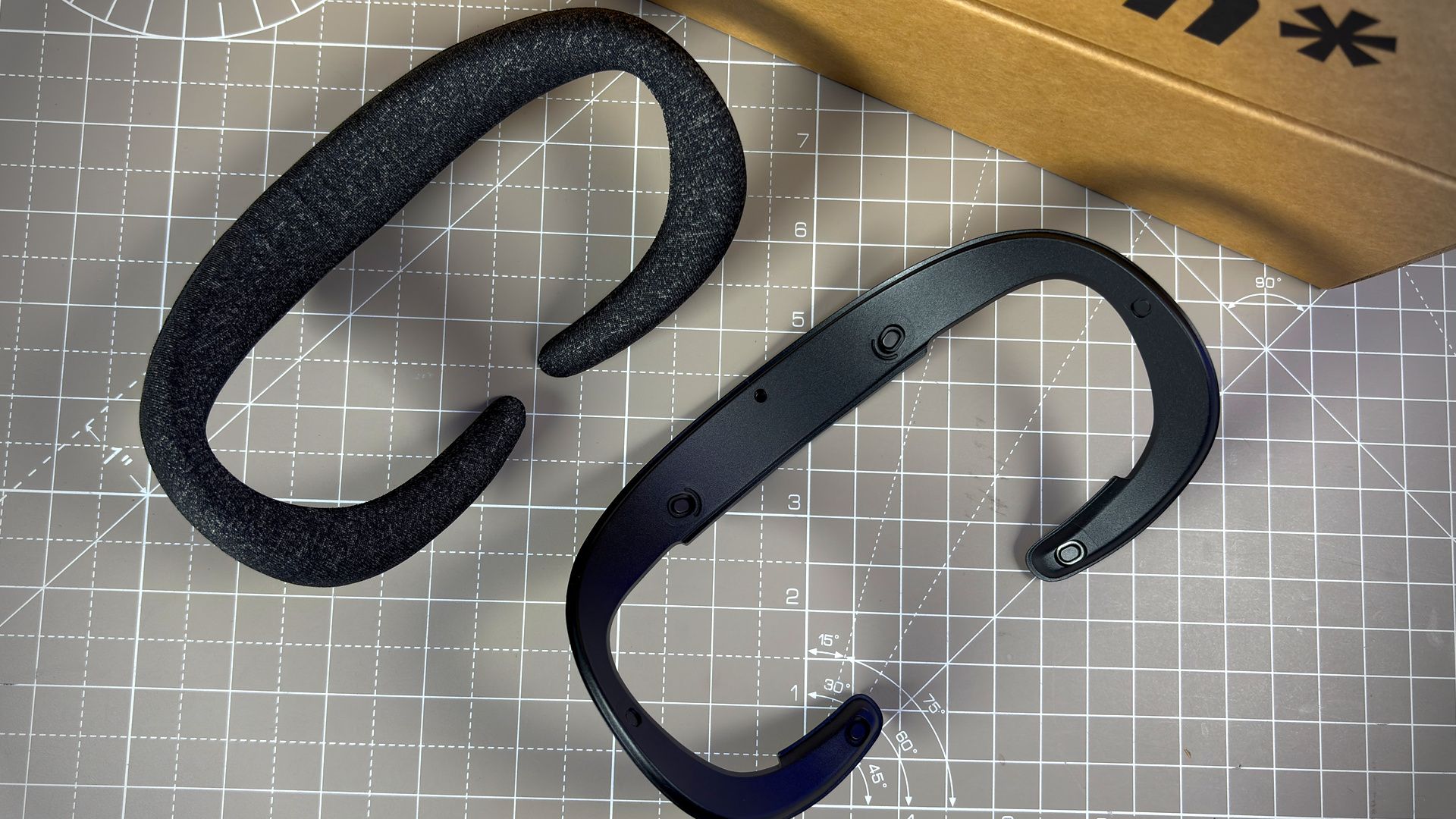
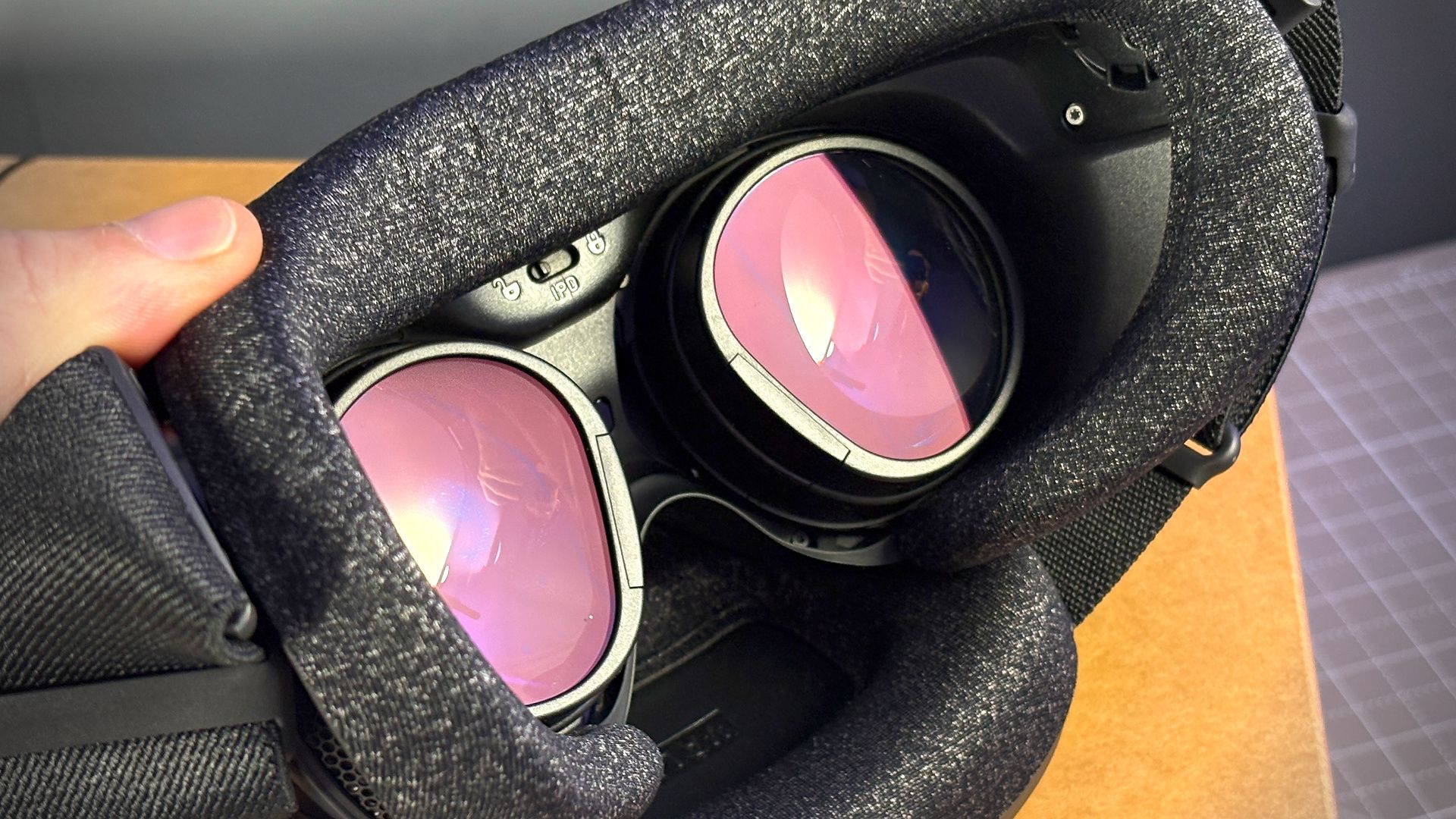
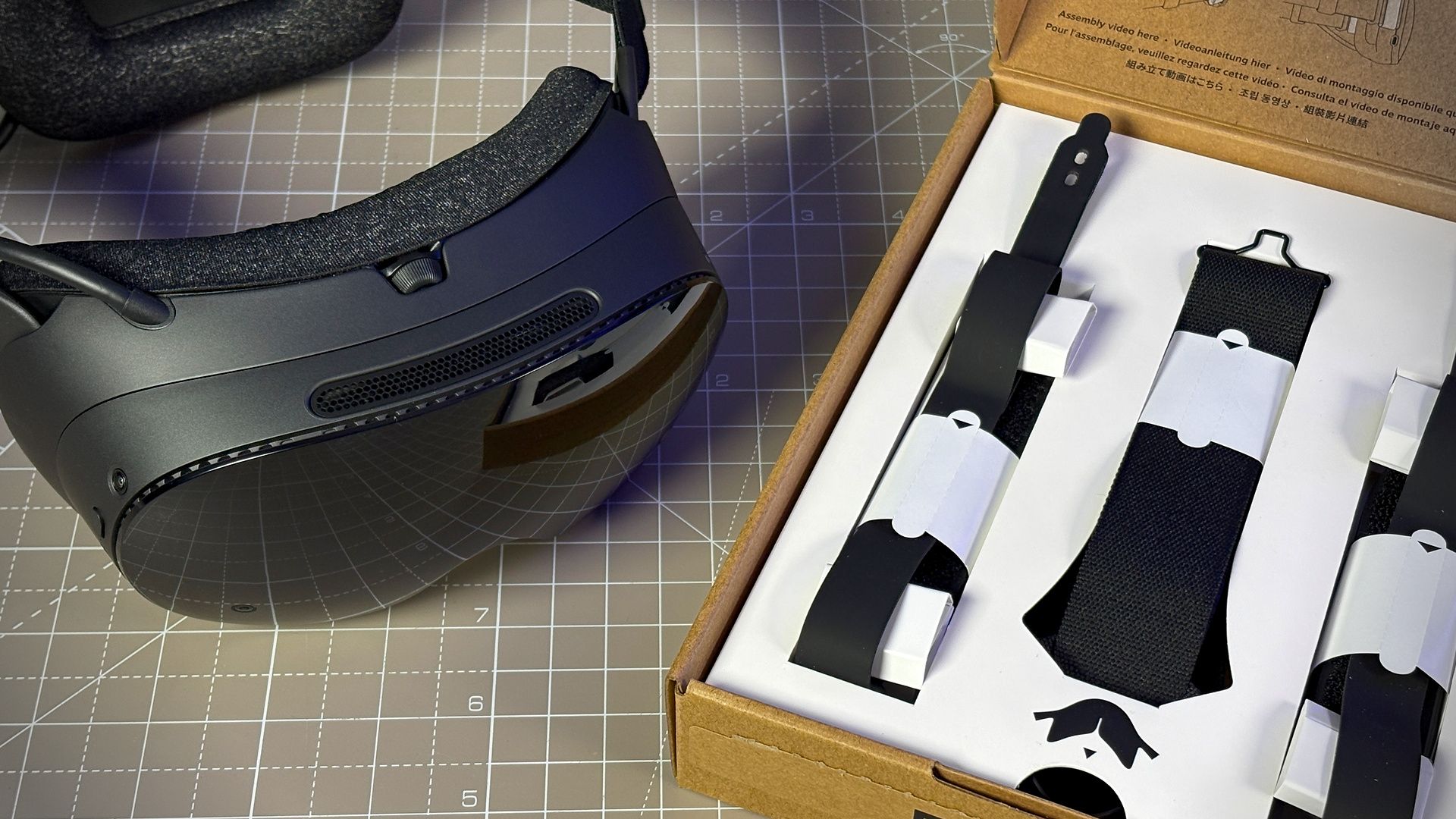
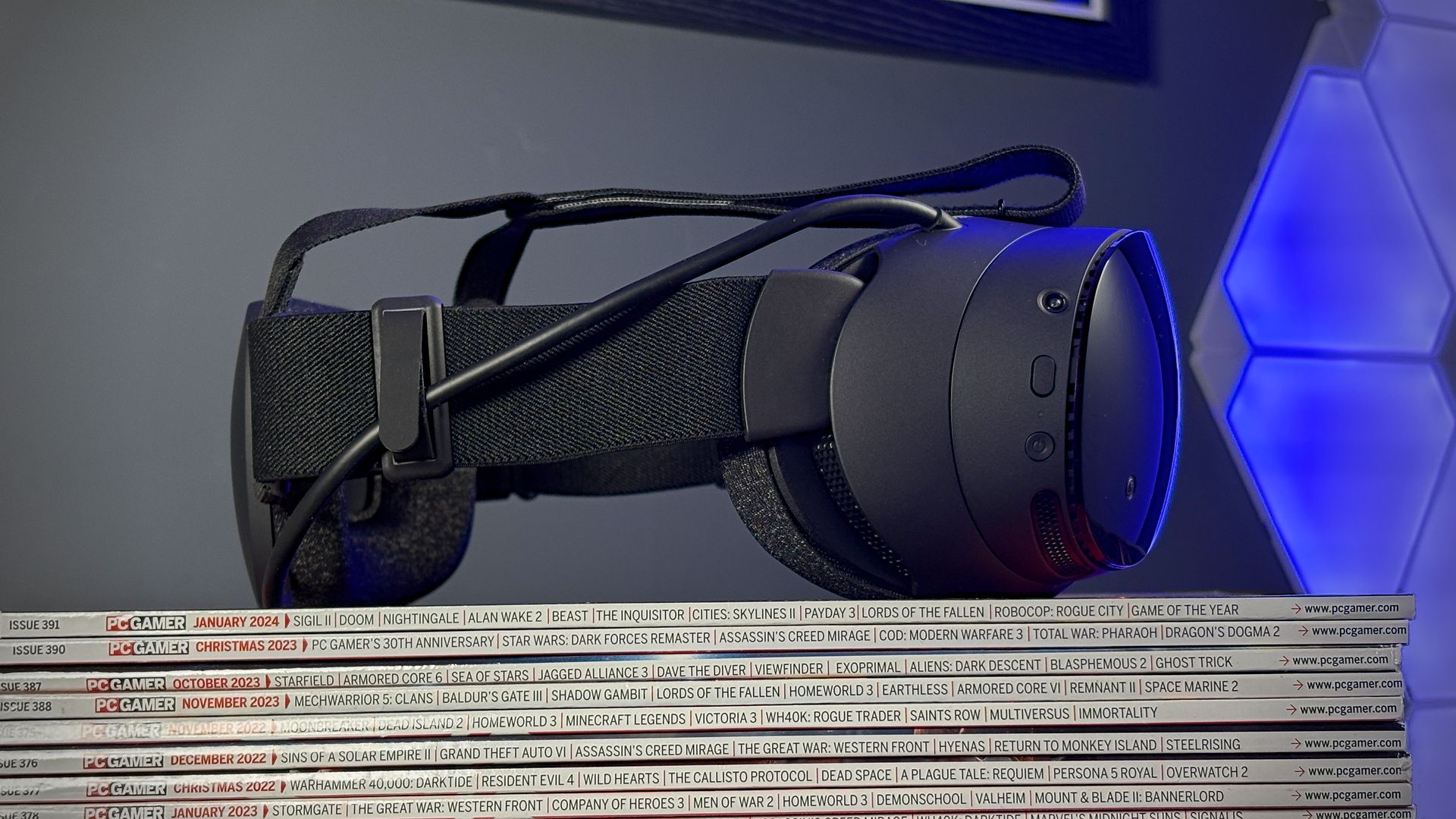
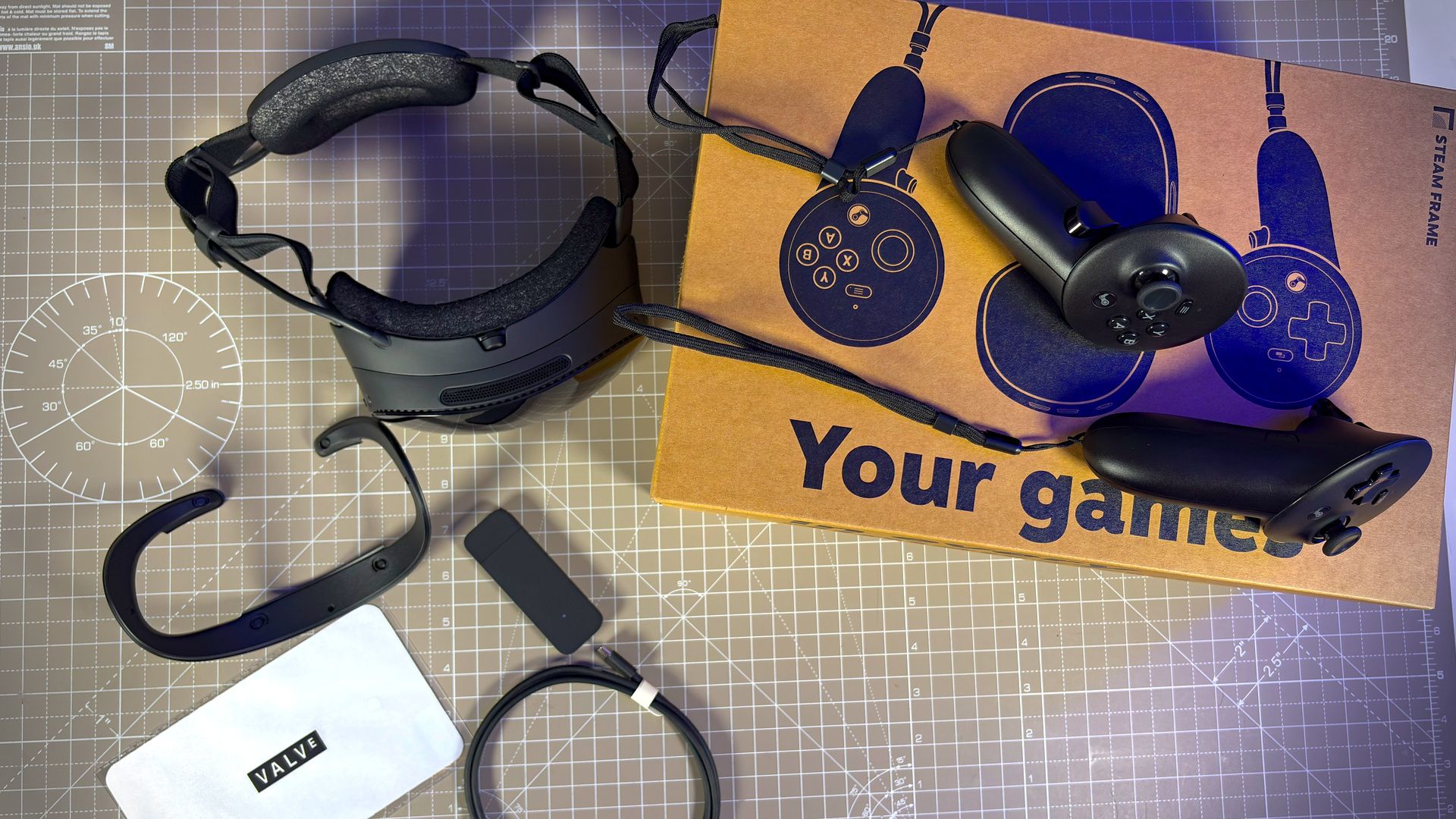
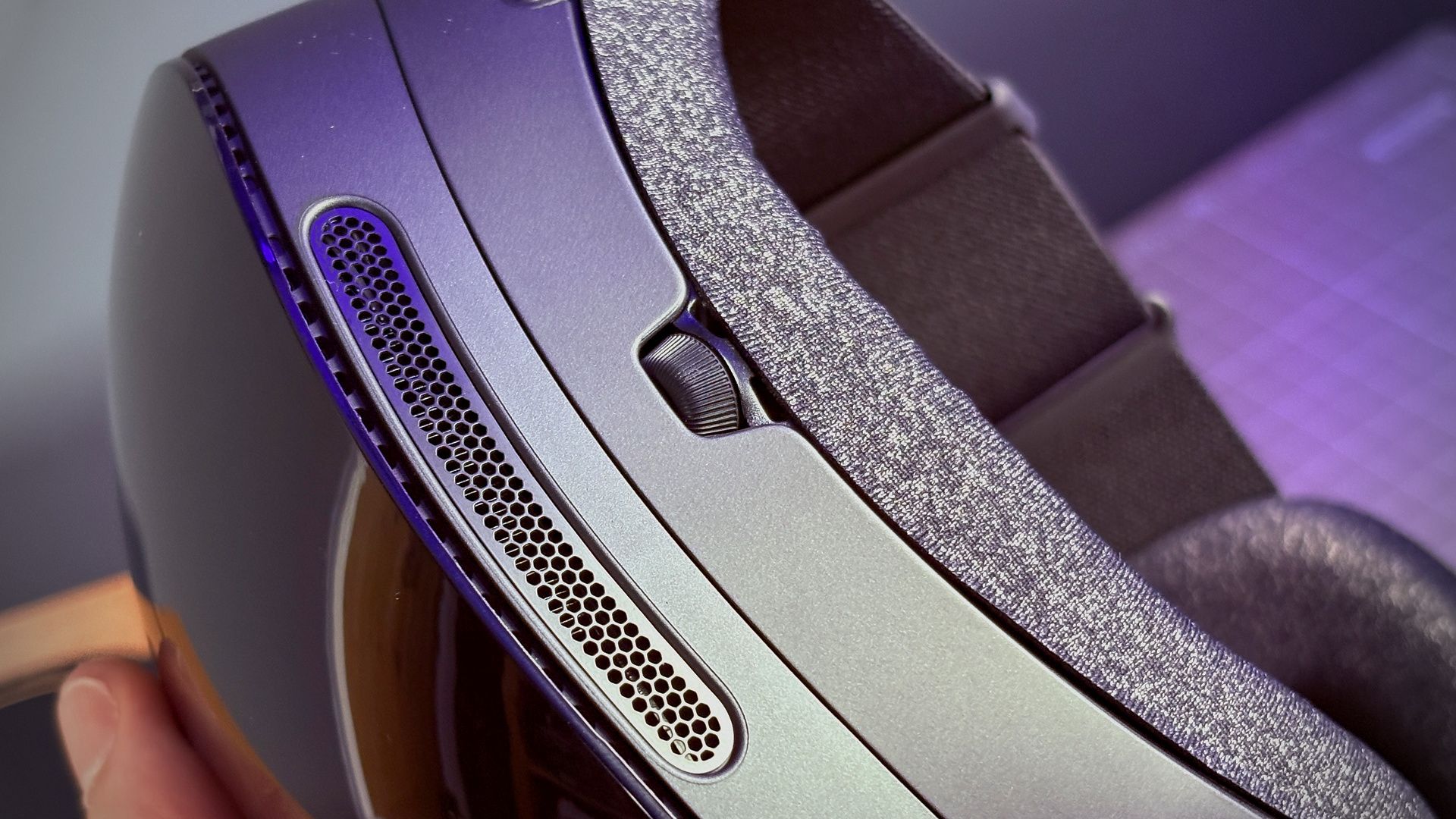
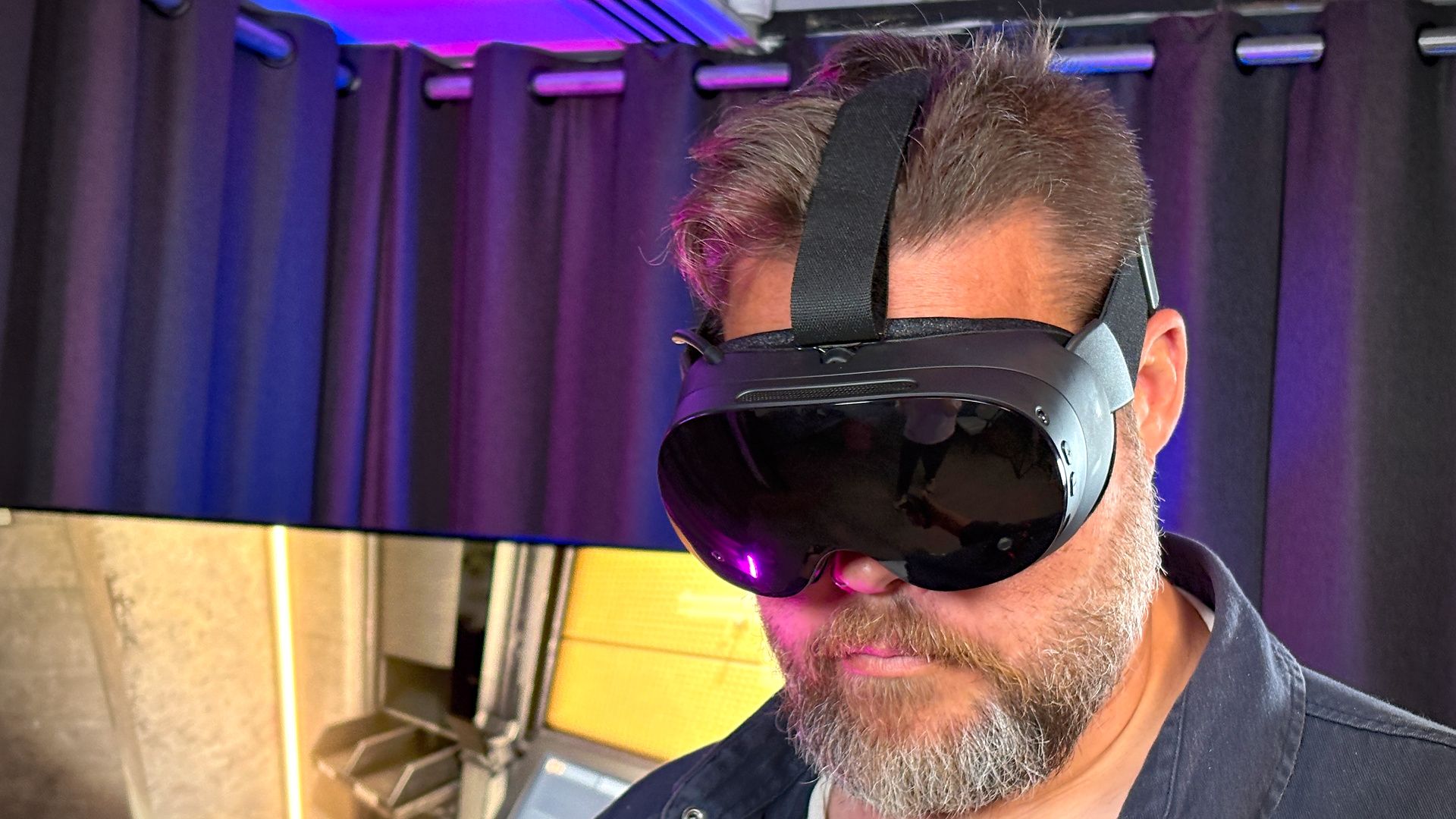
Steam Frame – Features
|
Steam Frame |
Quest 3 |
|
|
Screens |
Two LCD |
Two LCD |
|
Resolution (per-eye) |
2160 x 2160 |
2,064 × 2,208 |
|
Refresh rate (Hz) |
72, 90, 120, 144 (experimental) |
72, 90, 120 |
|
Optics |
Pancake |
Pancake |
|
IPD adjustment |
Variable with dial |
Variable with dial |
|
Field of view (horizontal) |
Up to 110 degrees |
110 degrees |
|
SoC |
Qualcomm Snapdragon 8 Gen 3 (SM8650) |
Qualcomm Snapdragon XR2 Gen 2 |
|
RAM |
16 GB LPDDR5 |
8 GB LPDDR5 |
|
Storage |
256 GB / 1 TB |
128 GB (discontinued) / 512 GB |
|
Battery |
21.6 Wh |
19.44 Wh |
|
Passthrough |
Mono |
Colour |
|
Cameras |
6 total (4x monochrome computer vision tracking exterior, 2x eye tracking interior) |
6 total (2x RGB passthrough, 4x IR) |
|
Speakers |
Twin-driver (two per side) stereo speakers, integrated into strap |
Stereo speakers, integrated into strap |
|
Connectivity |
Wi-Fi 7 2×2 |
Wi-Fi 6E |
|
Controller |
2x Steam Frame Controller |
2x Meta Quest Touch |
|
Controller battery |
1x AA per controller |
1x AA per controller |
|
OS |
SteamOS (Linux) |
Meta Horizon OS (Android) |
|
Weight (grams) |
408 |
437 |
|
Price |
256 GB: 1,059 USD / 1,529 CAD / 1,049 EUR / 889 GBP / 1,609 AUD 1 TB: 1,299 USD / 1,859 CAD / 1,279 EUR / 1,089 GBP / 1,969 AUD |
512 GB: 600 USD / 830 CAD / 620 EUR / 469 GBP / 968 AUD |
Steam Frame – Optics
The Steam Frame’s optics are, on paper, the least exciting thing about it. We’ve seen a handful of headsets with similar configurations, from the Quest 3 to the Pico 4 Ultra; neither of which are brand new.
Graphical fidelity feels much the same on the Steam Frame as the Quest 3. There’s an amount of aliasing (jaggies) on straight lines and sharp details, which adds a touch of flicker as your head moves around. There is also a slight hint of chromatic aberration to the edge of some brighter details, such as the Steam Frame logo upon startup, though this is quite minor.
Text is clear to read when scaled appropriately, though can get tougher to make out when it’s outside of the fairly large focal area of the pancake lenses or at a greater distance. Similarly, some details in game worlds can be lost when viewed from far away, and objects with meshes can get a little distorted or flicker—something that higher-end headsets, like the Pimax Crystal Super or Dream Air, don’t suffer from. Those two headsets are available with Micro-OLED displays, which offer much more vibrancy and range of colour than the Steam Frame, but for huge price tags.
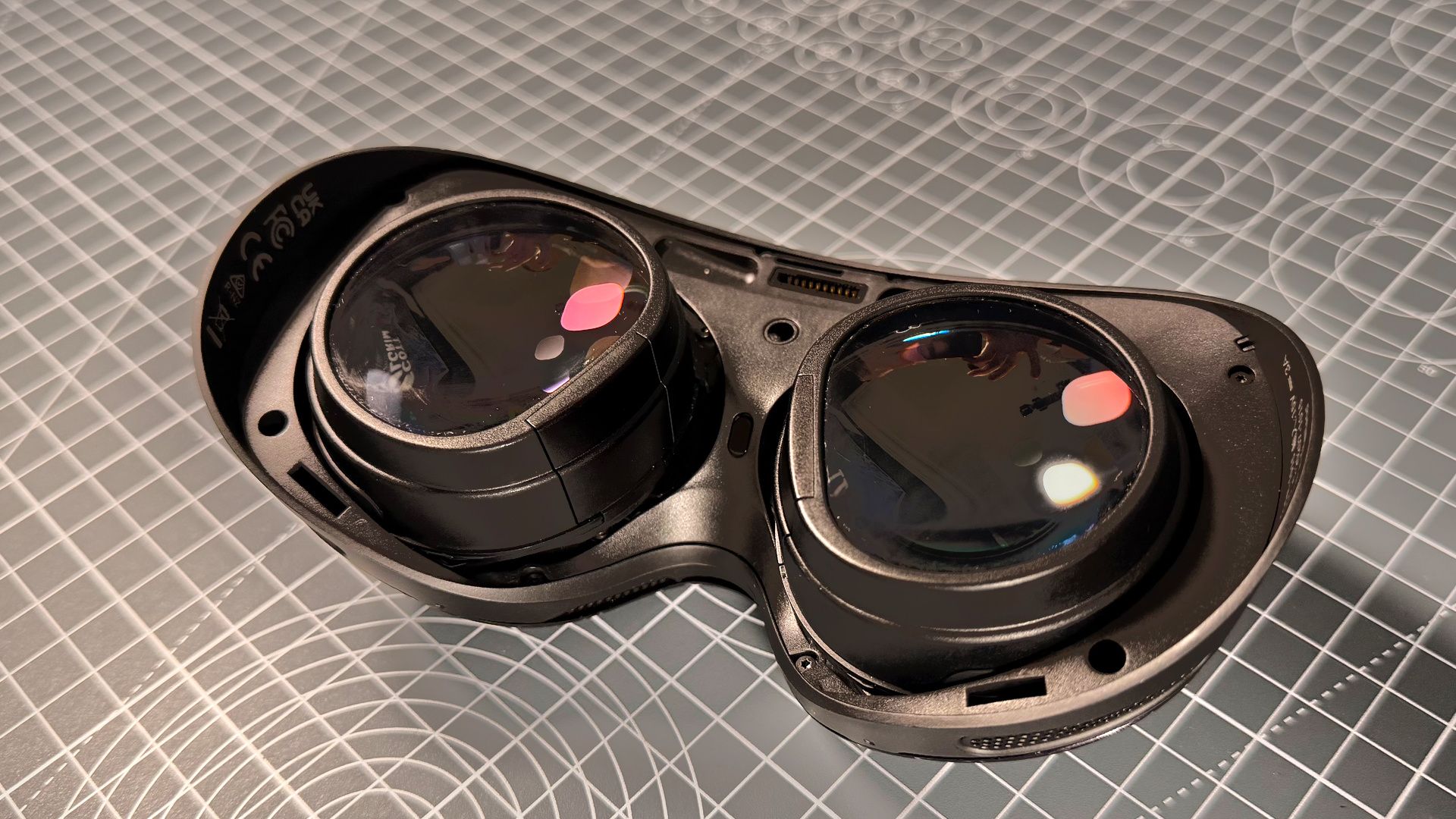
The Steam Frame is right up there with the best of them for binocular overlap.
The Steam Frame offers, more or less, a level of quality that I’ve become accustomed to in relatively affordable VR headsets.
Where the Steam Frame outperformed my expectations is in binocular overlap. This is the amount of an image (given as a percentage) that is covered by both left- and right-side displays at the same time. It’s not as often talked about as resolution and refresh rate, but it’s hugely important for long-term comfort while wearing a VR headset. The Steam Frame has a pretty high binocular overlap, according to my own testing in the ‘What is my Field of View?’ application (more commonly called WimFov). This is with an IPD set to 64.
- Steam Frame – 77%
- Meta Quest 3 – 69%
- Pimax Crystal Super 50 PPD – 77%
- Pimax Crystal Super Micro-OLED – 86%
- Pimax Dream Air (standard FOV) – 86%
- Pimax Dream Air (wide FOV) – 77%
The Steam Frame is right up there with the best of them for binocular overlap, beaten only by the Micro-OLED optics used in both the Crystal Super and Dream Air. The Quest 3 has a lower level of binocular overlap, which can lead to discomfort or worsened 3D effects, though it does depend on your IPD and various other biological factors. I tend to struggle with headsets with a low overlap over time; they strain my eyes.
Binocular overlap, as measured in WimFov



Valve is pretty honest when it comes to the FOV. The Steam Frame’s horizontal field of view (HFOV) is noted as ‘up to 110 degrees’, and lo and behold, I measured it at that. That’s not as common as you might think. I often find the effective HFOV to be lower than the stated FOV. For example, all three of the headsets in the table below have a listed HFOV of 110 degrees.
|
Horizontal field of view (HFOV) |
Vertical field of view (VFOV) |
|
|
Steam Frame |
110 |
88 |
|
Meta Quest 3 |
104 |
80 |
|
Pimax Dream Air |
90 |
88 |
There are a range of factors that can have an effect on effective FOV, not the least bit my own biology. Yet one big factor is the design of the padding between one’s face and the lenses. Valve seems to have nailed the padding design to maximise the effective FOV; thick enough as to not be a detriment to the long-term comfort yet ensuring a one’s eyeballs are right up to the lenses. Using the glasses spacer included with the Steam Frame will knock this back a touch.
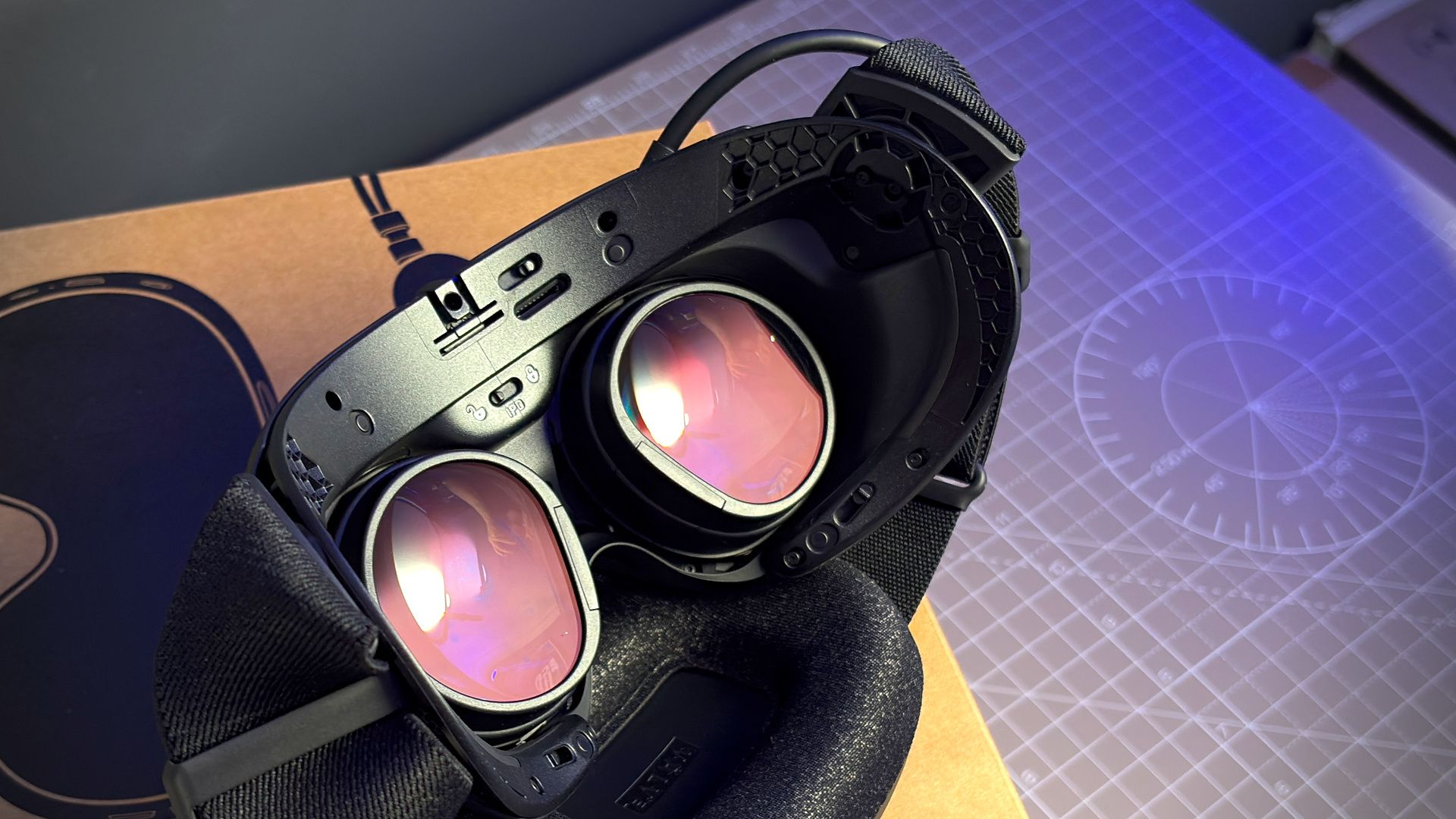
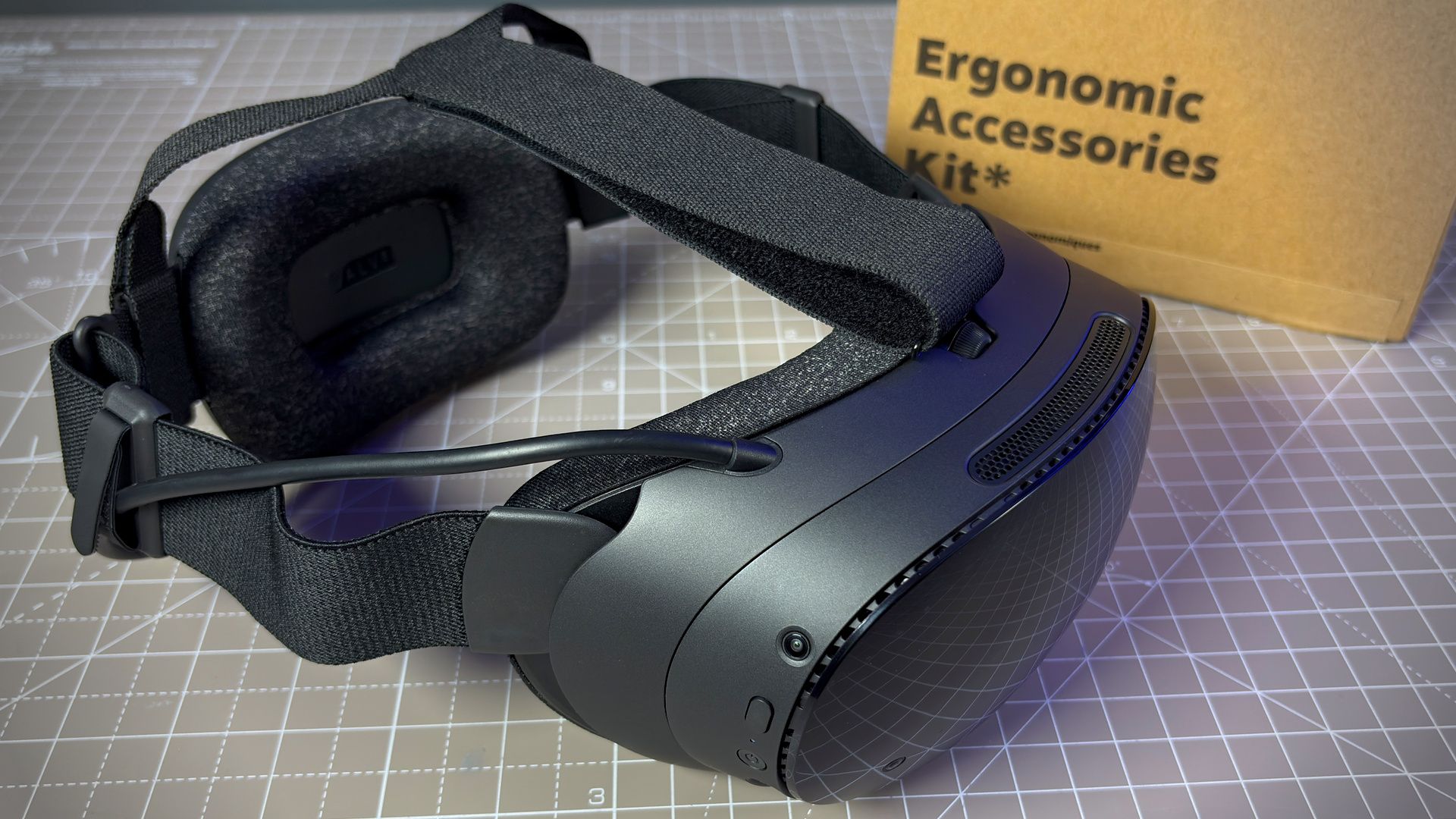
Beyond the numbers, the Steam Frame’s optics plonk you right into the game world. There’s no visible distortion until the very extremes of the lenses, and even then it’s not that bad by comparison to some. The gap around the nose is a little noticeable during gameplay, and made worse by the glasses spacer, but you have to be kinda looking out for it to notice it too much. That can be reduced with the extended light blocker in the Ergonomic Accessories Kit for an additional $59 (89 CAD / 69 EUR / 59 GBP / 99 AUD).
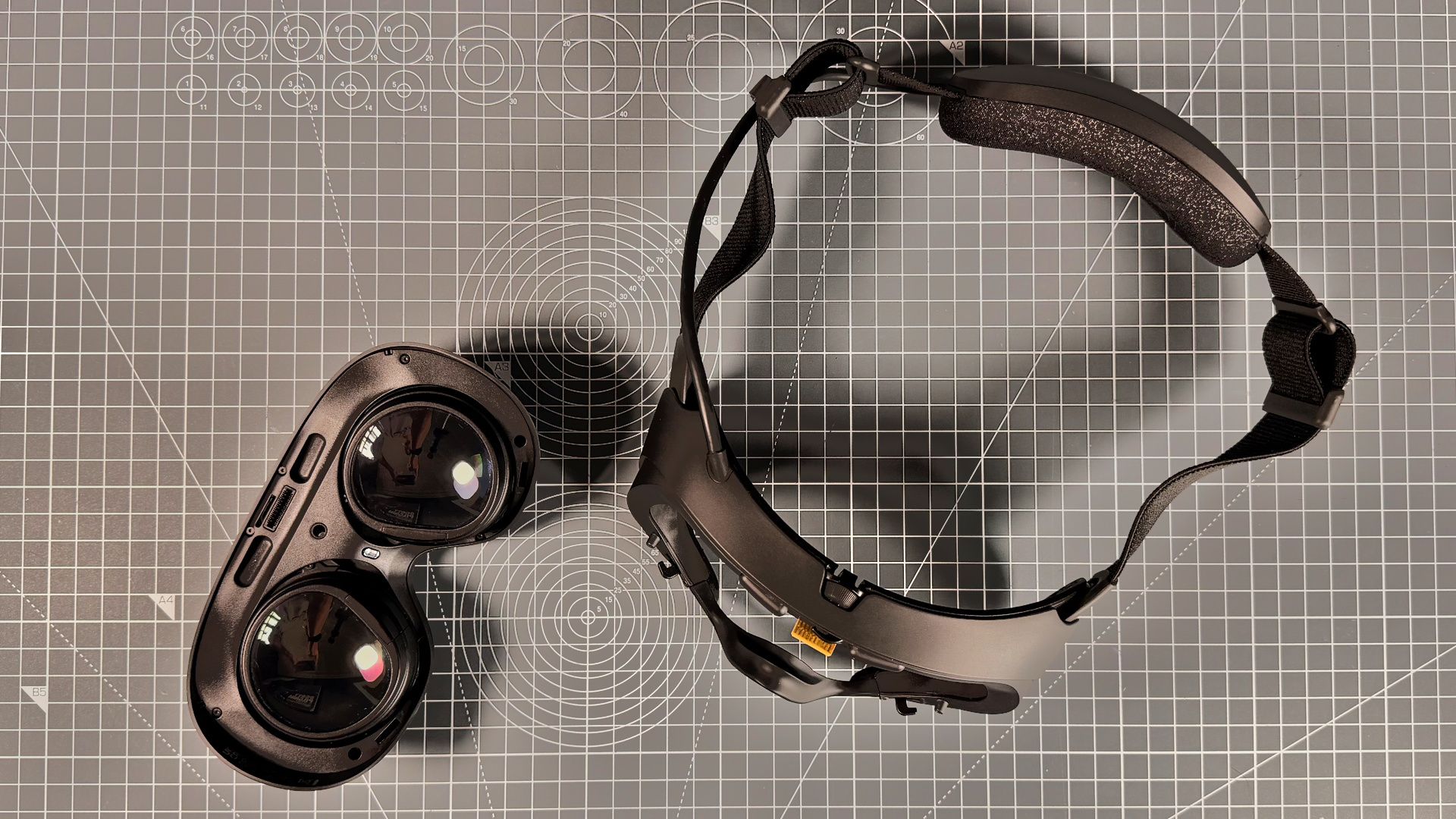
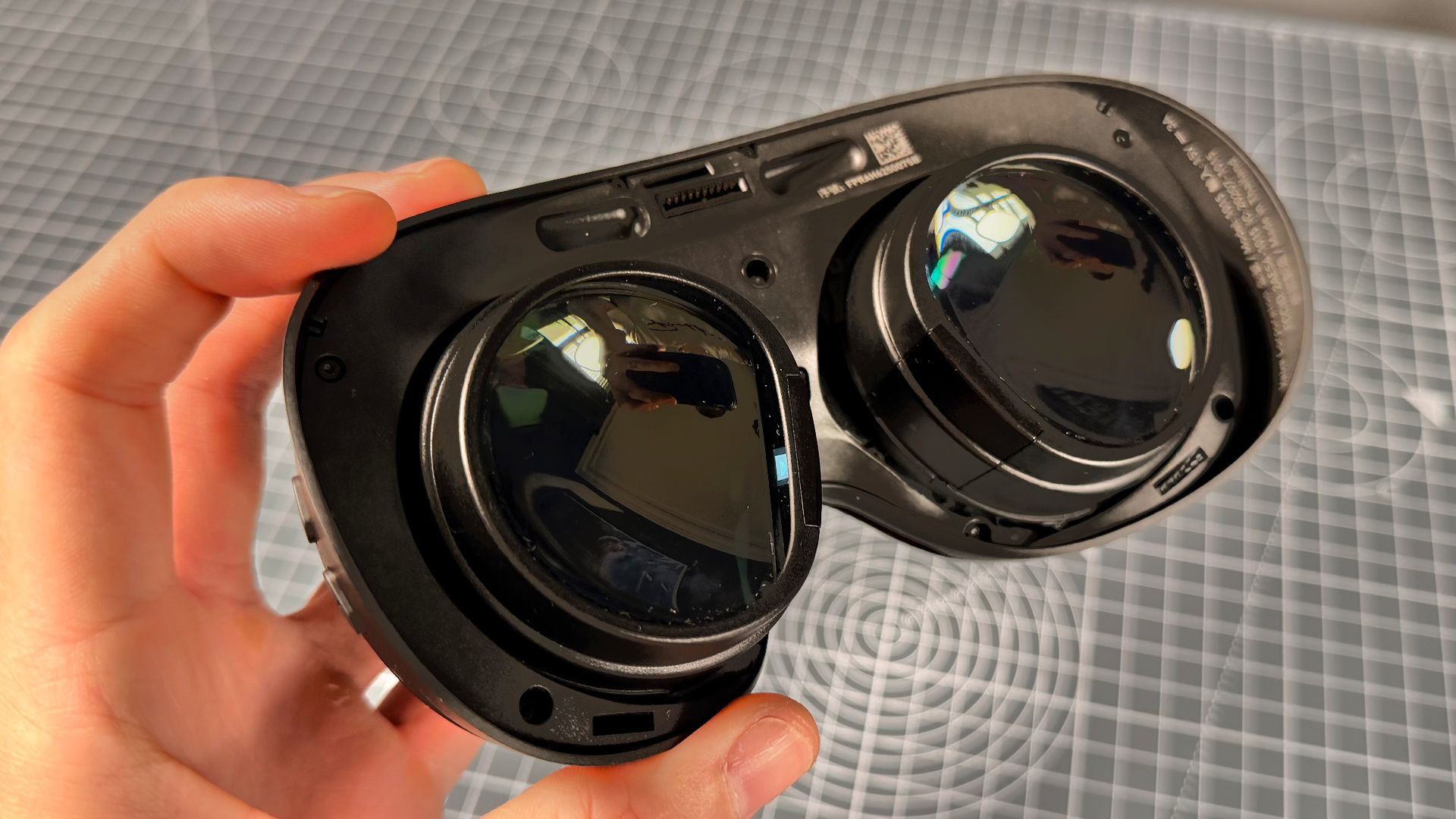
There is a degree of glare, as I find with most headsets with pancake lenses, but to a lesser extent than the Quest 3. It’s only really noticeable when there’s a very high level of contrast being displayed, which isn’t all that often in my experience.
For the most part, when I’m trying to throw barrels, bottles, and cans at headcrabs in Half-Life: Alyx because I’ve run out of ammo, I’m not thinking about the FOV, binocular overlap, or glare; I’m thinking, ‘Ah, ah, ah! No, no, please, just die already! Oh, god!‘
That’s positive, right?
Steam Frame – Performance
The best way to play on the Steam Frame is over the included wireless adapter. It’s a USB Type-A dongle providing a 6 GHz connection beamed directly at a dedicated antenna on the Frame. Another antenna on the Frame connects directly to the local Wi-Fi. The Frame actually taps both connections for game streaming from a local PC; selecting between the two in real-time for the lowest packet loss and most robust connection.
The best way to play on the Steam Frame is over the included wireless adapter.
I’m yet to notice any connection issues over the dedicated dongle, whether in my own home or in our busy office. Nor any visible dips in quality for the game being beamed across. That’s really impressive, as Valve’s is using what it calls Foveated Streaming to reduce the bandwidth requirements over the wireless connection. It does so by only streaming the game in the highest detail in the area where one’s eyes are looking. The rest is streamed at a lower quality level. The Frame’s built-in eye tracking has to keep up with your pupils to ensure a smooth experience—and it does a superb job of it.
The Frame supports a refresh rate up to 144 Hz, though it defaults to 90/72 Hz, depending on the power mode selected. In the battery-saving Playtime mode, it will only run at 72 Hz, which is pretty passable in my opinion. At the expense of battery life and processing power, it can run anywhere from 90–144 Hz in the settings menu.
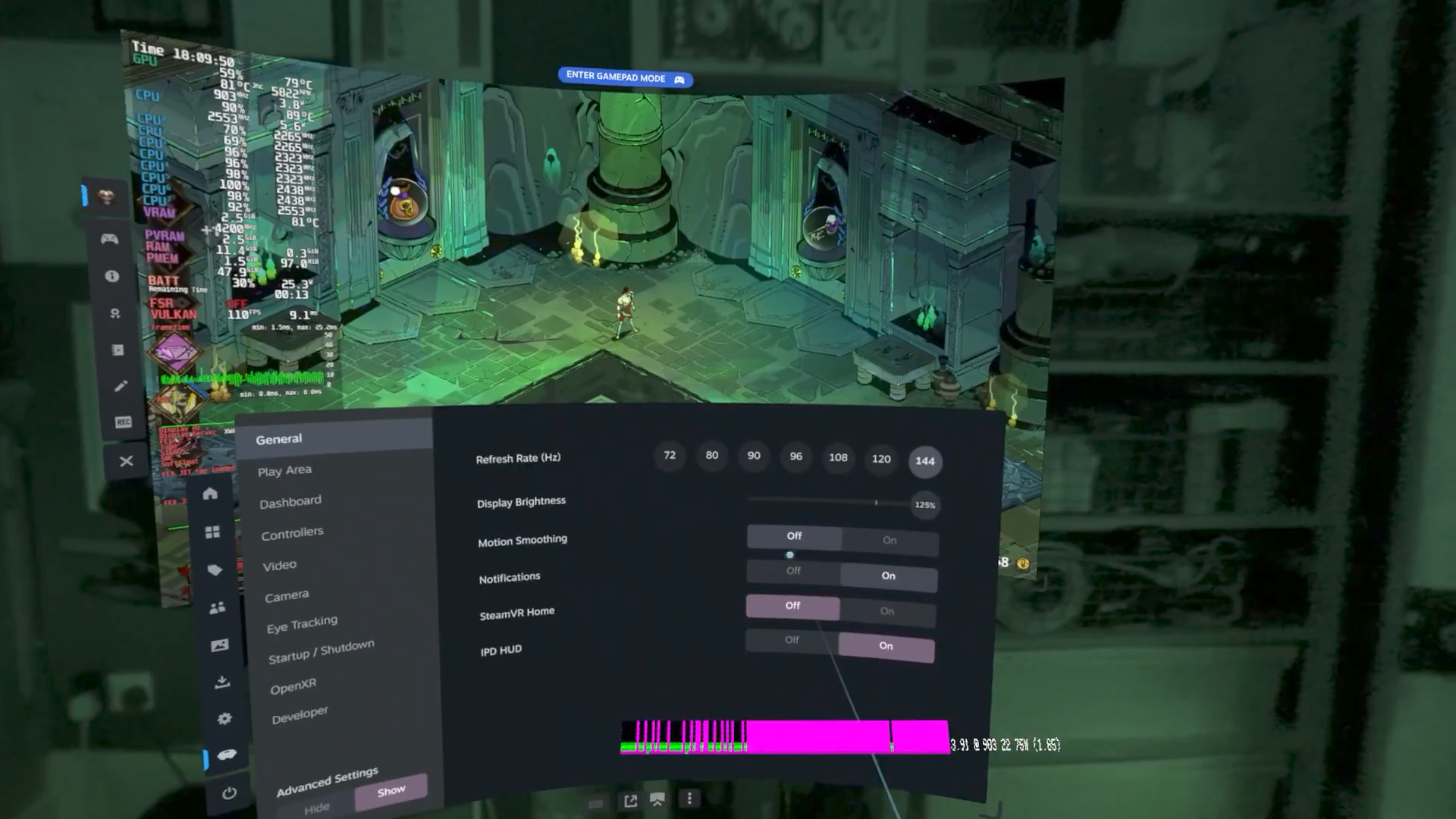
The Qualcomm Snapdragon 8 Gen 3 (SM8650) chip does a pretty good job of rendering games locally. It does, however, require gentler programming in the graphics menu.
Take Half-Life: Alyx, for example, as Valve has created a version of the game that runs natively on the Snapdragon chip. It is of much lower quality than you’ll experience by streaming the game from a local PC over the provided dongle. Valve has added foveated rendering to the game (dynamically changing the rendering level based on where one’s looking) in order to improve performance. Unlike foveated streaming, foveated rendering is far more noticeable in my peripheral vision.
Though Half-Life: Alyx running at all on the Snapdragon chip is impressive, as are other games that are able to run just fine after being chopped up by the two compatibility layers, Proton and FEX. Proton deals with Windows to Linux; FEX deals with x86 to Arm. I tried out a few VR and non-VR games standalone on the Steam Frame and it often dealt surprisingly well with them. These included a few Steam Frame Standalone Verified games and one that hadn’t yet been checked.
- Eleven Table Tennis (verified): smooth, high fps
- Marvel’s Spider-Man Remastered (not verified): failed to run past splash screen
- Escape Room VR (verified): smooth, decent fps
- Hades (verified): smooth, high fps
Marvel’s Spider-Man Remastered is Steam Deck Verified; however, that doesn’t mean it will run on Frame, as it using FEX as well as Proton. Essentially, there are a few more hoops to jump through.
Hades, on the other hand, runs great via both translation layers. It’s likely a boon to the Frame that the game has a Vulkan version already available. If I understand it correctly, Vulkan should let Valve skip some of the translation work and improve performance. The game reached around 100 fps, so it definitely didn’t seem to suffer for any of the funny business in the background. It’s best to set the Steam Frame’s cap to beneath this figure, anyways, as it keeps the visuals steady and stable. Once I set the system to 144 Hz, which it couldn’t reliably hit in Hades, moving my head would cause the game screen to shudder.
Eleven Table Tennis is a great reminder of when low latency and high refresh really matter in VR. I’ve been trying to beat the silver-level AI in that game for weeks now. I had, at times, thought it impossible, especially after trying and failing on three different VR headsets (Frame, Dream Air, Quest 3).
Installing the game on the Frame and running it locally at 120 Hz, with the ergonomic straps removed from the controllers to aid my front spin, I finally cracked it. I nailed some fast return balls that the stupid cat (the AI has a cat’s face, don’t ask) couldn’t return. It was a silky smooth experience, even on the Frame’s internal ‘Turnip’ Adreno GPU. I feel the local processing and high refresh really helped me here; but it drained the heck outta the battery on this thing: 50% gone in under 30 minutes.
Nevertheless, the standalone functionality feels less crucial to me. I will almost always stream games from my gaming PC via the wireless connection, due to the performance, quality, and battery life improvements I’ll get onto shortly.
Steam Frame – Ergonomics
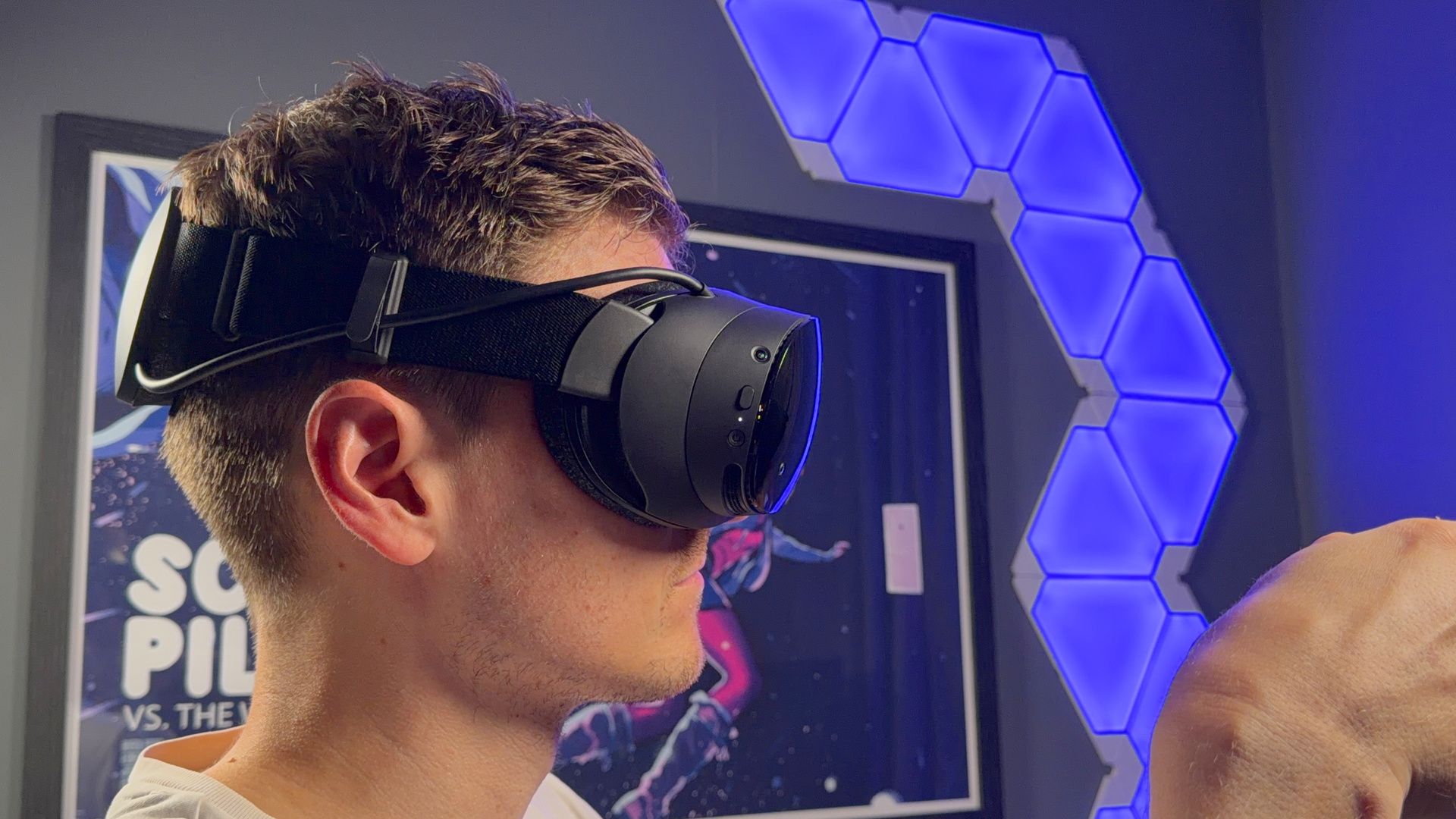
The Steam Frame weighs in at 440 grams. On my scales, it’s more like 403 grams, but that’s more a criticism of my crappy scales than anything else. What’s important is that it is exceedingly light; the second-lightest from my own measurements.
- Steam Frame: 403 g
- Quest 3: 437 g
- Quest 3S: 454 g
- Crystal Dream Air: 280 g
- Crystal OLED: 848 g
- Crystal normal: 837 g
- Sony PS VR2: 499 g
Comfort in a VR headset is not all about weight, but in this case, the Steam Frame’s small stature helps a helluva lot. Valve has balanced the weight of the Steam Frame across the front and back of the device, with the battery as a counterweight to the headset’s ‘core module’, containing the optics, SoC, and most other technical bits. With the weight of the battery elsewhere, the core module weighs only 157 grams. Valve has that at 185 grams but hey ho; crappy scales.
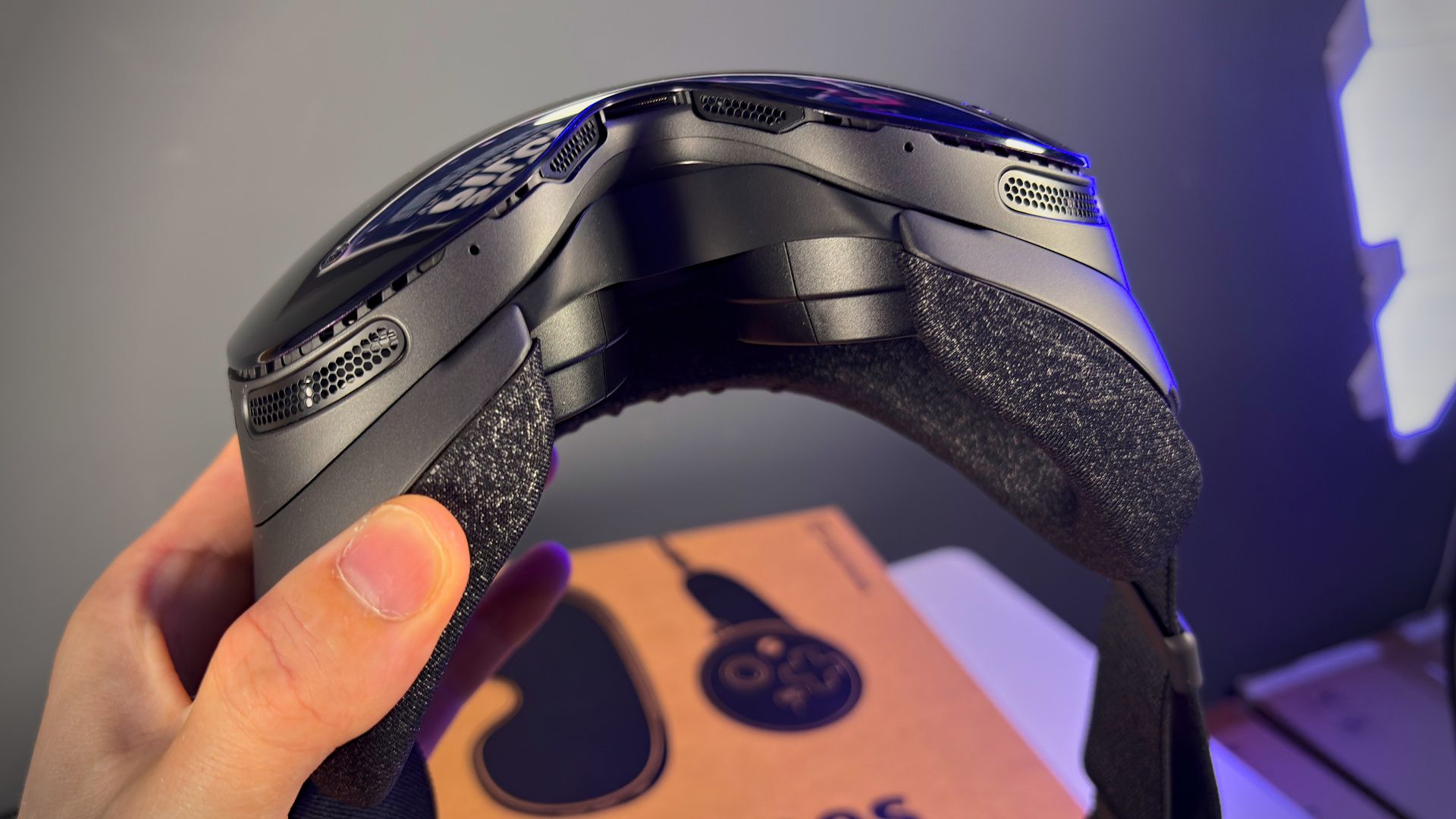
Ample cushioning around the face and on the rear of the battery help to alleviate most discomfort from the weight of the device during play sessions. Unlike the Quest or older, heavier headsets, the weight does not feel like it is localised to your cheekbones or around the eyes. Even after hours of play to test the battery life, I didn’t notice any patches of red or indentation lines on my face.
If you wear glasses, the Steam Frame is pretty accommodating. There’s a spacer included in the box that adds another 4-7 mm between your face and the lenses. It’s the easiest to add into the headset that I’ve used to date, too. It’s all magnetically attached—the padding and glasses spacer can be replaced in no time at all.
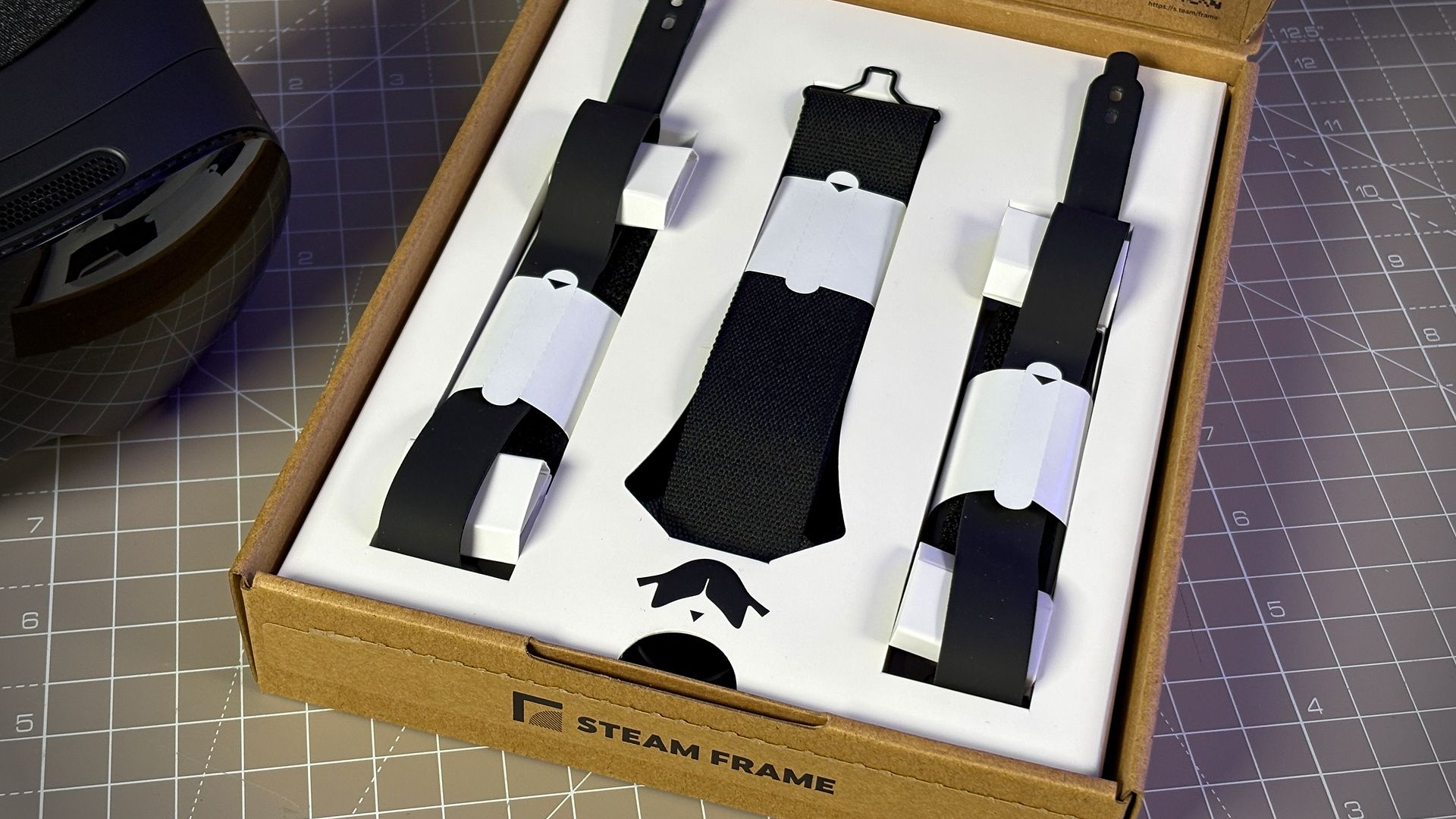
Ergonomics accessories kit
Valve is offering an Ergonomic Accessories Kit as a separate purchase alongside the Steam Frame. It costs 59 USD/89 CAD/69 EUR/59 GBP/99 AUD and includes three premium upgrades:
- Controller straps w/ compatible battery doors
- Extended light blocker
- Top headset strap
I reckon most Steam Frame customers would buy the Ergonomic Accessories Kit without question. I probably would, too. But I’ve done my duty and played extensively with it fitted to the headset and without, and I have to say, it’s really not a must-have.

The headset doesn’t move around much with or without the added top headset strap. It is, however, useful if you’re planning to pass the headset around a large group of people, as it makes it easier to adjust from person to person in a dash. I suppose if you’re playing Beat Saber or anything a little more active, you may want the added support, but again, I don’t think it’s all that necessary.
The extended light blocker does a pretty good job of keeping light out from your nose, and that’s especially true if you wear glasses like me; however, I’ve played mostly without and it’s not been a detriment to my time in VR.
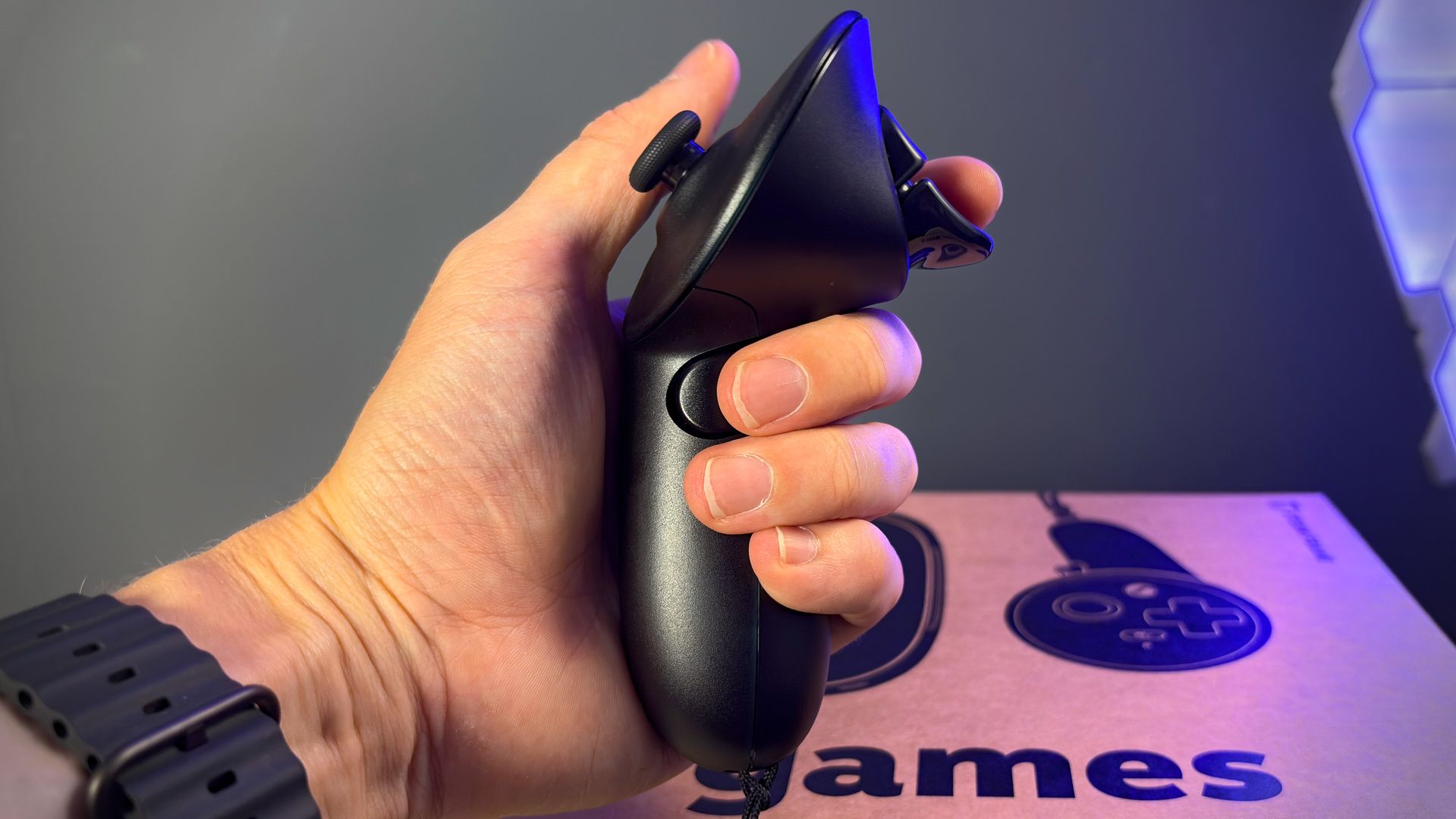
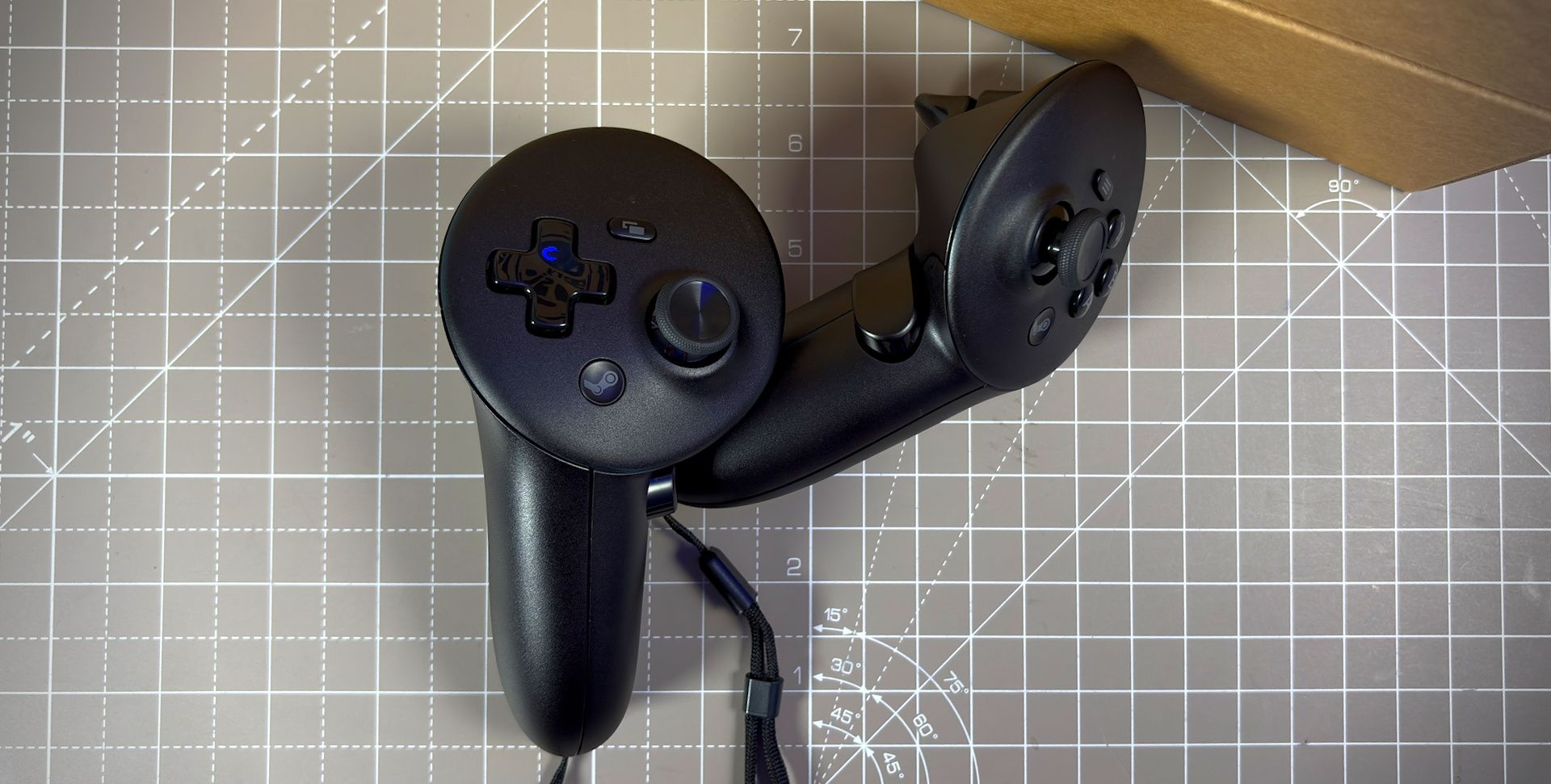
Then there are the most contentious upgrades of the three: the controller straps. These replace the cord straps included with the controller with straps that tighten around the entire hand, akin to the Valve Index design. Once installed, I can make better use of the finger sensing features of the Steam Frame controller (capacitive buttons combined with some sensing of the lower digits) and they’re easier to slip into than the standard cord option.
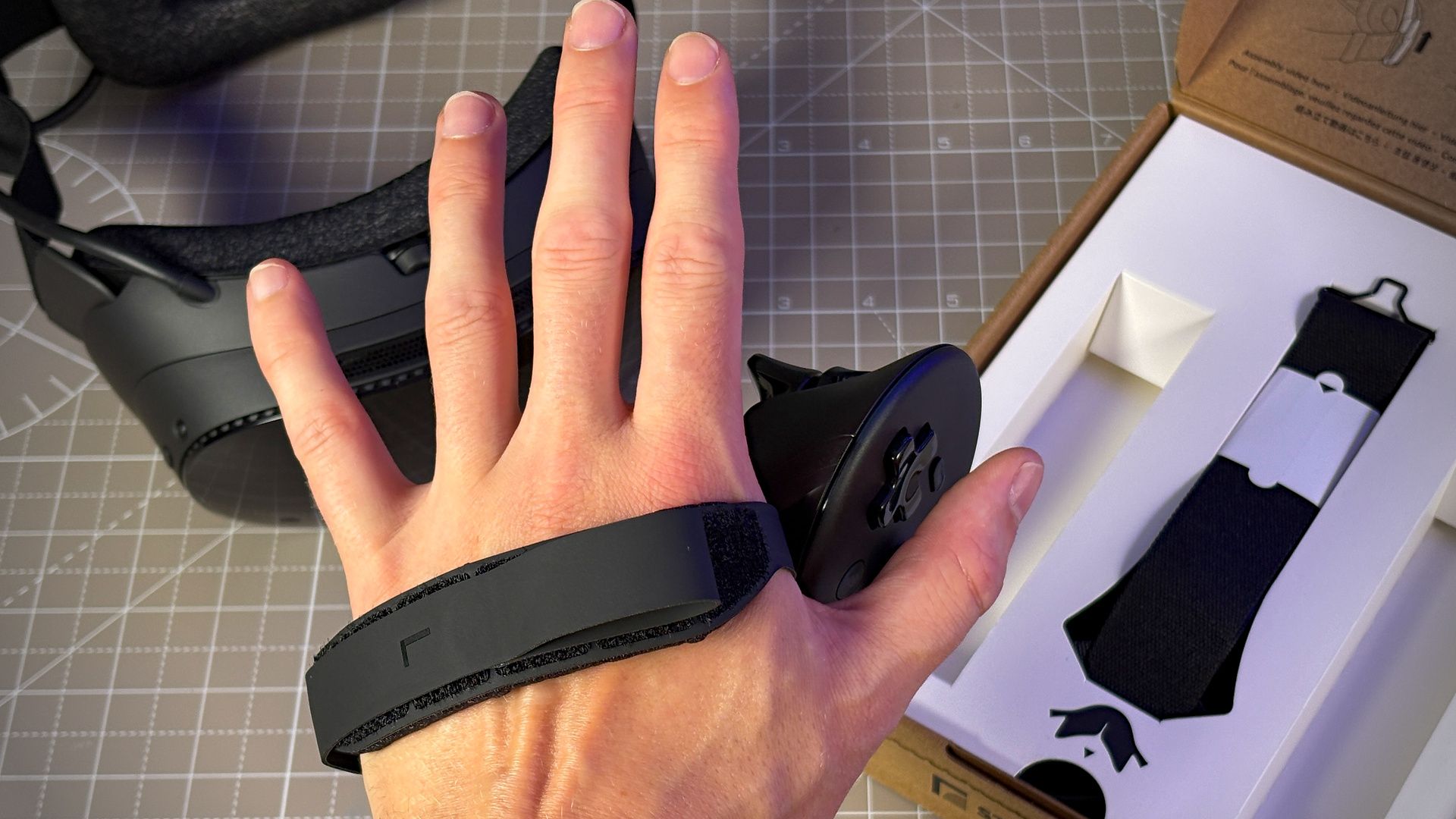
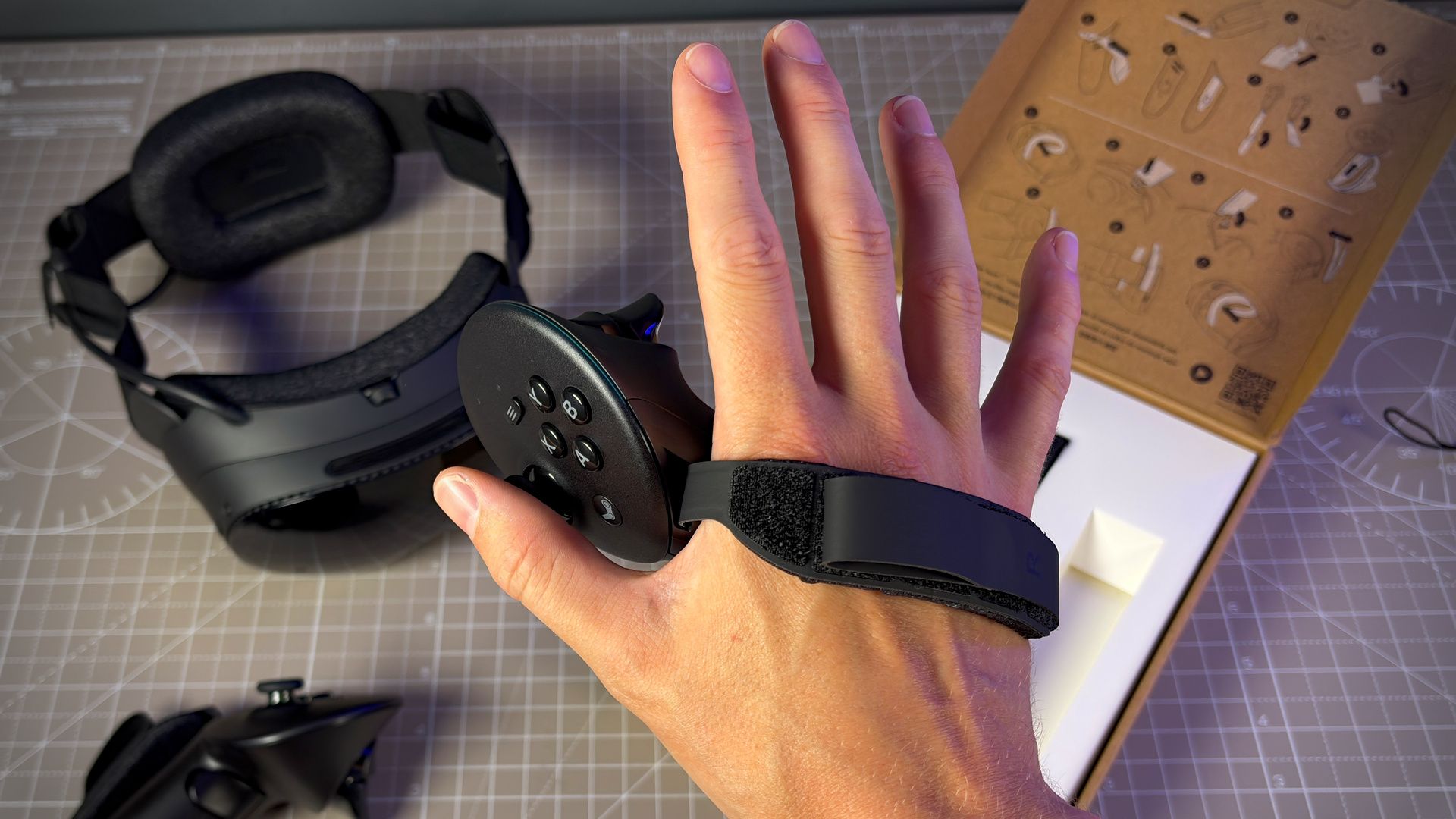
On the flipside, the Frame’s controllers are not as elegantly designed for this sort of strap as the Index’s. I had a few members of the PC Gamer team try out the Steam Frame one by one in the office, and on numerous occasions I received the feedback that they cannot comfortably reach all the buttons. Take away the straps and that issue goes away.
In my experience, the straps are an improvement for games where grip plays a large role, such as Half-Life: Alyx. I can launch an item towards me and catch it naturally without thinking twice. Whereas without the straps, I had to sorta relearn to lift and grab, as two separate movements. But I definitely don’t mind using the controllers without the straps, and for playing 2D games, the more natural position without the added straps feels best.
Steam Frame – Controllers and tracking
The tracking on the Steam Frame is excellent; perhaps even its strongest feature.
It’s inside-out tracking using four monochrome cameras, combined with IR illuminators for low-light conditions. Those monochrome cameras aren’t the best for passthrough or XR play—they offer a rough blue fascimile of the real-world behind the headset—but they work great for mapping the movements of the headset and controllers. That means no more Base Stations, as were required with the Valve Index; just the Frame itself keeping track of its position in VR.
What impresses me most is how consistent the boundaries of the playspace seem to be when using the Frame. It’s yet to lose track of a boundary, floor height, or its own location within that space in my many weeks of testing. Whether I place it on the floor, move it around, turn it off and on again, or even move furniture around it, the playspace is locked in.
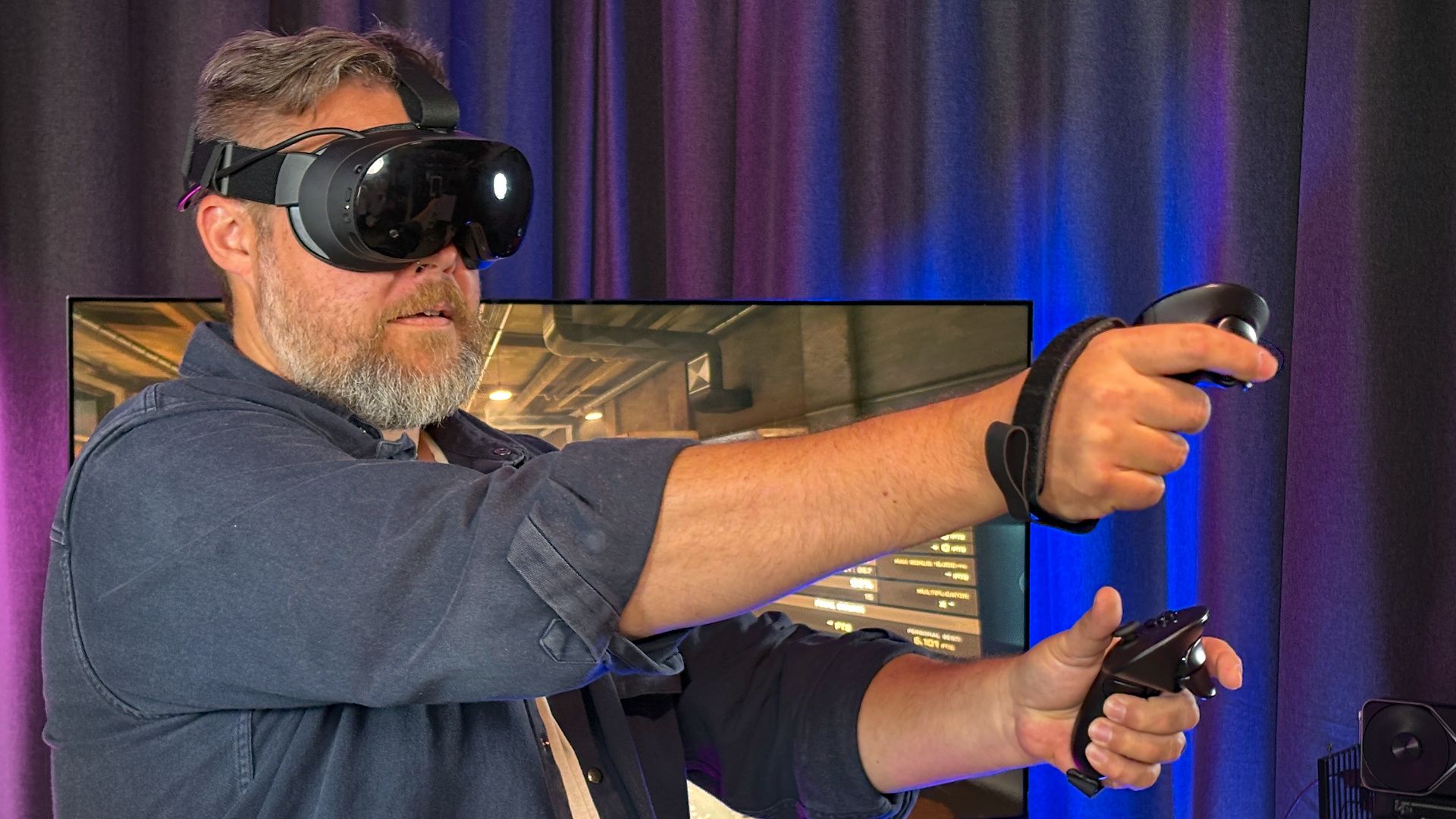
The headset does a great job with the controllers, too. The pair provided with the Frame support 6DOF and an inertial measurement unit (IMU) to correctly orient themselves in the world with excellent accuracy.
I’m yet to experience a single moment where one or both of my virtual hands go wandering off into the distance. Neither have I experienced what I will shamelessly call a floppy hand problem, where my virtual hand feels stuck on some invisible object and flops around like a fish as I try to wiggle it free. I have had both of those happen to me in the past couple of weeks with another headset, the Dream Air, but none so far with the Frame.
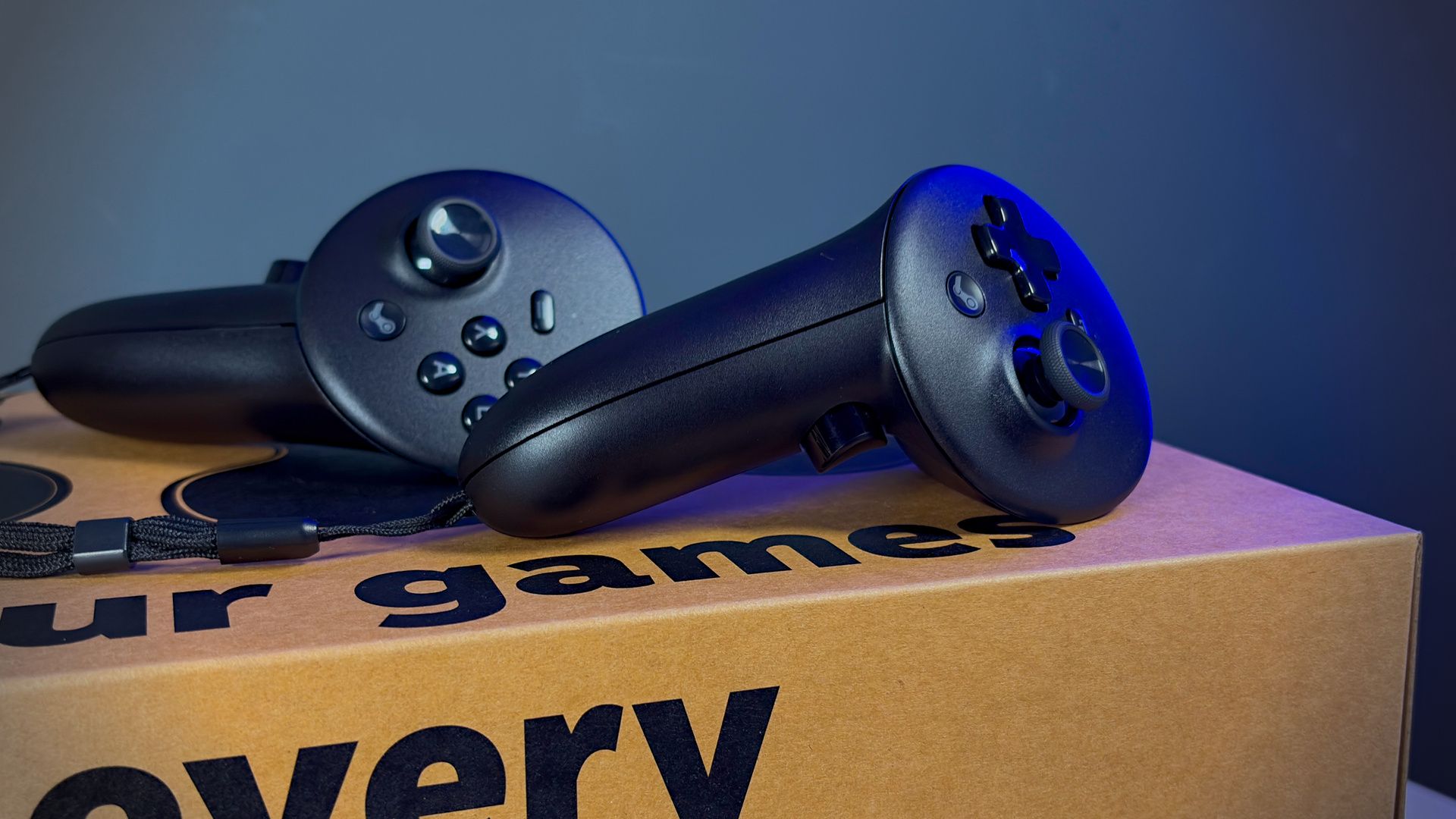
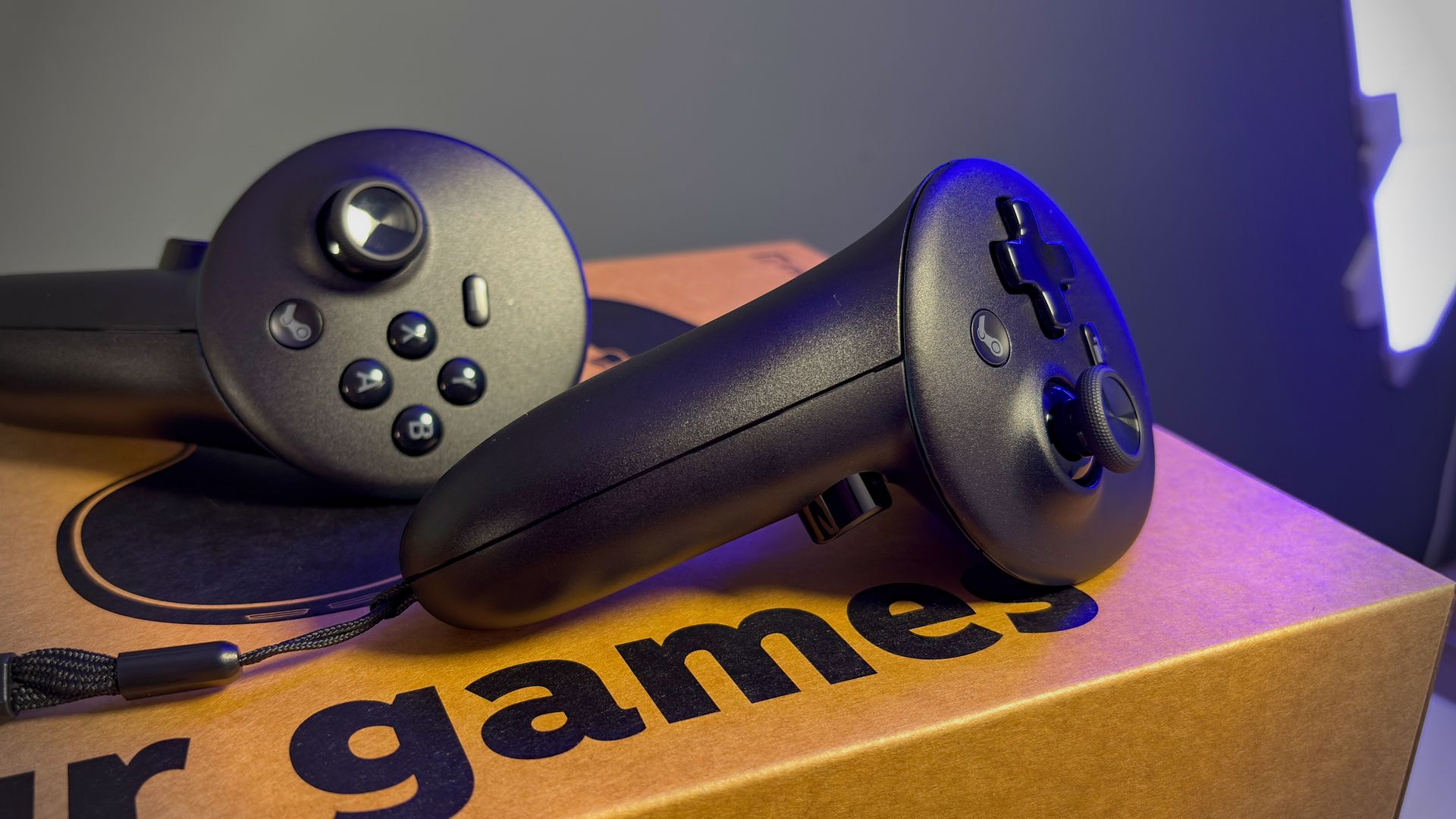
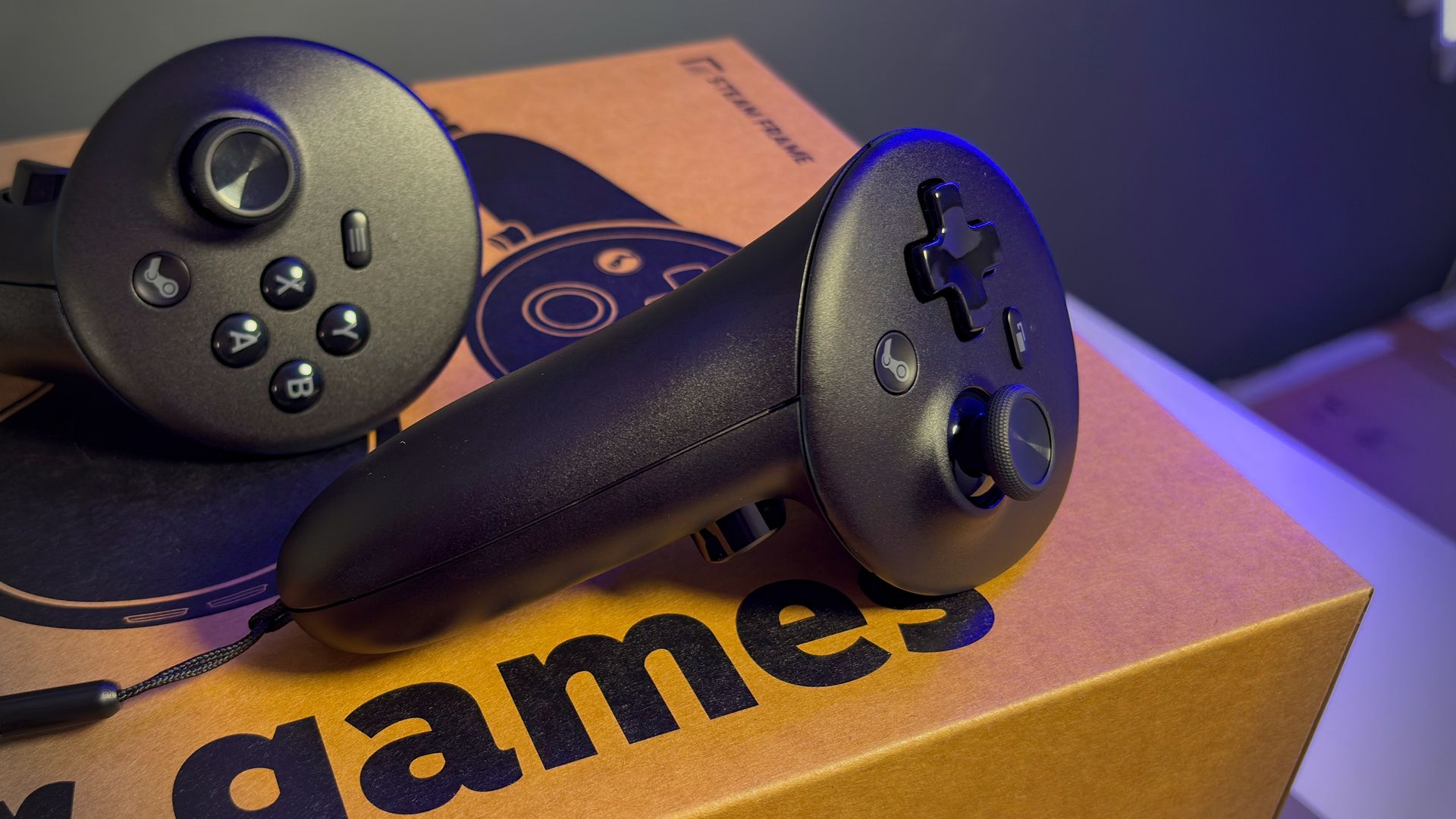
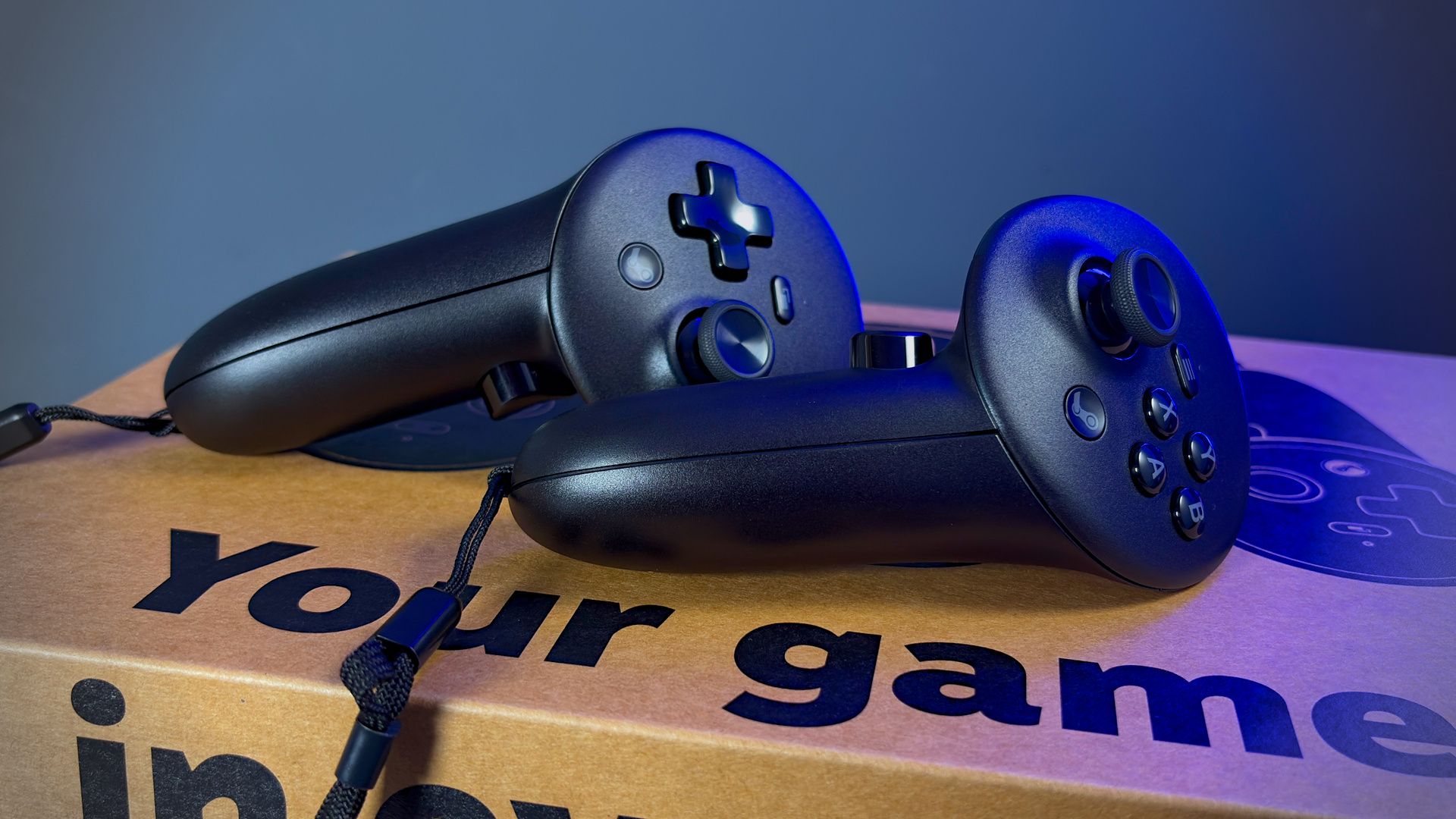
The Frame’s controllers are similar in shape and style to those included with the Quest 3/3S. That’s no bad thing; both are comfortable and intuitive. Yet Valve has also added more buttons to its latest pads, including ABXY on the right controller, a d-pad on the left controller, and bumper buttons to both.
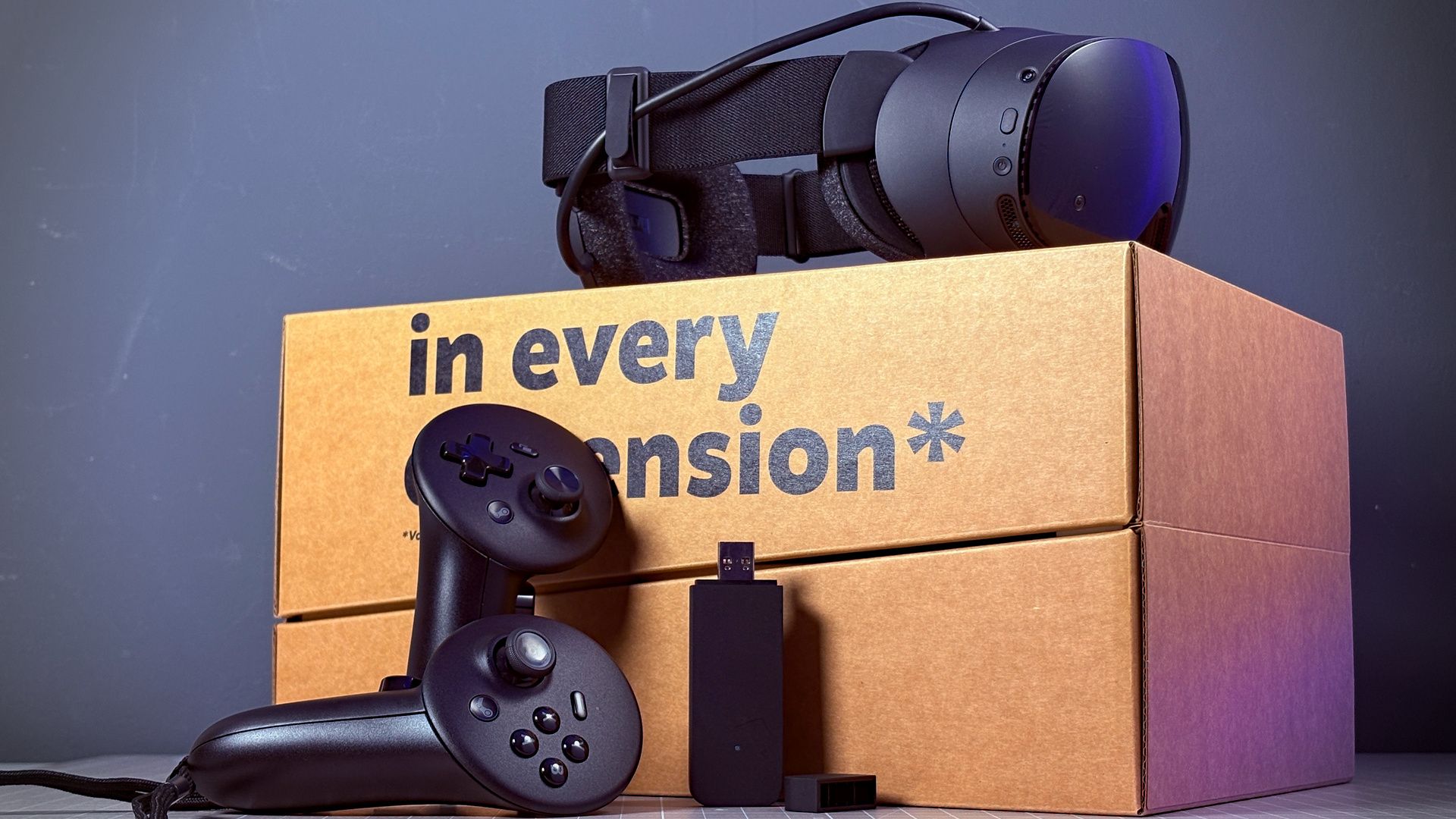
These extra inputs aren’t required a whole lot in VR; most devices don’t make use of them. They are instead useful for playing 2D games on a virtual screen within the Frame. I’ve been testing this out with the original Hades: dragging the screen to a massive cinema-like size and putting my gaming chair into its deepest recline. It’s pretty good, and even though I think the novelty of playing on a virtual big screen is already beginning to wear off, I can see why Valve says you can slip the Frame on and then decide which game to play. It can pretty much play whatever from your library with minimal fuss and without switching controllers.
For the record, you can pair up an external controller, keyboard, or mouse to the Frame over Bluetooth, including a Steam Controller. I haven’t found much need to do so as of yet.
Steam Frame – Software
SteamOS is going places. Once limited to the Steam Deck and whatever one dared to load the ISO onto, it has since made its way into the living room and other handhelds. With the launch of the Steam Frame, the Arch Linux-based operating system breaks into the third dimension.
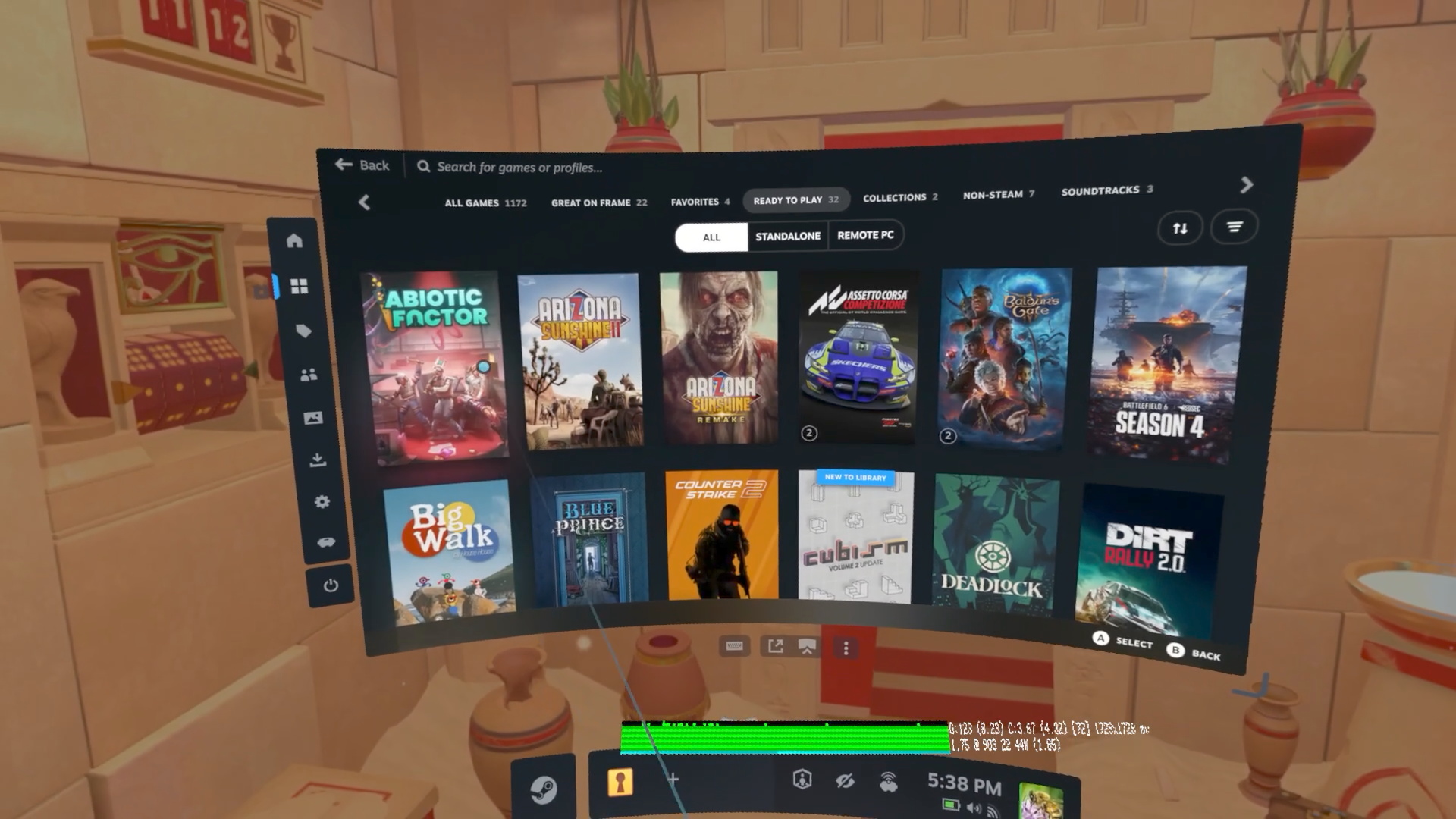
The Steam Frame offers a familiar interface for any PC gamer. It’s just SteamOS, or Big Picture Mode, except its hovering in front of you. It has extensive menus for adjusting various settings on the Steam Frame, a status bar with some handy functions for VR, and a slightly tweaked interface for moving and enlarging windows within your expanded field of view. Otherwise, it’s just Steam.
The Steam Frame wouldn’t be around were it not for SteamOS, Proton, and FEX.
All your games in your library move over to the Steam Frame upon signing in. There are new categories automatically added to the interface to separate VR titles from non-VR titles, and in some cases, games are divided by those installed on the headset and those that can be streamed from a nearby PC. Once you select a game, you can click the arrow to the right of the green play button to select between playing it locally or streaming it from your gaming PC; depending on if it is installed on one or both devices.
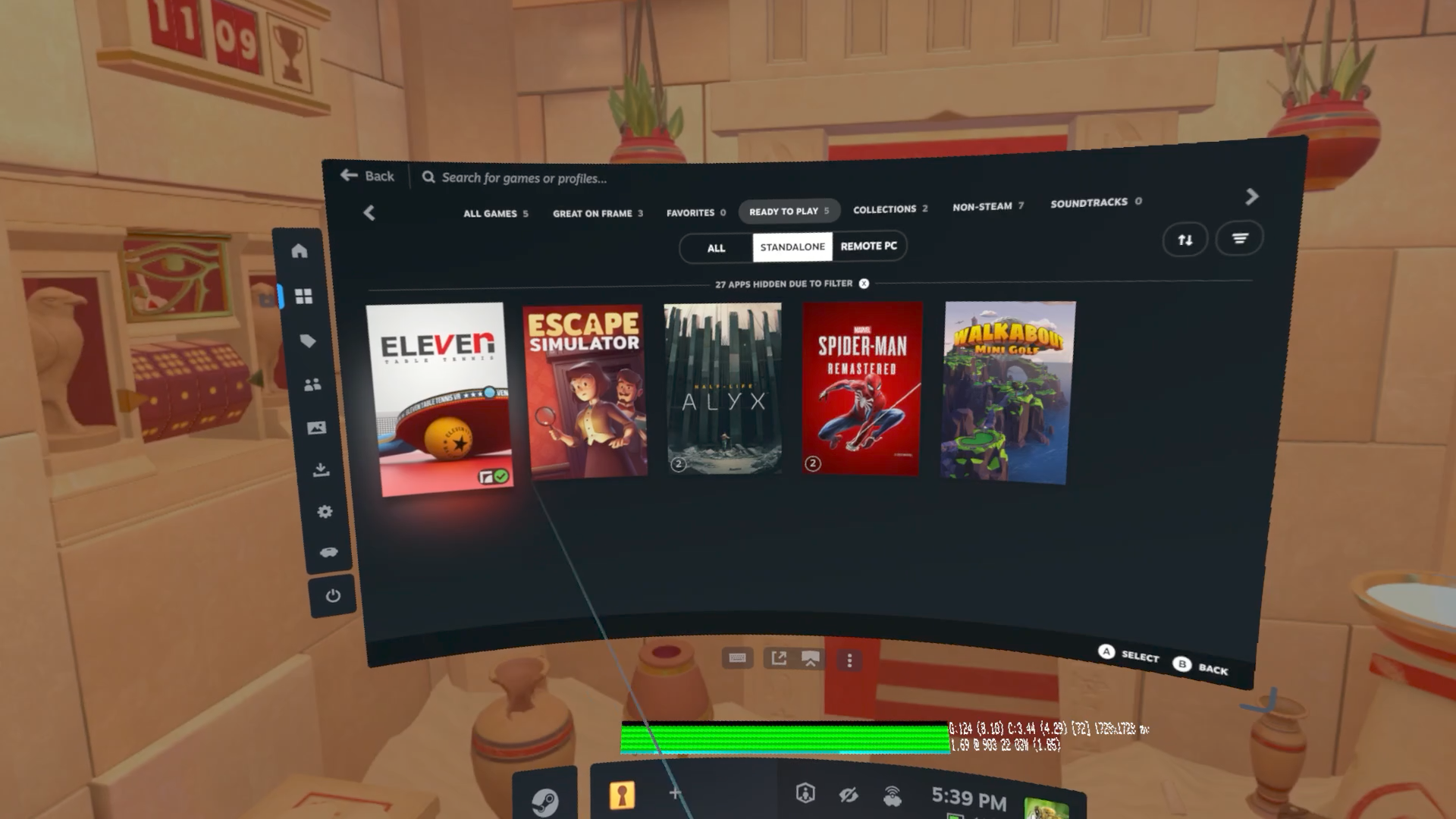
Valve also offers the Steam Frame Standalone Verified program to give an idea of whether a given game is going to play nicely while running on the Frame’s own hardware. Few games are built for the Frame—as far as I know, it’s just Half-Life: Alyx—most are going to be either Android games running through Lepton, Valve’s Android container, or use translation layers, Proton and Fex, in order to be made to run on Linux and Arm.
The Steam Frame wouldn’t be around were it not for SteamOS, Proton, and FEX. Meta has Horizon OS, Google has Android XR, and Apple has visionOS for their respective headsets. Only Horizon OS feels in any way a fit for gaming, but even so, Meta has shifted to a more XR-centric interface and put a hold on third-party headsets using it. So that’s out. That really means Valve had no other option than to do it itself with the Steam Frame.
And thank God for that. The biggest selling point for of the Steam Frame and SteamOS in virtual reality for me is that Meta has nothing to do with it. While you no longer need a Meta account for the Quest 3/3S, you still have to use the services of a company with big AI aspirations and a problematic privacy and safety record.
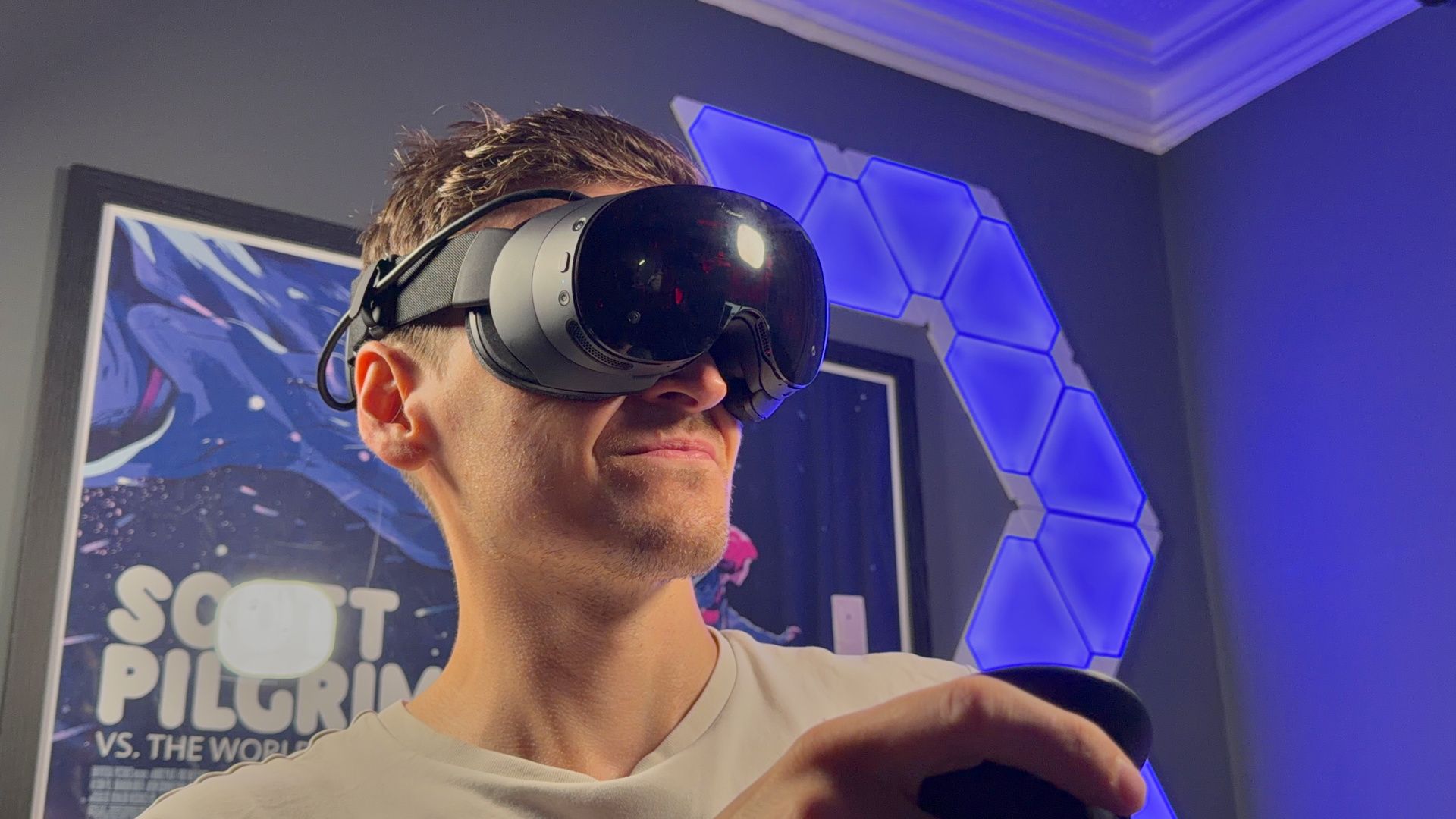
As for games available for the Steam Frame, it has plenty to choose from already on Steam, and it’s set to benefit from Valve recently adding support to Steam for Android games. The Steam Frame also comes with a free copy of Half-Life: Alyx, and I can think of no better game that this to show off what it can do; able to both be streamed from a gaming PC and run locally on the Steam Frame’s Snapdragon processor. It’s the best VR game around today, despite being released over six years ago.
That touches on one issue facing VR in general today: the availability of new games and experiences. Plenty of the best VR games are the same ones we have been playing for many years, such as Beat Saber, Phasmophobia, Skyrim, Blade & Sorcery, Job Simulator, Arizona Sunshine; which I’ve pulled from Steam’s own popularity rankings, among a sprinkling of newer titles. One newer title I’ve really enjoyed in the past year is Ghost Town, made by Fireproof Games, but even it is a year old now.
While Steam itself sees ever-increasing numbers of games published to the platform every single year, virtual reality games published on the platform have plummeted since an initial surge around 2017-18. Meanwhile, the Meta Horizon Store appears to still be trending upwards each year, though I can’t be sure how many of those are actual games. A lot seem to be training applications.
If Valve can attract new developers to share their existing and future Android games on Steam, perhaps we will see a renewed surge of VR games on the platform. As of right now, it feels like fresh experiences are few and far between.
Steam Frame – Battery
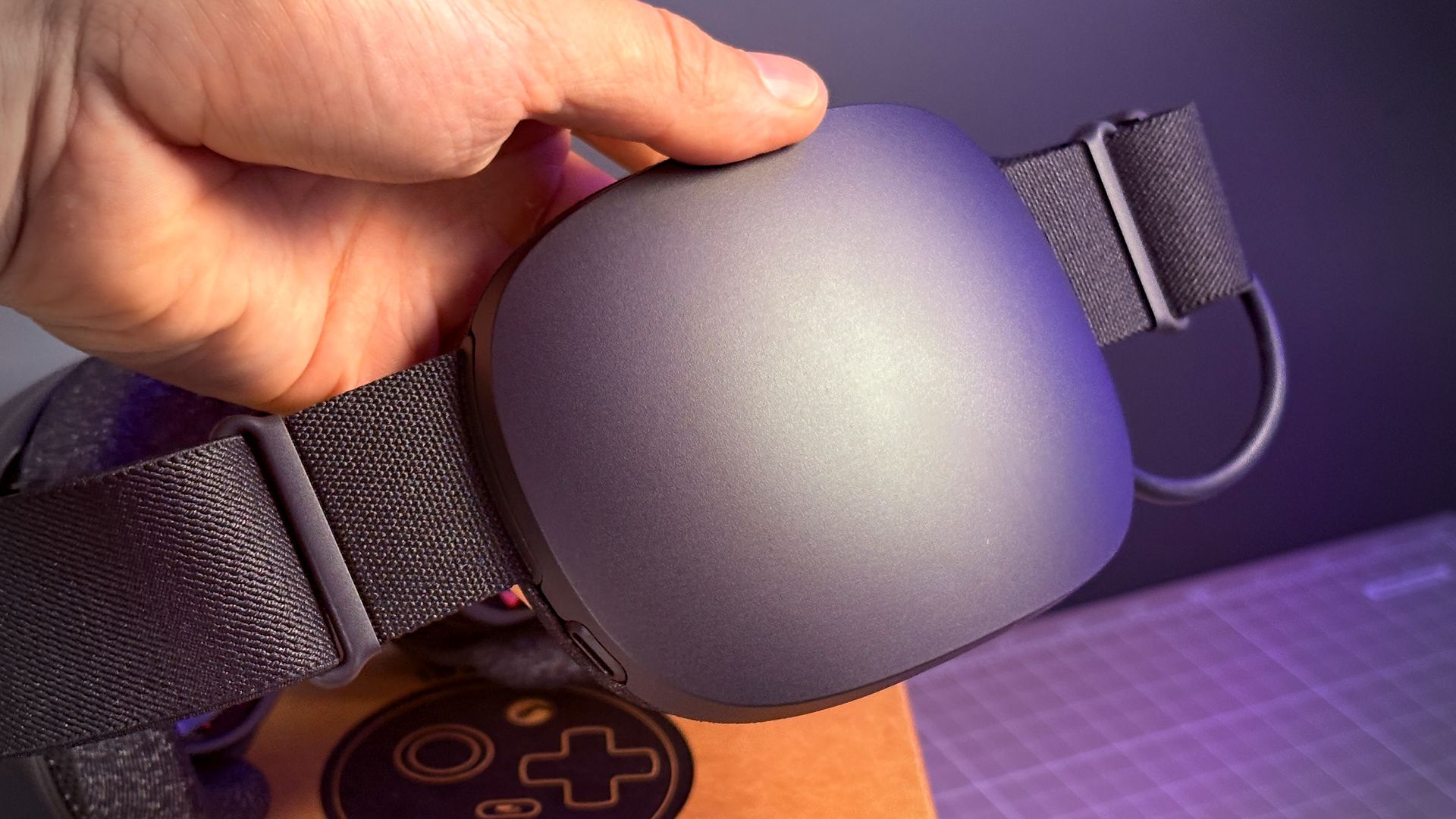
You don’t have to constantly worry about tripping over a cable with the Steam Frame. Instead, you have to be aware of your battery level.
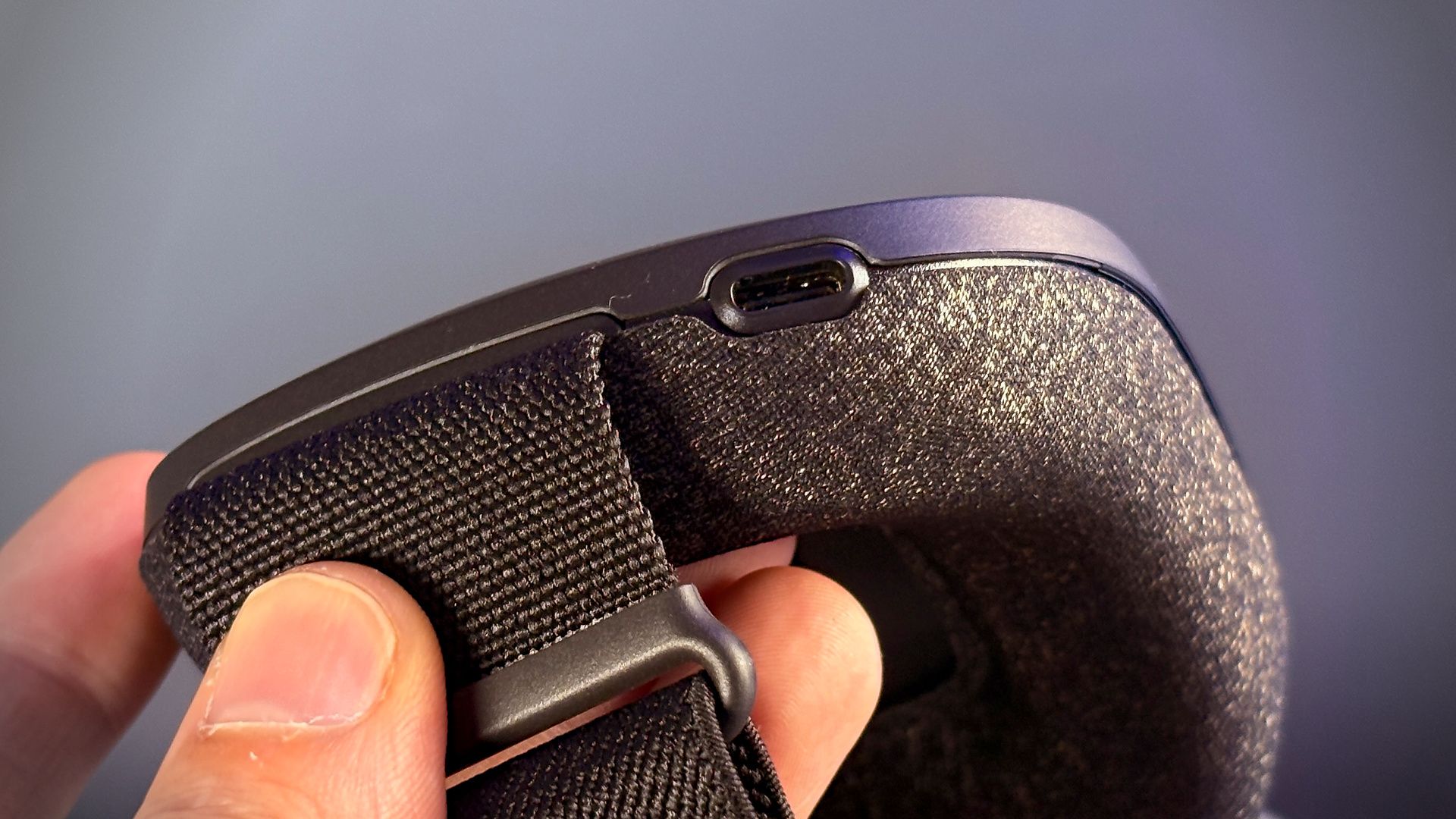
The Steam Frame comes with a 21.6 Wh Li-ion battery, located at the rear of the strap. It has a USB 2.0 Type-C port off at an angle from its left-hand side, which is used pretty exclusively for charging the device due to bandwidth limitations for data.
There isn’t an adapter included with the headset. Instead, it can be charged with any suitable power adapter up to 45 watts.
Valve is selling its own adapter for $29 (49 CAD/39 EUR/29 GBP/49 AUD). While I’m personally not too bothered about the lack of charger in the box—I have plenty already and I’m all for cutting out excess chargers—some of my colleagues feel it’s a bit of a miss at this price point.
It takes a while to fully charge the Steam Frame from flat. In one test, using a 140 W Anker power adapter, it took 151 minutes to go from completely empty to fully charged. In another, using Valve’s own power adapter, it took 142 minutes. So a good two hours and change for a full charge.
Here are the battery levels and times recorded from my testing:
|
Elapsed charge time (mins) |
Percentage |
|
0 |
0% |
|
66 |
50% |
|
101 |
73% |
|
122 |
85% |
|
142 |
100% |
|
Elapsed charge time (mins) |
Percentage |
|
0 |
0% |
|
22 |
17% |
|
52 |
37% |
|
78 |
53% |
|
98 |
67% |
|
116 |
78% |
|
135 |
92% |
|
151 |
100% |
Using a power meter on my wall outlet, I recorded the power draw in both tests around ~ 11 W at all times.
I asked Valve about the battery charging behaviour ahead of launch. They told me:
“An empty battery takes around two hours to charge to full capacity. However, the charging is not linear. There is fast charging from 0 to 65%, and regular charging from 65% and up. Charging to 65% is expected to take less than 40 minutes. (Note: these values may be optimized over time, and are therefore subject to change.)”
I hadn’t seen any sign of fast charging to 65% in my own tests at the time I reached out; however, prompted by Valve’s response, I tried one last test. I ran the battery down to near-flat, and while the headset was still turned on but not playing any games, I plugged in the charger.
This time, the power meter read ~31 W—three times the draw I recorded when the headset was powered off. When it reached 65%, it dropped to ~18 W.
|
Elapsed charge time (mins) |
Percentage |
|
0 |
4% |
|
9 |
20% |
|
18 |
33% |
|
27 |
52% |
|
35 |
65% |
|
42 |
75% |
|
52 |
84% |
|
61 |
92% |
|
75 |
100% |
I have felt a little impatient with the Frame on a few occassions—a feeling of having to wait too long between sessions once the battery had died. Though I did improve things by not letting the Steam Frame die completely between charges, using a suitably powerful power bank in my pocket (around 25 W should do it), and using the Frame’s various power saving modes.
Depending on the mode of use, the Steam Frame can last between one and two hours of play time:
- Half-Life: Alyx (Arm version, running locally): 63 minutes
- Half-Life: Alyx (streaming from PC w/ Frame set to Playtime mode): 114 minutes
So, for every hour played in a game running on the headset, you’ll be more or less charging for two; however, the longevity of the headset while streaming from a PC is pretty impressive.
I took these figures with the Frame set to Playtime mode, which favours battery life over performance and limits the frame rate to 72. You can push higher performance at a cost to longevity.
I noted the power draw of the headset in each mode while playing Half-Life: Alyx. When the game is running natively on the Steam Frame in standalone mode, the whole system draws around 17-19 W. Instead beam the game from my gaming PC using the included dongle and the Frame draws as little as 10 W. Nearly half as much power draw; nearly double the battery.
There may be another option for extending the Frame’s battery life in future, too. Valve has confirmed to us it is working on a new strap with hot-swappable batteries and BMR drivers to match the excellent speakers on the Valve Index. This will be a swap-in upgrade for the modular Frame. No launch information for that one just yet, though.
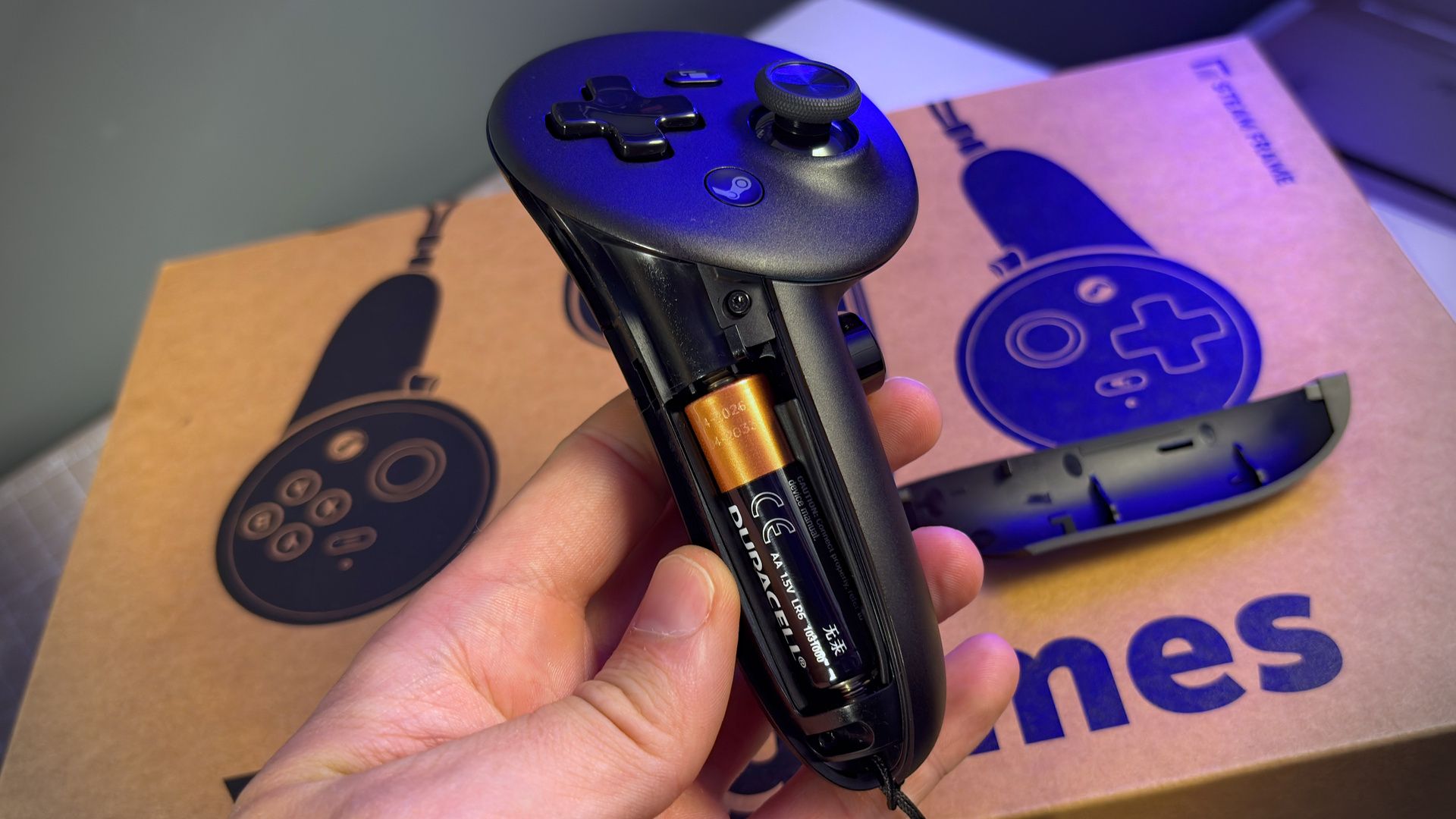
As for the controllers, I’m yet to swap the AA battery located in each one since I began testing. Still going strong today at 74%.
Steam Frame – Value
Everyone’s disappointed by the RAM crisis.
Joy Lyons, Valve
There’s only one Steam Frame worth buying. That’s the 256 GB model. It’s a VR headset that works best when streaming games installed on your gaming PC, and if you want to take advantage of the standalone functionality, there’s an SD card slot for easy expansion.
That 256 GB model costs $1,059. So let’s compare that price to its competition. The Steam Frame costs:
- 76.5% more than a Quest 3 512 GB;
- 8.6% less than a Bigscreen Beyond 2E, or 10% more than the Bigscreen Beyond 2;
- 53.9% less than a Pimax Dream Air;
- 6% more than a Valve Index at launch;
- 202% more than a Quest 3S 128 GB.
The Steam Frame is not as affordable as I’d like it to be. Nor my colleagues, some of whom literally winced as I told them the price. It’s also more costly than Valve’s original price target.
I wish we could have shipped it at the price that we were at last year.
Jeremy Selan, Valve
“We set out to design this hardware with one particular price in mind,” says Joy Lyons, hardware engineer at Valve, “… that price target shifted just due to the ongoing RAM crisis around the world.”
“We’re happy to have our customers be able to have hardware during this RAM crisis, and we think it’s important to launch new hardware out there and have new experiences available. But, yeah, I think everyone’s disappointed by the RAM crisis.”
I wish I could go one review without mentioning the damned memory crisis, or one chat with Valve without bringing it up. It has undoubtedly put a dampener on the excitement I felt for the Frame coming out of Valve’s office in Bellevue nearly a year ago. One of the people that ecstatically showed off the Steam Frame to me during that visit was Jeremy Selan, a software engineer at Valve working on the Frame.
I had a chance to catch up with Selan again recently, and I asked him, ‘if you could click your fingers and change anything about the Steam Frame today, what would it be?’ Selan responded, “Price. I wish we could have shipped it at the price that we were at last year.”
That’s a question I stole from our Andy Edser during an interview he ran earlier this year with Valve on the Steam Machine. The response then from engineer Yazan Aldehayyat was much the same: “Make it cheaper”.
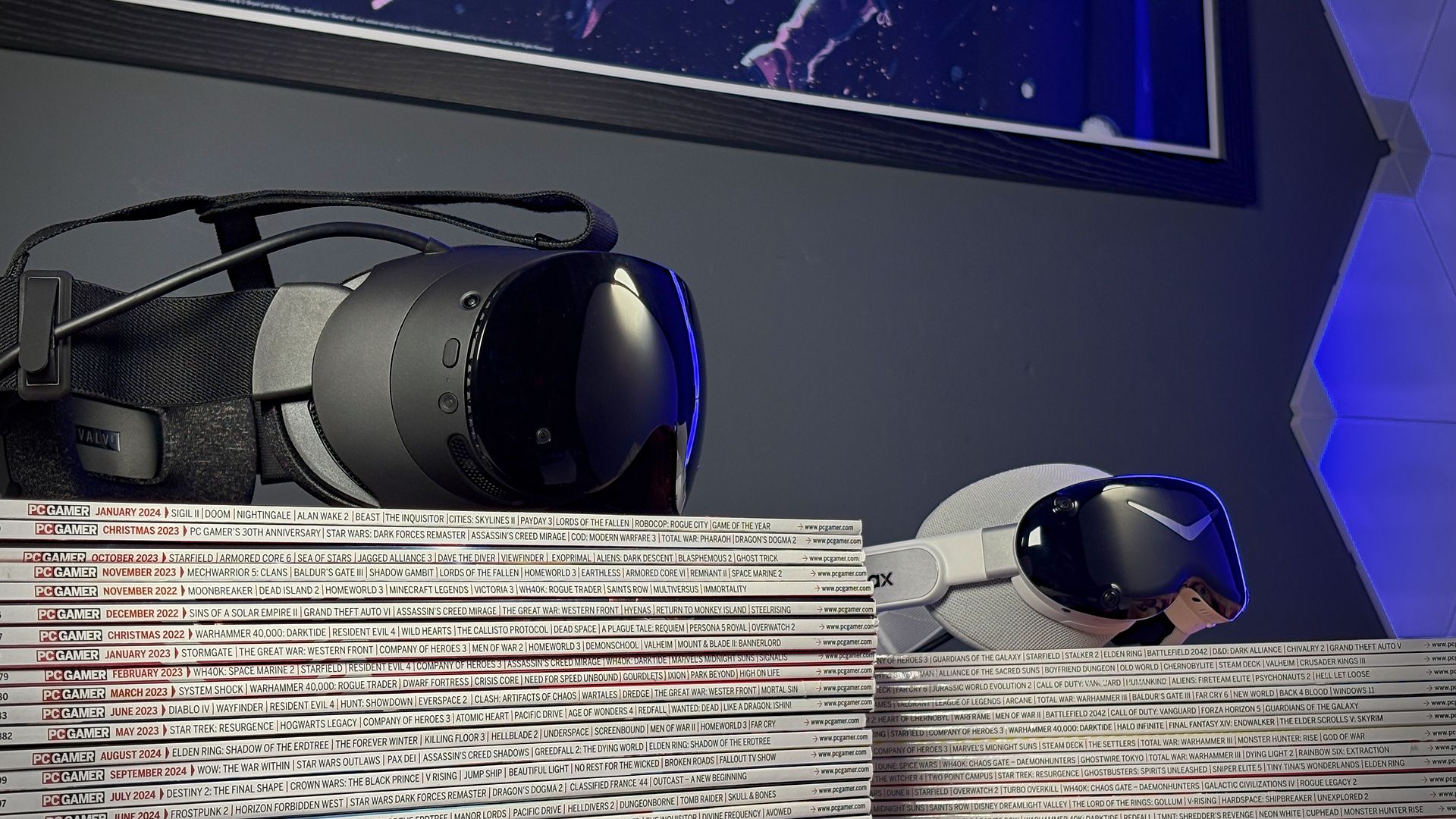
So if you’re disappointed about the price of the Steam Frame, you’re not wrong to be, nor are you alone in that sentiment. It sucks.
What’s tricky for Valve is that Meta seems to have inventory or money enough to have staved off another price hike for the Quest 3. For now, at least. The company raised the price of both the Quest 3 and Quest 3S in April, though remains at lower price than Valve can offer for not totally dissimilar hardware. Meta said at the time of that price hike, “we’re making this change because the cost of building high-performance VR hardware has risen significantly.” And if trillion-dollar Meta is feeling it, you can bet Valve is too.
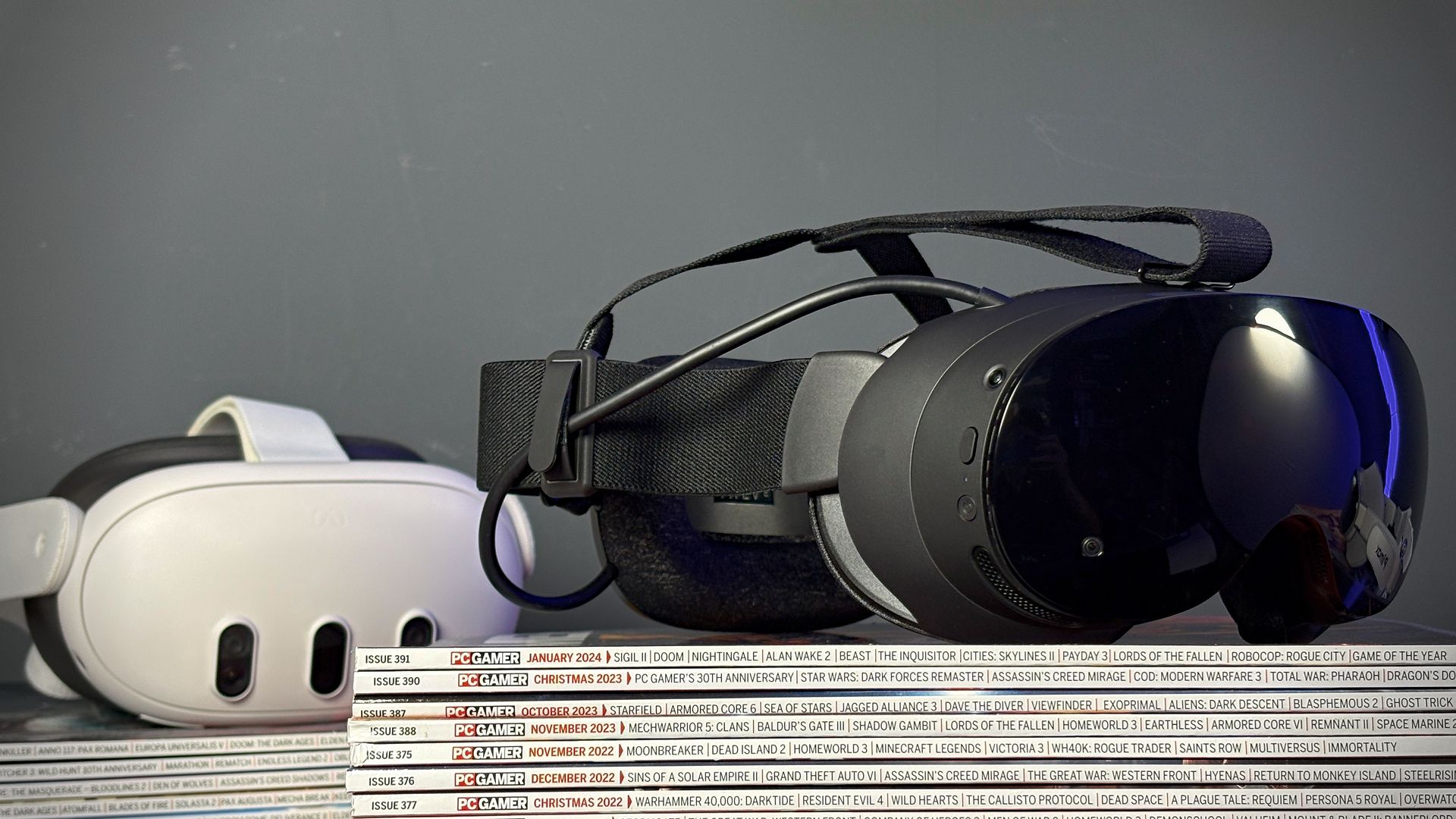
I wouldn’t chastise someone for buying a Quest 3. You do get a lot for your money, even after the price hike. Yet if it were me with some money to burn on a VR headset today, I’d buy the Steam Frame. Convenience is king; and the Steam Frame has it nailed. While I might be in the minority of PC Gamer writers surveyed about this, I’d be willing to pay more for the ease of use and comfort provided by the Frame.
I’d also be willing to pay a bit more for the upgradeability that is being talked about here. It’s only after taking the core module out myself and chatting to Valve about the modularity of the device that I’ve begun to realise why it’s called the Steam Frame.
There’s potential for plenty of upgrades here. From the full-colour RGB passthrough module from Arcturus that I’ve just started playing around with, or the hot-swappable battery strap from Valve, to whatever modders turn their mind to next. Building out my own Steam Frame to suit my needs over time is an exciting prospect.