
Subnautica 2 launched into early access today, and at least one new feature makes it an improvement over the original: multiplayer. Up to four players can play Subnautica 2 in co-op, so you can have some company as you plumb the depths of the alien ocean world.
We got our hands on Subnautica 2 a bit early, so we were able to experiment a bit with multiplayer, and the new system is lacking in certain ways but pretty generous in others. Here’s how Subnautica 2’s multiplayer works.
First, I was able to host a multiplayer game and invite PC Gamer’s US Editor-In-Chief Tyler Wilde into it. That was great for me: I could use the singleplayer saved game I’d already spent about 10 hours in, so my base, my gear, my quest progress, and my personal progress (like DNA enhancements) were all intact.
Tyler, however, who was joining my game, had to use a brand new character with no progress. Subnautica 2 doesn’t seem to work like a game such as Valheim, where you can bring existing characters and all their stuff into someone else’s world. That’s a bit disappointing—it would be great if Tyler could have taken his existing singleplayer character into my world with his gear, inventory, and progress intact.
There was no messing around with permissions: Tyler could freely use my resources and even edit my base. That’s great if you’re playing with someone you trust, but I might be a little wary inviting people you don’t know very well to play with you. They could really do some damage to your base, though I suppose you could just quit the game without saving and undo anything another player did.

How to increase O2 in Subnautica 2: Take a breather
How to build bases in Subnautica 2: Habitat sweet habitat
Subnautica 2 Sonic Resonator: Mine metals
Subnautica 2 Wakemaker: Gotta swim fast
Subnautica 2 Tadpole: Mini submersible
Otherwise, co-op worked pretty well, though there was one other disappointment: it doesn’t look like you can revive a fallen co-op pal. We both died a couple of times, but the second we died we were reprinted back at the lifepod, with no opportunity to revive one another.
The multiplayer system is flexible in other ways, though, like being able to share worlds with people: for example, when we were done, I was able to give Tyler a copy of the world we’d been playing in, so if he wanted to continue using that world (with my base and gear, and the progress he’d made while we played together), he could easily do that.
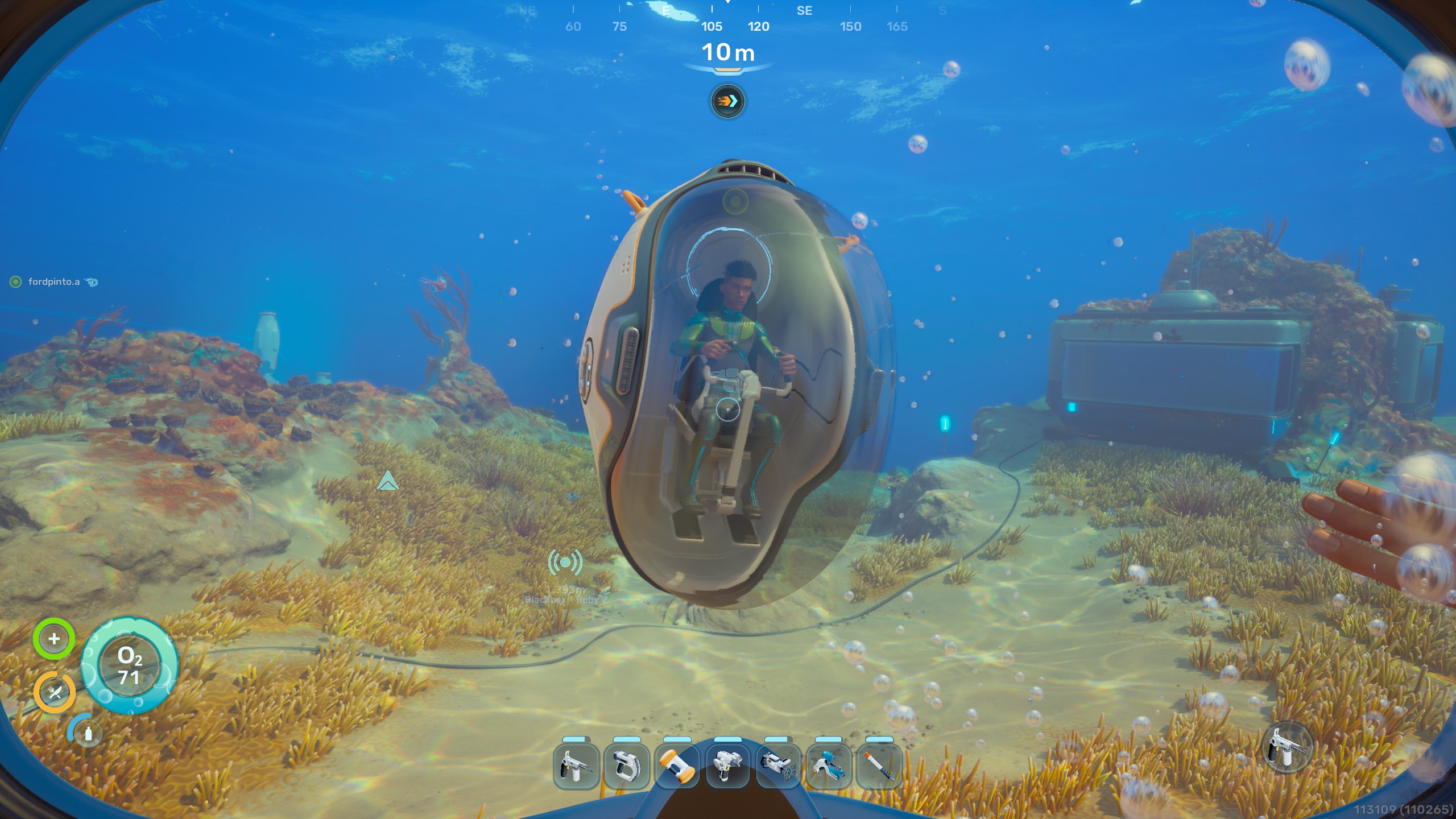
Hopefully the multiplayer feature will get a bit stronger while Subnautica 2 is in early access, but in the meantime, here’s how to play a game in multiplayer with your friends, and how to share worlds with each other.
You can either host a brand new multiplayer game, where you and your co-op partners start from scratch in either survival or creative mode. Or, you can use a saved game you’ve previously started in singleplayer mode.
Hosting a new multiplayer game
To host a new multiplayer game:
- Select “Host Multiplayer”
- Click “Host New Multiplayer Game”
- Choose between Survival or Creative mode
- Click “Host Game”
- Right-click a friend on your friends list and select “Invite to Game”
Using a singleplayer save in multiplayer
To host a multiplayer game using an existing singleplayer saved game:
- Select “Play Single Player”
- Select the saved game you want
- Select “Convert to Multiplayer”
- Click “Confirm”
- Select “Host Multiplayer”
- Select the saved game you just converted
- Click “Continue”
- Right-click a friend on your friends list and select “Invite to Game”
If you want to continue that same saved game in singleplayer at a later time, you’ll need to select it and choose “Convert to Single Player.” Once you’ve done that, it will once again show up in your list of singleplayer saved games.
You can also share a singleplayer saved game or a multiplayer saved game, giving your friends a copy of your saved world.
Sharing saved game worlds
To share a singleplayer saved game:
- Click “Play Single Player”
- Select the singleplayer saved game you want to share
- Select “Upload to Cloud”
- Click “Upload”
- Click “Copy Key” to share the key with friends
You can share a multiplayer saved game as well, though there are a few extra steps:
- Click “Host Multiplayer”
- Select the multiplayer saved game
- Click “Convert to Single Player”
- Click “Confirm”
- Click “Play Single Player”
- Select the singleplayer saved game you just converted
- Select “Upload to Cloud”
- Click “Upload”
- Click “Copy Key” to share the key with friends