
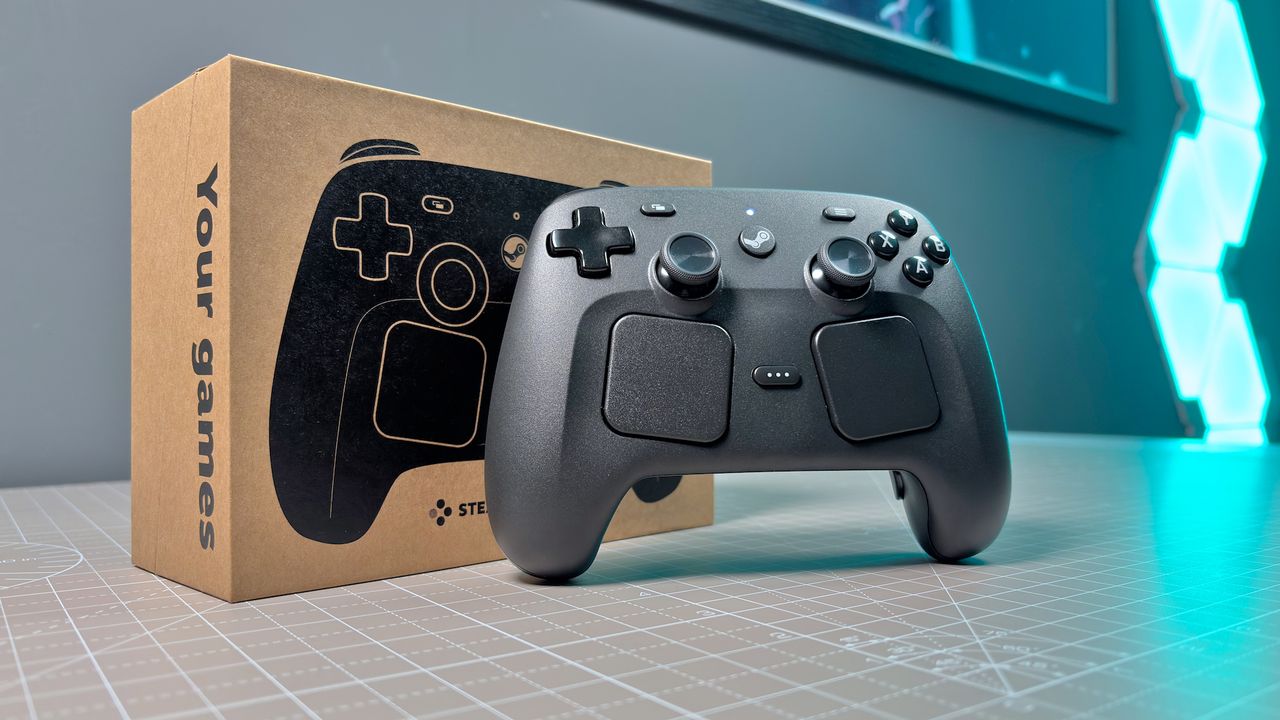
The Steam Controller is the first of three new bits of hardware from Valve this year. It’s designed to let you take control of your PC from the comfort of your couch and without a mouse, which is sure to appeal to a certain type of gamer.
The second-generation Steam Controller includes everything one might expect from a gamepad, including two thumbsticks and the usual array of buttons. But it also offers input parity with the Steam Deck, Valve’s popular handheld gaming PC, and in doing so, delivers a few extra tricks. Beneath its symmetrical sticks are two trackpads, which you can use to glide around the desktop or look around in-game. It also includes a 6-axis gyro, which is shockingly an even better way to mimic a mouse. I’m a gyro control convert.
The Steam Controller does have to be quite convincing to justify its price tag, however. It costs $99/€99/£85/$149 AUD, which puts it a league above budget pads with similar specs and fewer inputs. You’re paying for convenience here. To use your PC with ease while lounging or lazing.
If you prefer to game bolt upright and laser-focused on your kill/death ratio, you’ll want to look elsewhere. This isn’t a competitive pad. It’s a comfy pad for comfy gamers—and if that sounds like you, read on.
Buy if…
✅ You’re building or buying a living room PC: The Steam Controller’s trackpads and gyro controls are useful for navigating menus, websites, or the desktop from a distance.
Don’t buy if…
❌ You main another game launcher: The Steam Controller, true to its name, requires Steam to function and may require more set-up for non-Steam games.
| Product | Ergonomics () | Performance () | Internals () | Aesthetics () | Software () | Battery () | Value () |
|---|---|---|---|---|---|---|---|
| Steam Controller (2026) | 4 | 3 | 4.5 | 4 | 3.5 | 5 | 3 |

Steam Controller – Features
|
Layout |
Symmetrical |
|
Thumbsticks |
TMR (Tunnel magnetoresistance) with capacitive touch |
|
Face buttons |
A, B, X, Y, View, Menu, Steam, QAM (Quick Access Menu) |
|
Rear buttons |
4x on grip (R4, R5, L4, L5) |
|
Trackpads |
2x 34.5 mm square |
|
Rumble |
4x haptic motors (2x trackpads, 2x grips) |
|
Gyro |
6-axis IMU (enabled via capacitive touch in L/R grips with Grip Sense) |
|
Connectivity |
2.4 GHz (via included Puck), Bluetooth (minimum 4.2, 5.0 or higher recommended), USB Type-C to Type-A |
|
Battery |
35+ hours (charged via USB-C or Puck), 8.39 Wh Li-ion |
|
Polling rate |
4 ms (250 Hz) |
|
Input latency |
~8 ms end-to-end |
|
Weight |
292 grams (259 grams as measured) |
|
Shortcuts |
Steam+Y (turn off), R1+A+Steam (hold Steam (pairing in current ) |
|
Price |
$99/€99/£85/$149 AUD |
Steam Controller – Ergonomics
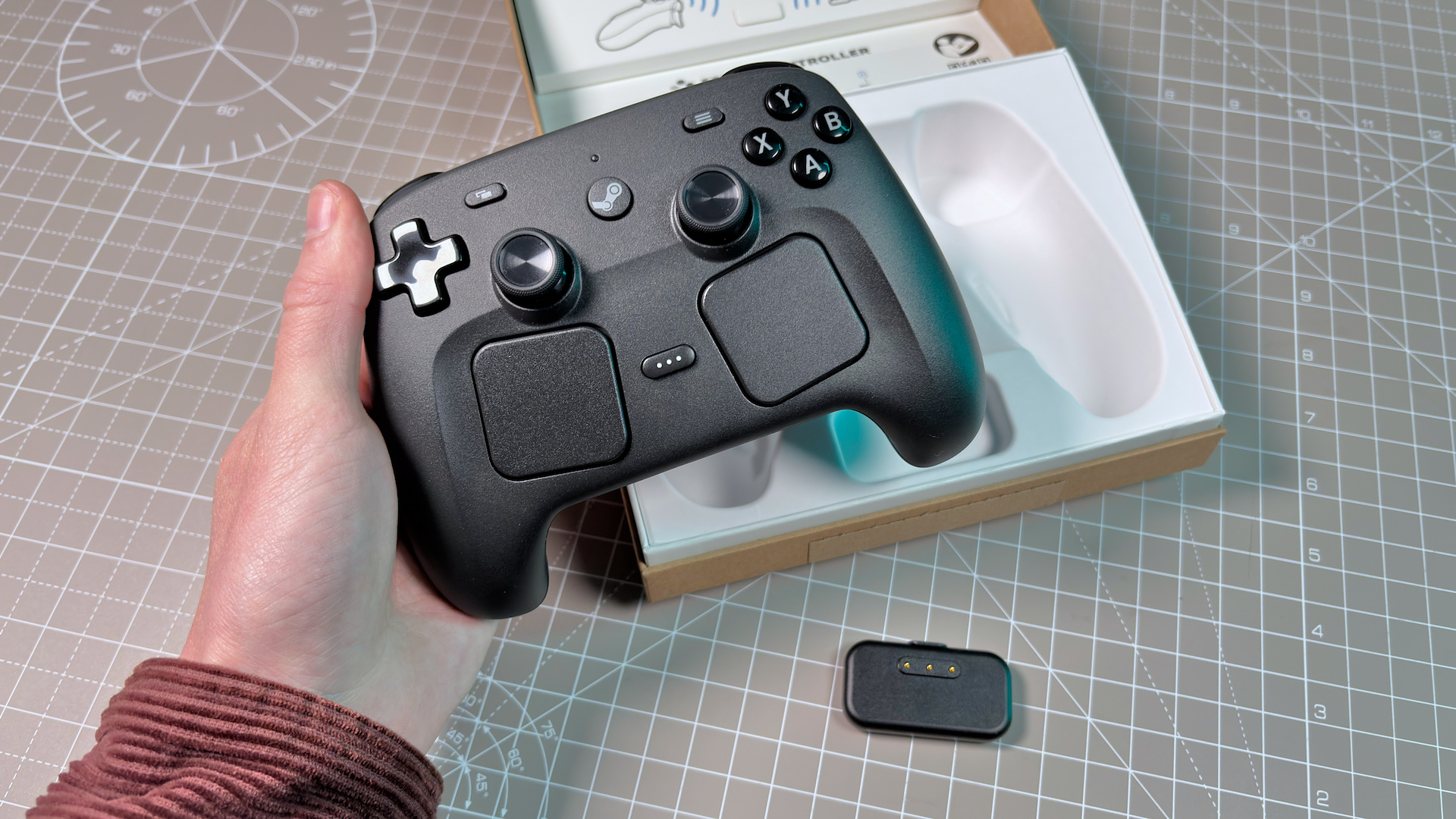
Good news, despite its larger size, the Steam Controller rests comfortably in my hands. In the name of science, I also asked my partner with smaller hands whether she found it to be easy to reach the thumbsticks, which are set close to the middle of the controller, and she had no problems whatsoever. Same goes for the trackpads, which she and I can both reach just fine.
You have to move your palm ever so slightly away from the controller to shift between the thumbsticks and trackpads, and because you might use the left thumbstick and right trackpad at the same time, you might find your right hand is moving around a lot more than your left. Though it’s all fairly accessible with minimal movement. The trackpads are recessed just a touch to make using them feel a little more natural.
One of the Steam Controller’s better features are the rear grip buttons. These are placed very low down on the inside of both grips, landing right beneath my fingers. As someone that tends to ignore rear paddles on controllers, these feel genuinely useful and with a satisfying click. Though, the lower set, R5 and L5, are fairly easy to press by accident.

It’s a lot comfier than it looks, that’s all I’ll say.
Steam Controller – Performance
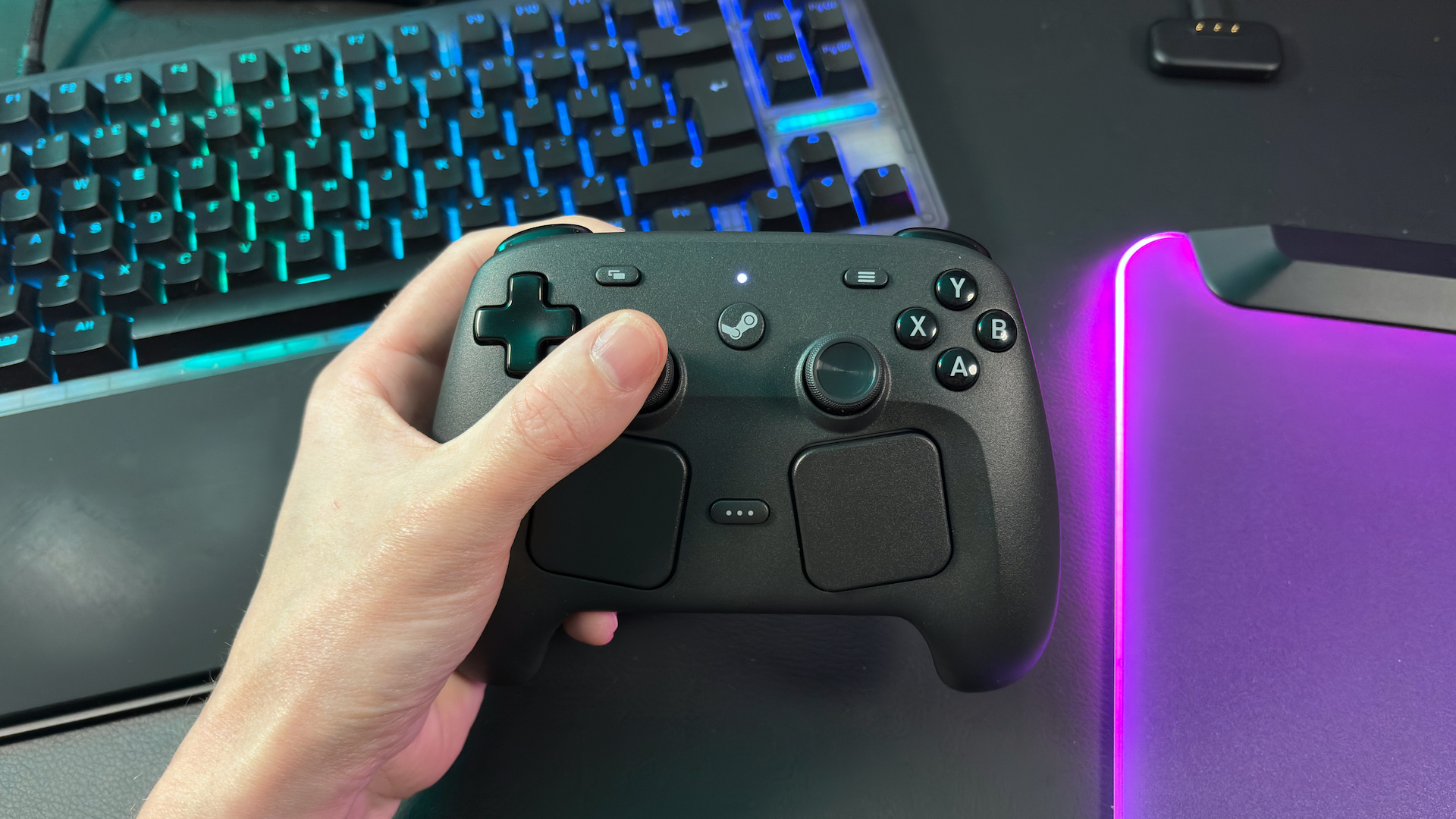
The Steam Controller feels agile enough in most games. Though you can tell it’s destined for the couch and not contests.
The face buttons are all run-of-the-mill membrane. They feel consistent, if nothing else. The same can be said of the D-pad, which is stiff but feels stable for it, and the triggers, which use Hall effect sensors, but are nothing special. Though helped along by decent haptics in the grips and trackpads, if you’re after tactile feedback for competitive play, I’d look elsewhere. The Steam Controller isn’t going to deliver much of that. That’s also reflected in its 250 Hz polling rate—many pads today will bump that up to 1,000 Hz.
Instead, the Steam Controller has more to offer the horizontal, or at least lazily reclined, gamer.
The Steam Deck has already proven how effective trackpads can be for imitating the movement of a mouse. I reckon they’re around 70% of the way there, something like that. I won’t pretend like that final 30% doesn’t matter a whole lot, but in some strategy or RPG games, or when browsing your desktop or the interwebs, 70% is all you need. The Steam Controller works well for those.
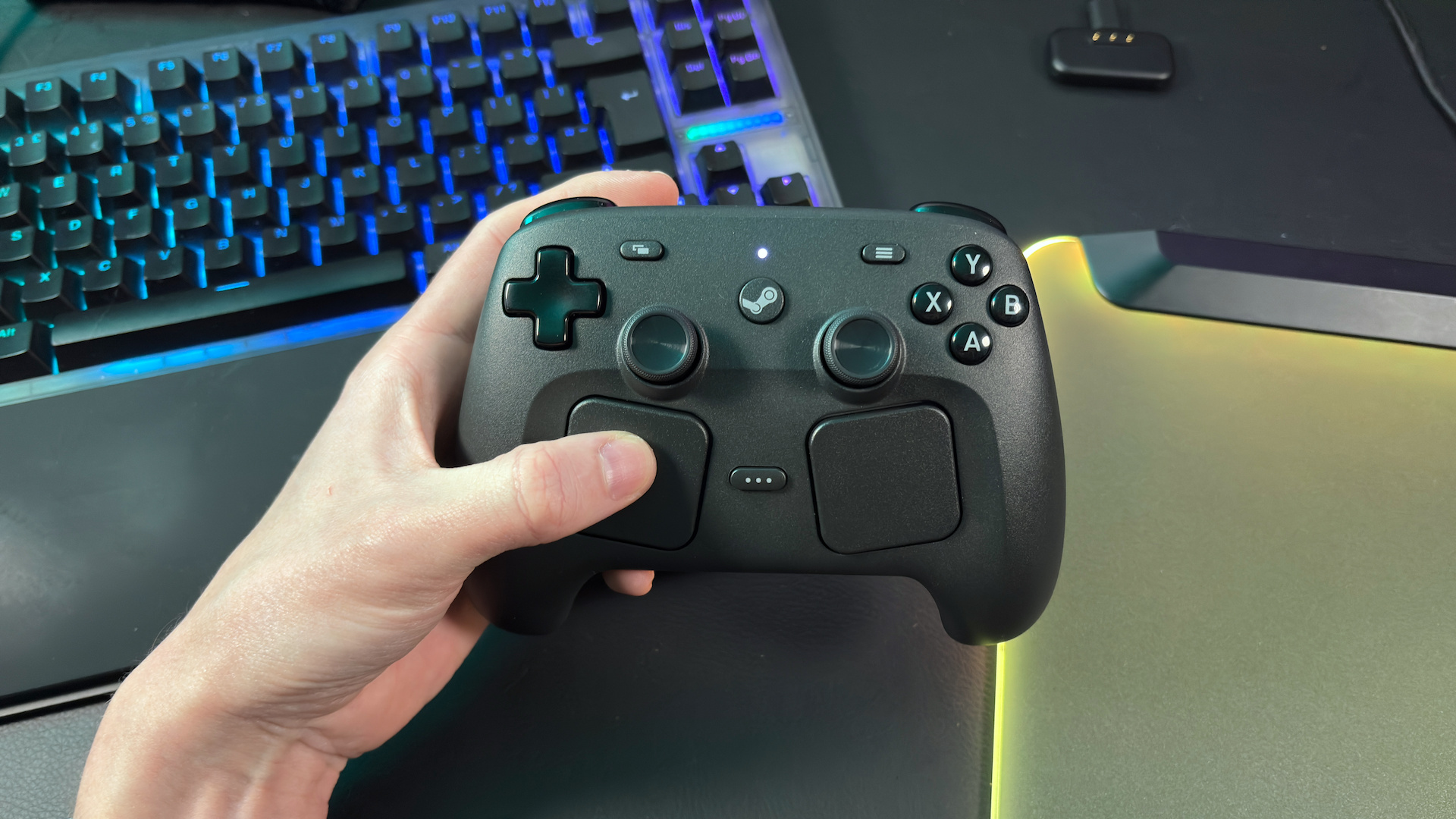
I can also see why that one engineer at Valve loves gyro controls. I’m starting to finally get it with the Steam Controller. I find I have a higher accuracy across the desktop with gyro controls compared to the trackpads and it’s a big improvement over attempting to use a keyboard and mouse while lying down. Don’t even get me started on those weird couch tables (though Hope did enjoy her time with one).
Moreover, the trackpads work great in tandem with the gyro controls. The gyro is by default only enabled when you are touch the trackpad or thumbstick, meaning you’re naturally placed to blend a few input methods. You can whip across the screen with the gyro then switch seamlessly to the trackpad for more controlled movements. Then back over to the other trackpad to scroll through the Steam Sale.
While my experience in some games saw me reaching for the thumbsticks again, anything accepting of standard mouse movement feels the benefit of dual-wielding these two unusual inputs. For the intended audience here, they make a lot of sense and they feel very snappy.
Nevertheless, you’ll be relying on the thumbsticks for a good deal of your gaming with the Steam Controller. These are a highlight of the Steam Controller for me. Firstly, it’s because it has thumbsticks. Two of them. Unlike the last one. Secondly, because they’re a good height, responsive, and easy to configure in Steam. Thirdly, I don’t have to replace them with Hall effect like I did the Steam Deck, as they’re already TMR.

Performance isn’t the name of the game here. Convenience is more what Valve’s going for.View Deal
Steam Controller – Internals
You can dismantle the Steam Controller with relative ease and using only a handful of tools: a pair of driver bits (Torx 6 and Torx 5), a spudger, and a pair of tweezers. I’ve carried out a full Steam Controller teardown as you can see above, and it only takes just 15 minutes to get from built to bits.
Valve tells me that it is planning to offer official spare parts via iFixit, as it currently does for the Steam Deck. This won’t be available at launch but sometime after. That means any future repairs should be very straightforward, though I suspect it will also entice modders to take things further.
If anyone designs a translucent Steam Controller shell, you have a customer right here.
Though we did experience minor issues with the two samples we received for review. One had a faint squeak when the trigger was reset, which I fixed by prodding the spring, and the other a slightly misaligned shell that gave it a bit of a rough-feeling edge.

Valve has designed the inside of the Steam Controller like it was just waiting for someone to rip it open.View Deal
Steam Controller – Aesthetics
With input parity to the Steam Deck, it makes sense that the Steam Controller also has looks to match. But beyond the obvious similarities, there are some slight differences.
The Steam Controller has a more textured finish compared to the Steam Deck. It’s also a lighter shade of grey, which is noticeable in direct sunlight. The face buttons and D-pad are also larger on the controller, and the slightly recessed trackpads are also tilted for a more natural hand position. The Steam and QAM buttons are also raised, and the shoulder buttons have a little more travel to them.
It looks more sculpted than some early Reddit mockups of what Valve might do, but not a million miles off what was expected either. Importantly, it looks and feels a lot better than the first-generation Steam Controller. The modern version still has that quality of affordability about it—you’ll find much more polished controllers on the market—but it feels solid. The Puck also helps keep your desk or TV unit tidy while keeping the receiver close to the Controller.
A big step-up in quality over what came before and a match for Valve’s upcoming hardware.View Deal
Steam Controller – Software
The Steam Controller, unsurprisingly, relies on Steam for all its software needs.
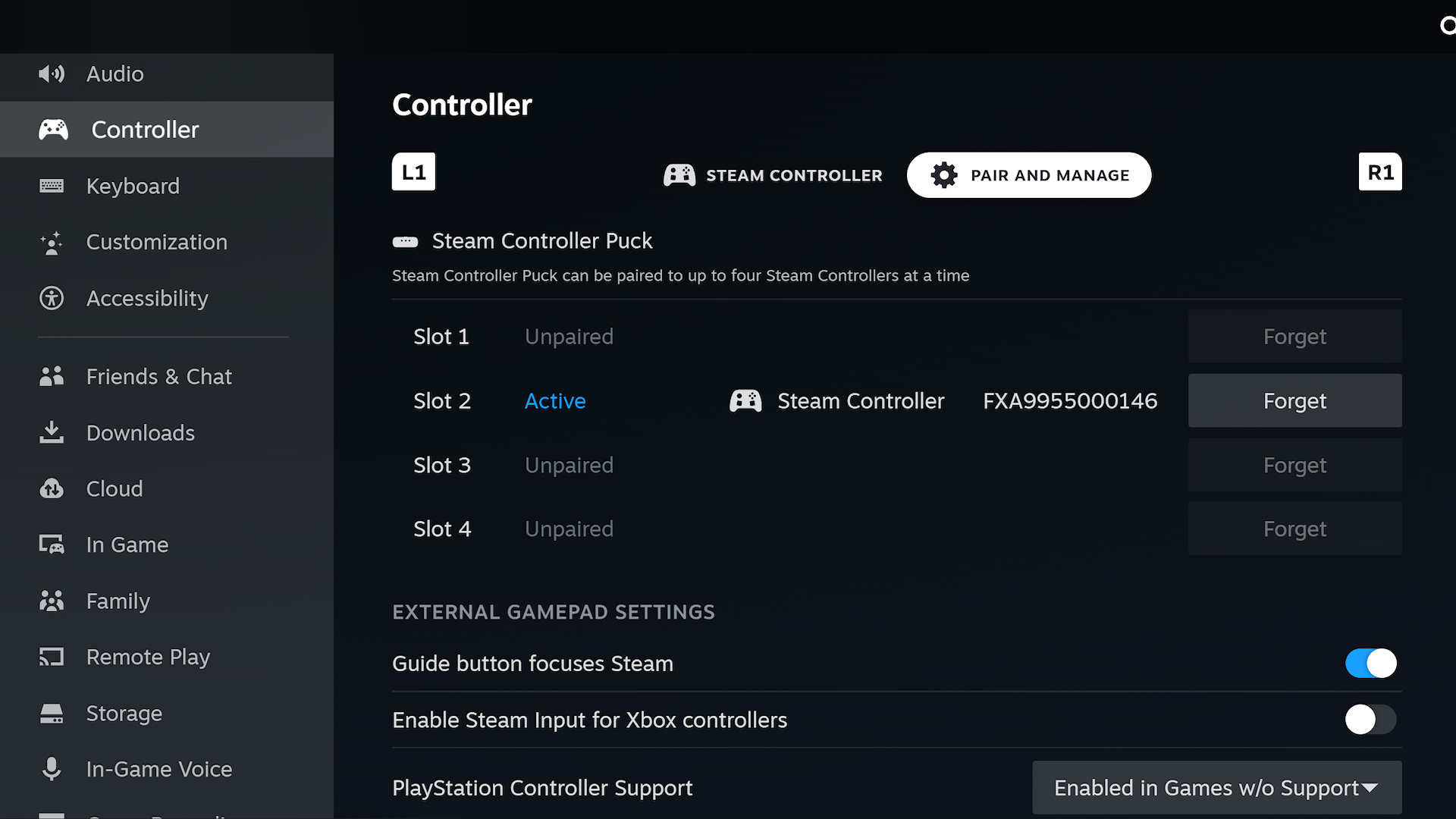
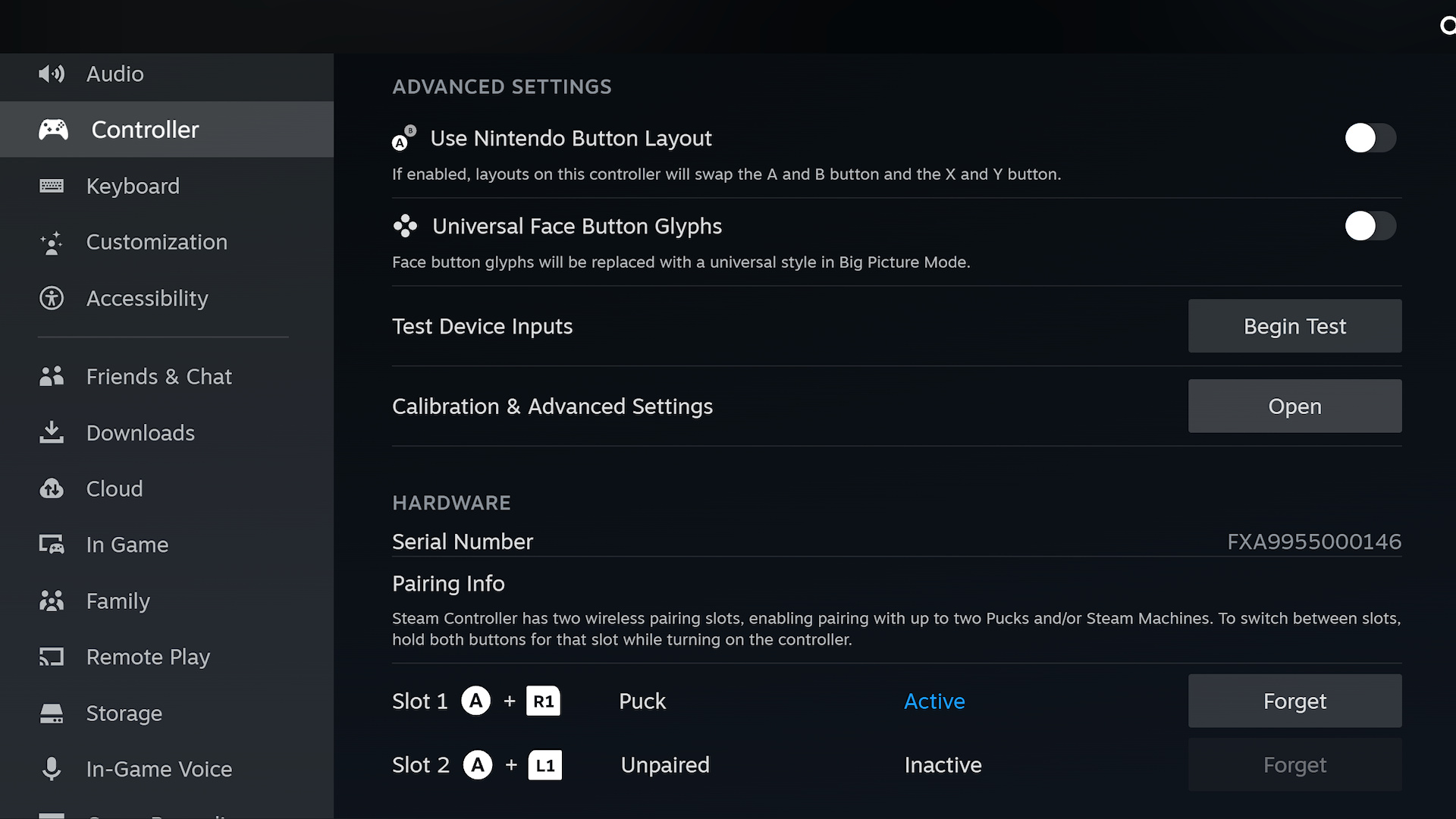
You’ll find all the settings in the Controller tab of the Settings menu. There’s a Pair and Manage tab, which shows the pairing status of the included Puck. It can be connected to up to four Steam Controllers at once, though there’s one included in every box. You’ll also see two further wireless pairing slots at the bottom. These are for the controller itself, as you could connect a single controller to multiple PCs or a PC and a Steam Machine.
There’s also another Bluetooth pairing slot that’s not displayed, though this is the best way to connect the controller to a Steam Deck without a cable.
Here how you access Bluetooth and a few other useful shortcuts:
- Power on into Bluetooth pairing slot: B + R1/L1 + Steam button
- Power on into wireless pairing slot 1: Hold A + R1 + Steam button
- Power on into wireless pairing slot 2: Hold A + L1 + Steam button
- Power off: Steam button + Y
- Open Steam: Steam button
- Big Picture Mode (while in Steam): Steam button
- Show keyboard: X (in desktop layout)
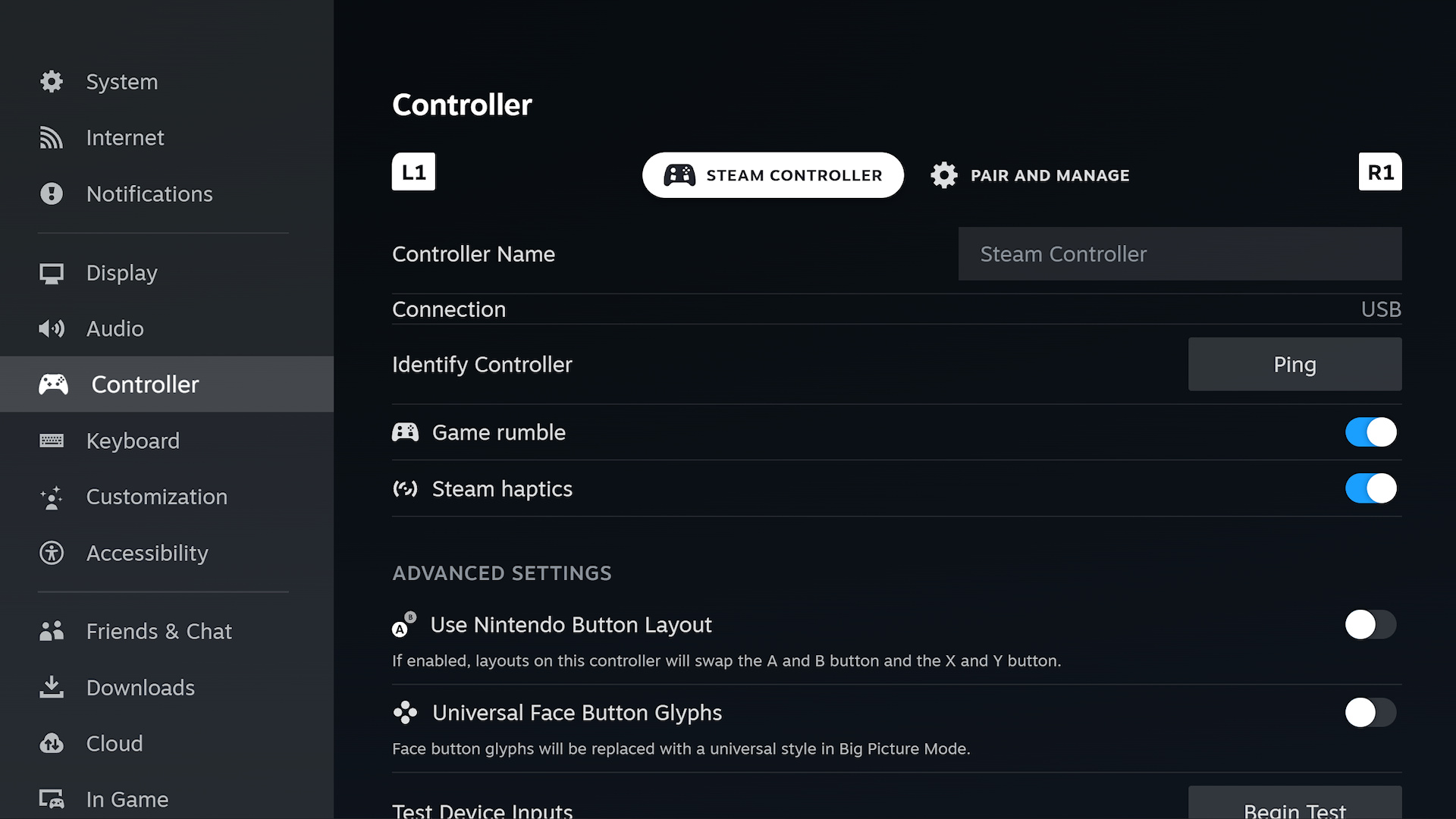
While a controller is connected, a new ‘Steam Controller’ tab populates with extra settings to mess with. In this tab, you can rename the controller, identify it (which causes it to rumble and ring out like an old Nokia), adjust button layouts, or test the controller inputs.
To take advantage of the trackpads for desktop browsing or gyro controls, you need to set these up in the Pair and Manage tab. Click to edit the desktop layout and you’re able to select different behaviours for the gyro and right trackpad, as well as adjust button mapping and sensitivity. There’s actually a whole lot of customisation possible through this screen. If that’s not enough, by clicking on the cogwheels to the right of either gyro or trackpad options, there are further fine-tuning options.
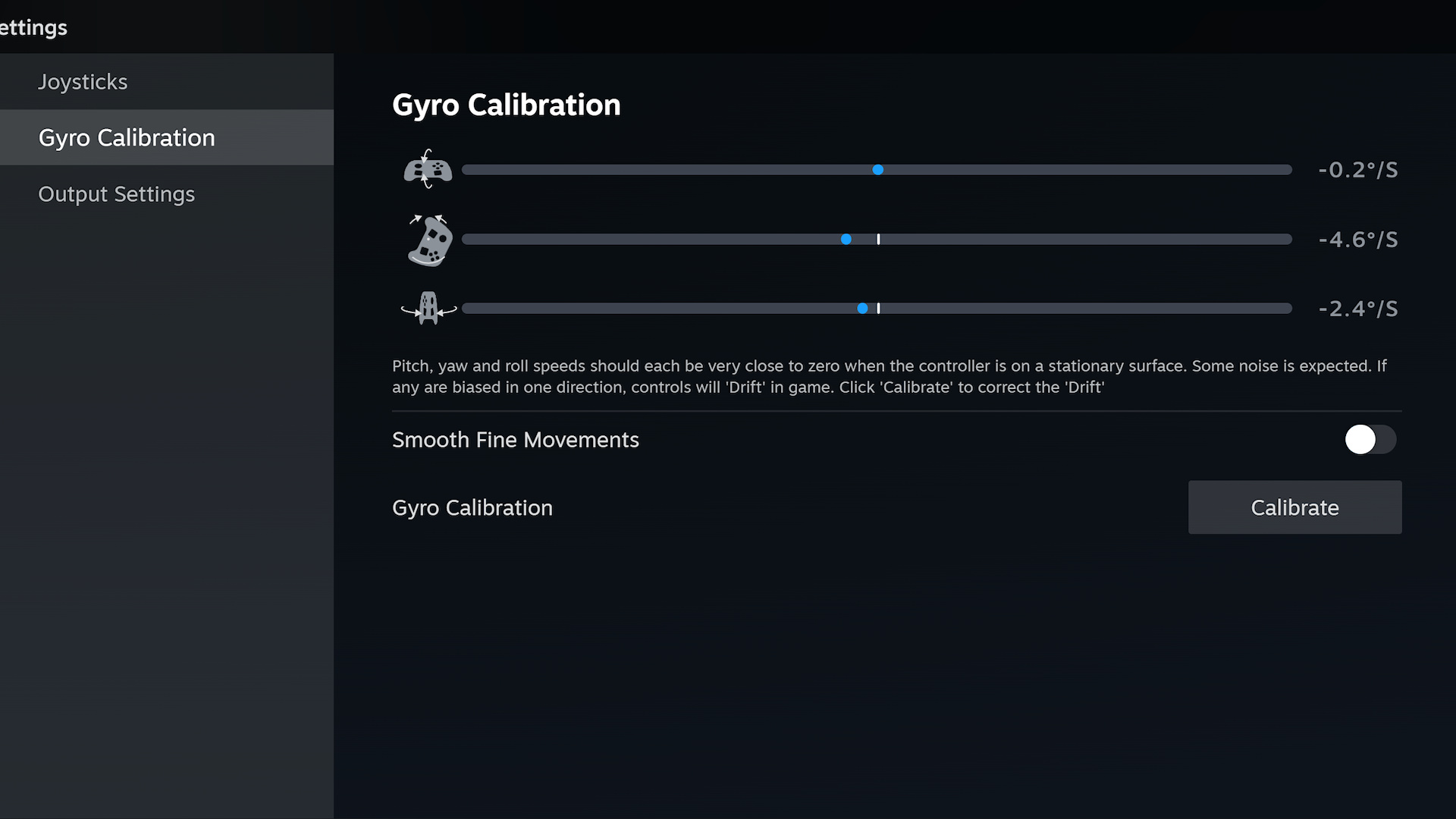
For example, you can adjust the gyro controls to only function when you’re holding a specific button. By default, this is set to utilise the capacitive touch sensing in the right thumbstick and right trackpad. Gyro will also only be enabled when you’re holding the controller via Grip Sense. Though, if you’re a leftie, you might want to switch this over to left thumbstick and left trackpad, or set it to only when you press certain inputs. It’s up to you.
There’s nothing that requires changing out of the box. Some settings for the gyro, at least, will be handy when setting it up for use in a certain game. Though you can access custom layouts for that, both your own configurations or those of the community. Since this has input parity with the Steam Deck, you can use any made for the Deck, too. I’ve tried a few, and they often work well, if only with a couple tweaks.
The Controller requires Steam or the Steam Link app. I tested it on GeForce Now via my iPhone and while it did connect over Bluetooth, it was not recognised in-game. It did, however, work seamlessly over a local connection using Steam Link.
We also had some teething issues with Ubuntu and Pop! OS, which may be on our end as much as Valve’s, but there could be futher tweaks required to get up-and-running off SteamOS and Windows.
One thing you might run into with the Steam Controller is attempting to use it while playing a non-Steam game. There are few options here. You can add a game to Steam and simply run it within the client, which should let you set game-specific controller configurations. Or you can use a desktop profile that just broadly applies to your entire system.
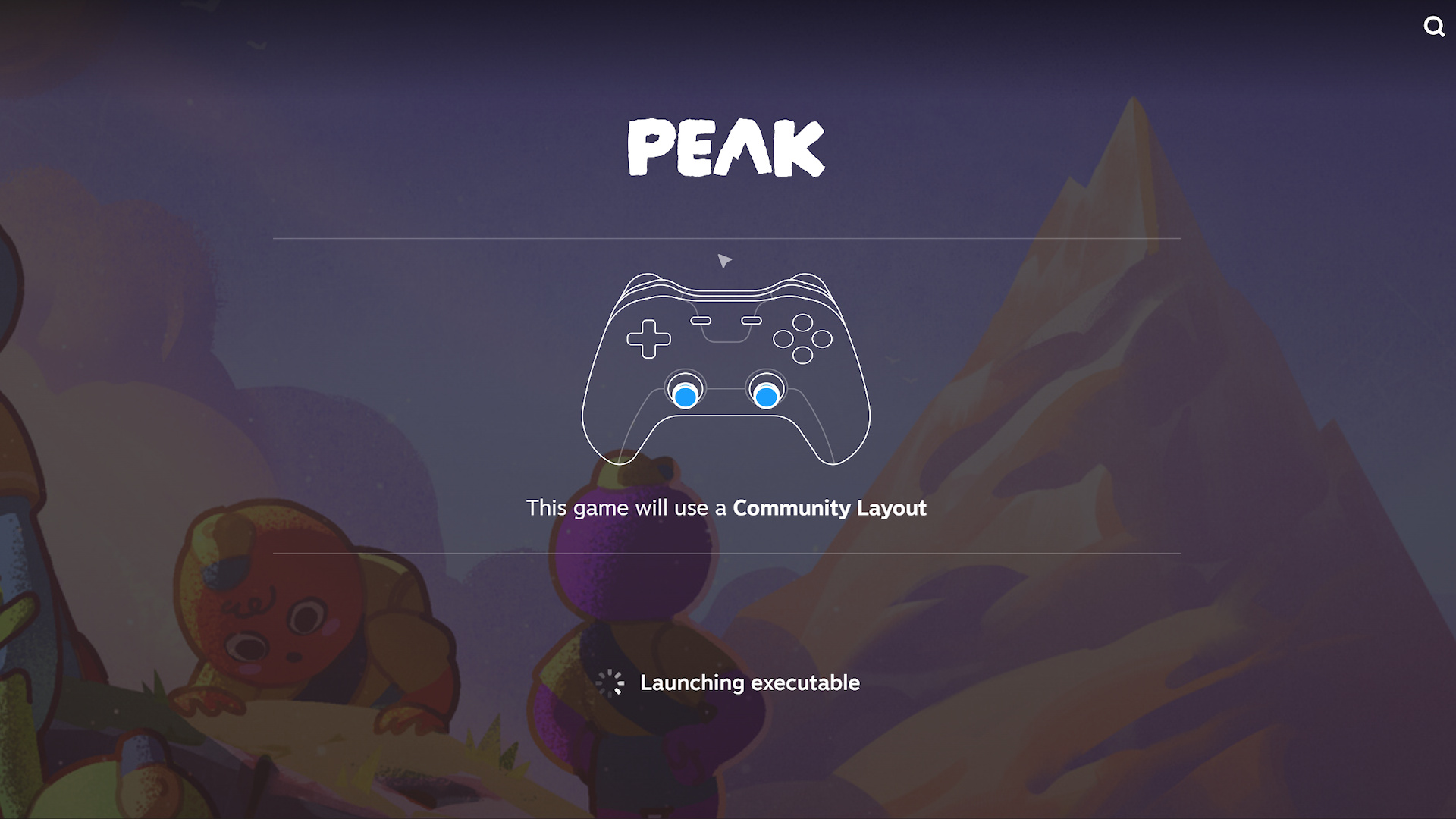
I found the former approach didn’t work with Kingdom Come Deliverance II, which I have on Epic and must be booted via the Epic Games Launcher. That’s a fairly common issue with some launchers. I tried a few different methods to get around this, such as creating a shortcut in the Epic launcher and adding that to Steam with a launch parameter, but Controller support was funky at best. Instead, I found it easier to just make a new desktop layout tailored to Kingdom Come Deliverance II and selecting that via Steam’s settings page. You could do the same for any game. Though some games don’t support reconfiguring the back buttons— KCD2 is one of them—gyro controls worked without issue in every game I tried.

There are lots of ways to configure the Steam Controller but, as the name suggests, it works best through Steam.View Deal
Steam Controller – Battery
I’m yet to reach the end of a full charge with the Steam Controller. Valve has the battery life at 35 hours or more, and over the past few days, I’ve been using it as much as I can across any game I’m playing. I’m even putting my exfils in jeopardy in Marathon by ditching a mouse and keyboard (sorry, console players, but a controller is simply not cutting it). So far, so good. Though it’s tough to say how much battery I have burned through exactly, as you can only roughly estimate from the Quick Access Menu icon.
Though in my tests, I ran it for eight hours and checked back on that Quick Access menu battery indicator, and lo and behold, it’s still fully green. So a good indication of battery life to come.
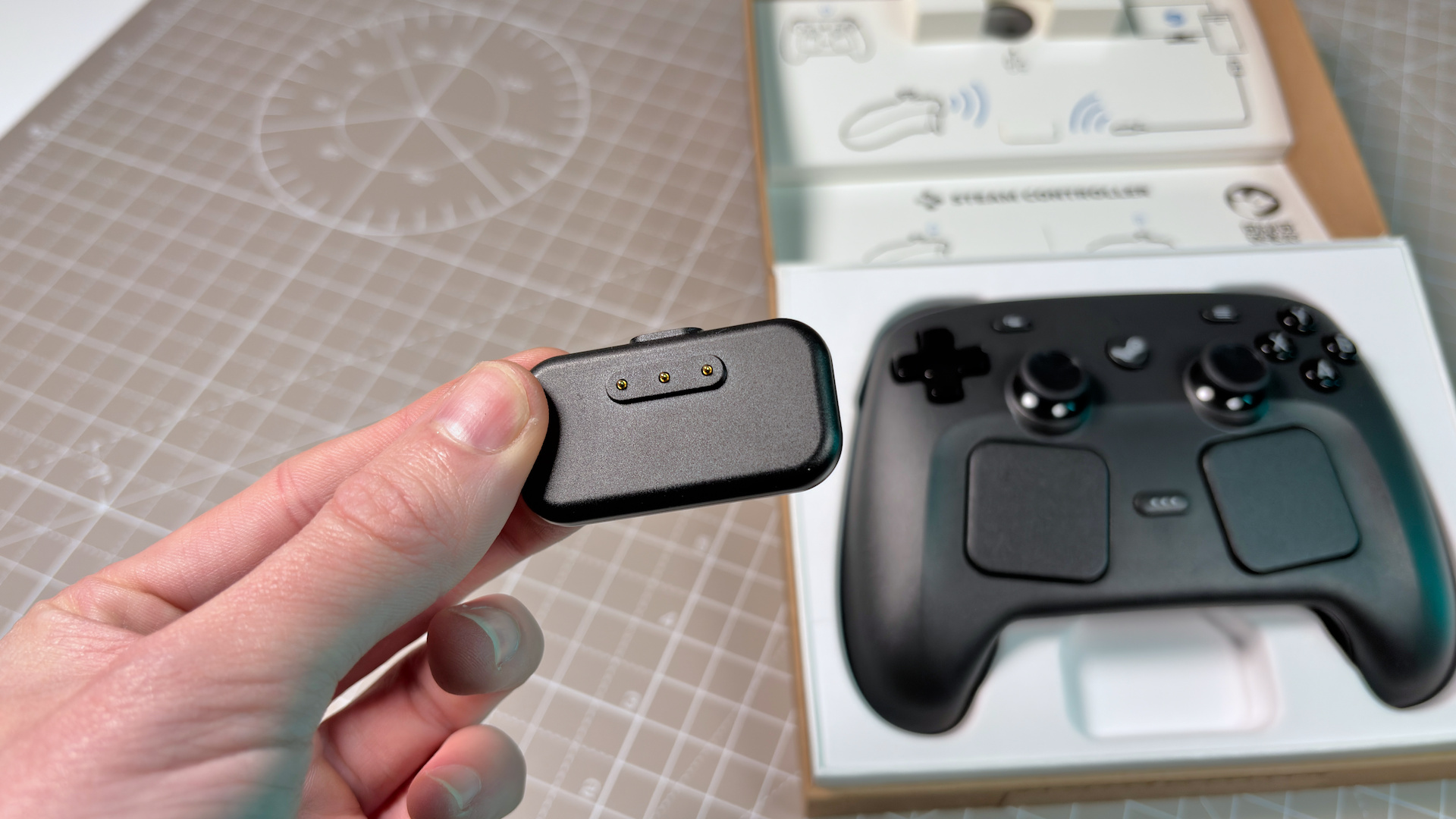
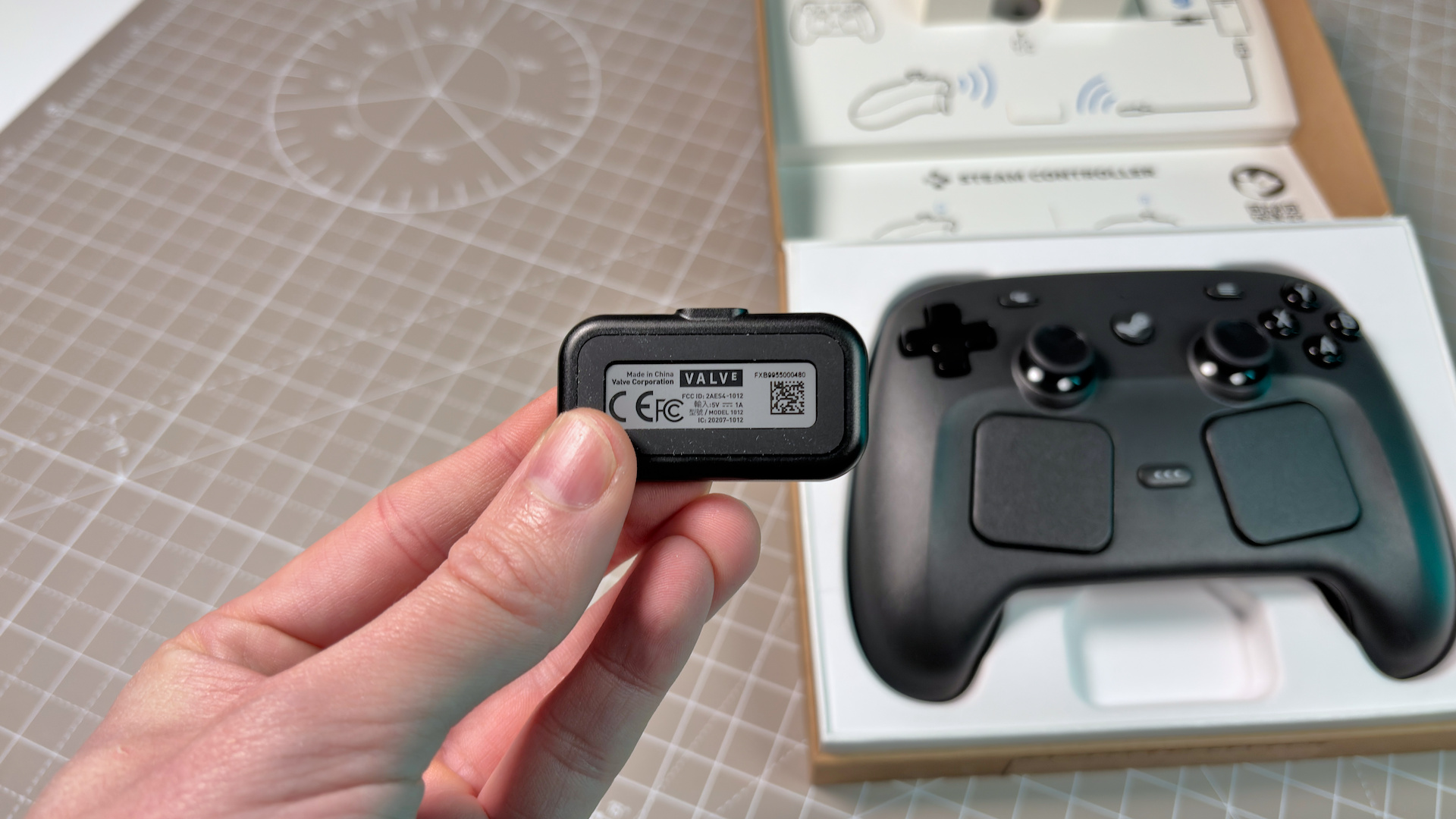
Many users may not see the end of a full charge, well, ever. The Puck doubles up as a charging accessory and magnetically attaches to the rear of the controller when you place it down over it. If you set that up somewhere convenient besides your monitor or on a TV stand and make sure to return the controller to it once you’re done playing, it’ll always be ready to go.

A 35-hour battery life is solid but thanks to the charging Puck you don’t have to think about it.View Deal
Steam Controller – Value
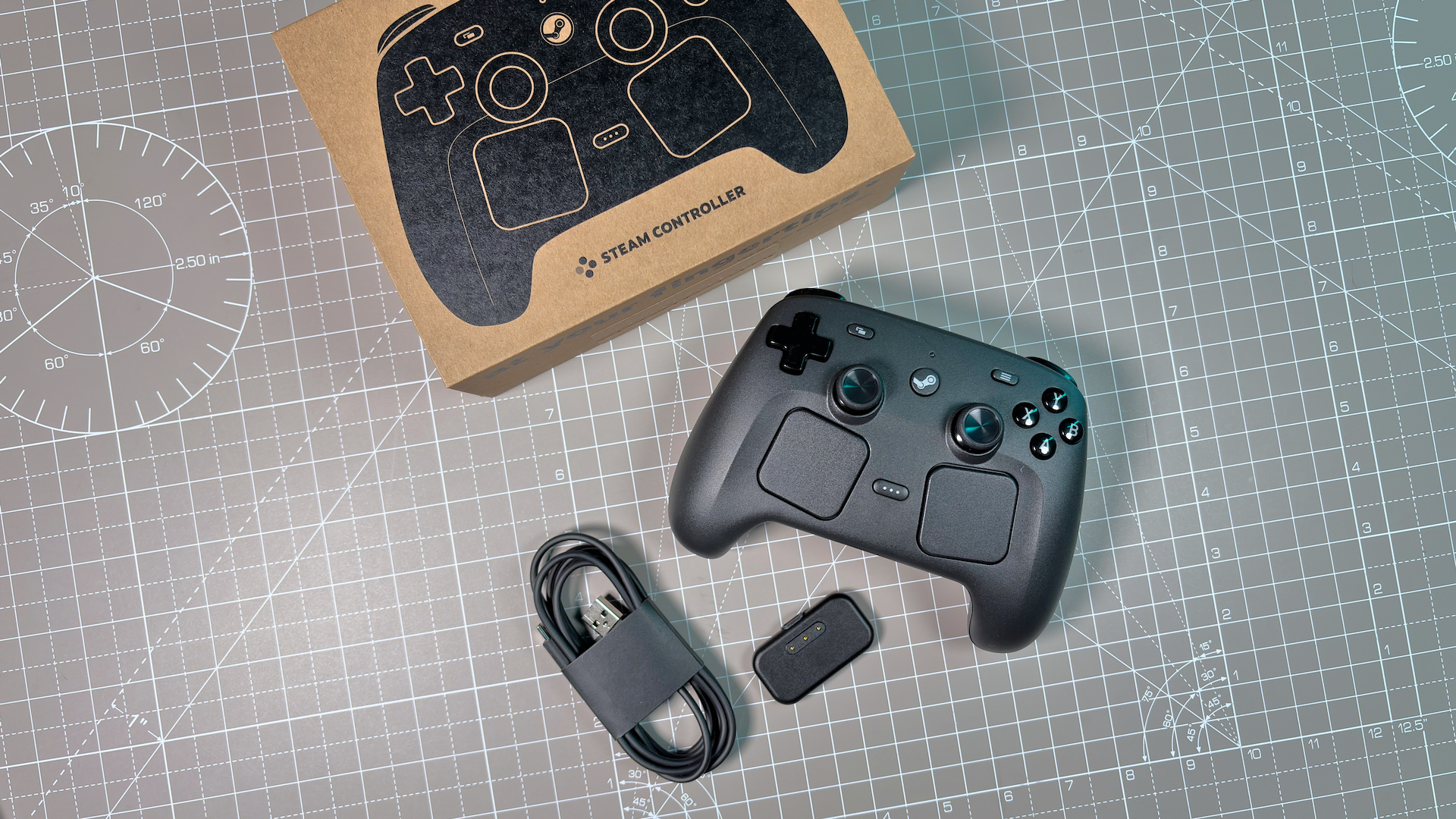
The Steam Controller costs $99 (€99/£85/$149 AUD).
I didn’t know what the price was going to be during my initial testing, and when I was sent it after a few days, I was slightly taken aback. Perhaps it’s because the first-generation Steam Controller was sold at a miserly $5 at the end of its life, and the Steam Deck makes most other handhelds look overpriced, but it felt higher than I expected. Yet I’ve been poking around the controller market and I’ve come to a different conclusion.
On one end of the market, pads such as the Scuf Envision Pro ($160), Razer Wolverine V3 Pro ($150), Razer Wolverine V3 Pro 8K ($200), Razer Raiju V3 Pro ($220), Scuf Valor Pro ($190), and Victrix Pro BFG Reloaded ($210). The Steam Controller is not a competitive pad that could go toe-to-toe with many of these for competitive play and understandably carries a much lower price tag for that consideration.
On the cheaper end, pads like the GameSir Nova Lite ($25), EasySMX D05 ($45), EasySMX D10 ($60), and GameSir G7 Pro Tri-mode ($80). In some ways, these offer similar if not slightly improved features to the Steam Controller: the GameSir Nova Lite 2 has Hall effect thumbsticks, a 1000 Hz polling rate, trigger stops, and a mechanical D-pad for $27. These budget pads don’t always feel super polished in terms of inputs and feel, but then neither does the Steam Controller.
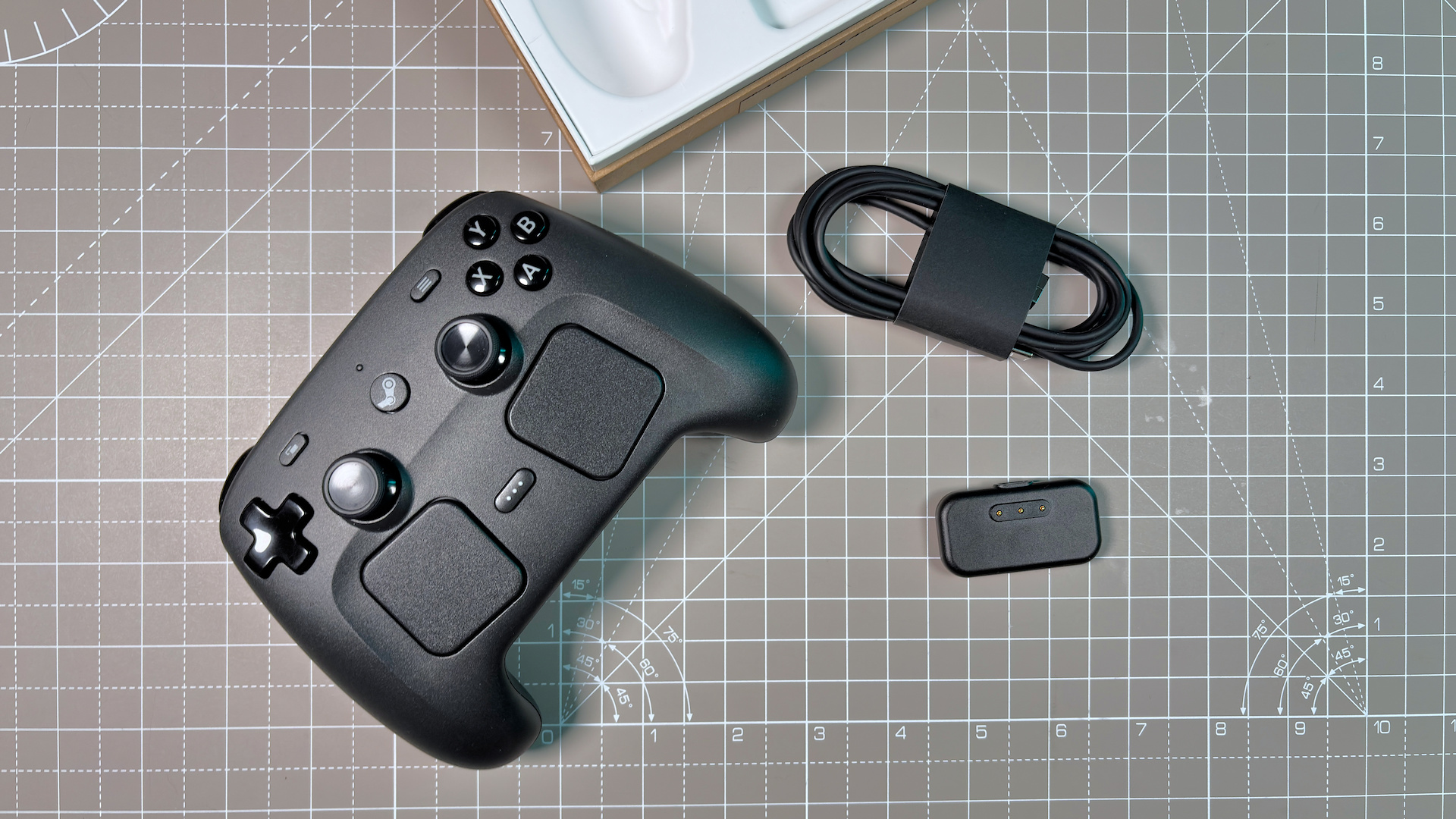
So, the Steam Controller can’t compete with competitive controllers, nor on value for money with simpler pads. It can, however, compete on its all-round utility. You have to ask yourself how much value you assign to not having to get up off the couch to navigate the desktop or play a strategy game.
Personally, I could go without the extra inputs most of the time. Valve already provides a useful and free alternative to mouse and keyboard in Big Picture Mode, which offers easy access to most of what Steam has to offer and can be navigated easily with a standard controller. I mostly play horror, rhythm, and racing games on my living room PC, and as such, I don’t find myself having to grab a keyboard or mouse all that often.
PC gaming usually requires some amount of messing around in the settings or copying files, and in those cases, the Steam Controller comes into its own.
While there are other controllers with gyro controls, through its trackpads and software integration, the Steam Controller offers a complete package that few others do. Though just because it can do a lot of stuff, doesn’t mean you need it to—a more affordable pad with less going will be good enough for many PC gamers.
Valve has a unique offering in the Steam Controller and its price tag reflects that. But you could spend a lot less on a gamepad.View Deal